

Using an Expert in ThreoAI
Find and use an Expert in ThreoAI: open one from the Experts catalog, use prompt starters, attach files, pick your model first, and get better answers.
Overview
Section titled “Overview”An Expert is an AI assistant someone has set up for a specific job - reviewing contracts, screening resumes, answering policy questions, and so on. It chats like a normal ThreoAI conversation, but it follows the instructions and knowledge its creator gave it.
You can use Experts you built yourself and Experts shared with you by your organization. Both kinds work the same way in conversation; the difference is that Edit and Delete appear only on the ones you own.
Finding an Expert
Section titled “Finding an Expert”Select Experts in the left sidebar, or select Explore at the bottom of the sidebar and choose Browse Experts - both open the same catalog. It lists every Expert available to you - the ones you own and the ones shared with you - with a search box at the top that matches on name, description, and owner.
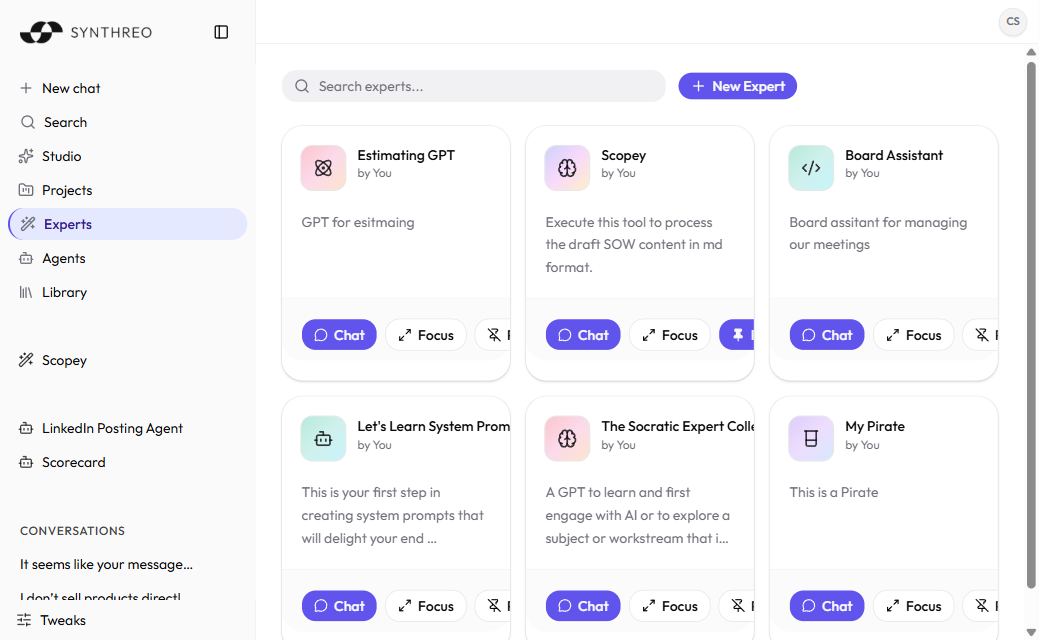
Each card can start a chat, pin the Expert, and, on an Expert you own, open the editor. There is also a New Expert button so you can build one without leaving the catalog.
Experts you pin get their own group in the left sidebar for one-click access. Studio’s Experts tab lists the same set as a table, with a Use in chat action on every row.
Starting a conversation
Section titled “Starting a conversation”When you open an Expert, the chat loads with its name and icon at the top, so you always know which Expert you are talking to.
If the creator added prompt starters, they appear as suggested first messages. Select one to send it immediately, or type your own message in the input bar. The Expert answers according to its instructions and any training documents it has.
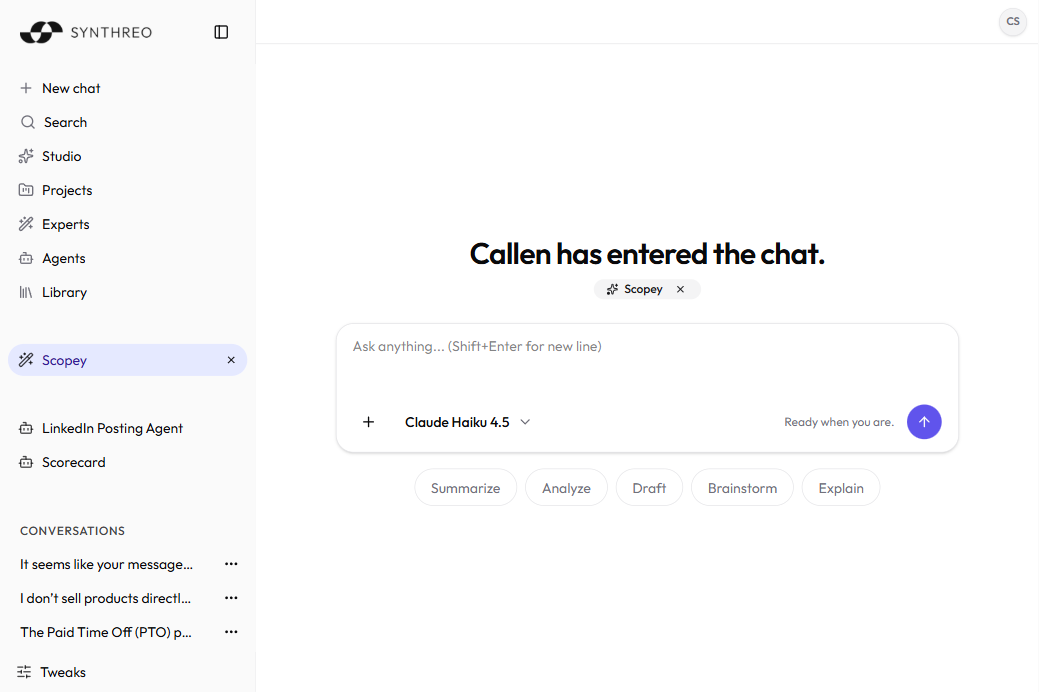
You can keep the conversation going with follow-up questions. The Expert remembers the context of the current conversation, so you can build on earlier answers.
Getting better answers
Section titled “Getting better answers”Experts are tuned for a specific job, so they do their best work when you stay close to that job.
- Use the prompt starters. They show what the Expert is built to do and are the fastest way to see it in action.
- Stay on topic. An Expert built for HR policy answers HR questions well; ask it something far outside its scope and the quality drops.
- Be specific. “Summarize the key risks in this contract” beats “help with this.” Point the Expert at exactly what you need.
- Attach the right files. You can attach a document to the conversation even if it is not part of the Expert’s permanent knowledge base - useful for one-off analysis.
Choosing the model
Section titled “Choosing the model”The model selector sits in the message composer and is available in an Expert conversation the same way it is in a plain chat. Switching it changes only the underlying AI; the Expert’s instructions and knowledge stay exactly the same.
Note: Pick your model before you send the first message. Once a conversation has messages in it the selector locks, and hovering it explains why: “Model is locked once a conversation starts.” To try the same Expert on a different model, start a new chat.
Your choice affects only your own conversation. It does not change the Expert’s configuration, and it does not affect anyone else using it.
Chat features work inside an Expert
Section titled “Chat features work inside an Expert”Everything you can do in a normal chat works in an Expert conversation too:
| Feature | How to use it |
|---|---|
| Attach files | Use the attachment control in the input bar |
| Web search and other tools | Available based on the model you choose - see Tools and Capabilities |
| Compare models | Open the same prompt side by side - see AI Model Comparison |
| Multi-line messages | Press Shift+Enter for a line break without sending |
| Pick a model | Use the model selector, before the first message |
Note: An Expert’s instructions can limit what it does. If the instructions say “only use the uploaded documents,” the Expert may ignore web results even when the model supports web search. That is the creator’s intent, not a bug.
Frequently Asked Questions
Section titled “Frequently Asked Questions”Can I edit an Expert that was shared with me? The Edit and Delete actions appear only on Experts you own, both in Studio and on the catalog cards, so plan on the owner making configuration changes. If a shared Expert needs a change, ask its owner - or ask them to send you your own copy, which you then own outright. See Sharing an Expert.
Why does an Expert answer differently from a normal chat? An Expert has instructions (a system prompt) that shape every answer. A plain chat does not, so the same model can respond differently depending on whether it is running as an Expert.
Can I change the model partway through? No. The selector locks as soon as the conversation has messages in it. Choose the model first, or start a new chat.
Does the Expert remember me between conversations? An Expert keeps a per-person memory that fills in over time, separate from your conversation history. If you own the Expert, review and reset it from the Memory tab of the Expert editor. See Creating an Expert.
What happens if the owner deletes a shared Expert? You can no longer start new conversations with it, and it drops out of the catalog.
Related
Section titled “Related”- Creating an Expert - build your own Expert
- Sharing an Expert - control who can use an Expert you own
- Tools and Capabilities - what Experts and chats can do, by model