

Adding a New User
How to add users in Synthreo Canopy: create an account in your own organization or a child customer, choose product access, and bulk import from a CSV.
This guide explains how to add new users to both parent tenant instances and child customer instances in Synthreo’s Canopy portal.
User Management opens on the Users tab, which lists accounts across your organization with their Name, Email, Customer, Last Access, MFA Method, and Status. It also has an Accounts tab for application-level accounts. This guide focuses on the Users tab.
Adding a User (Parent Tenant)
Section titled “Adding a User (Parent Tenant)”Prerequisites
Section titled “Prerequisites”- Access to the Canopy portal with permission to manage users
- The user’s email address
- The user’s first and last name
- Go to https://canopy.synthreo.ai
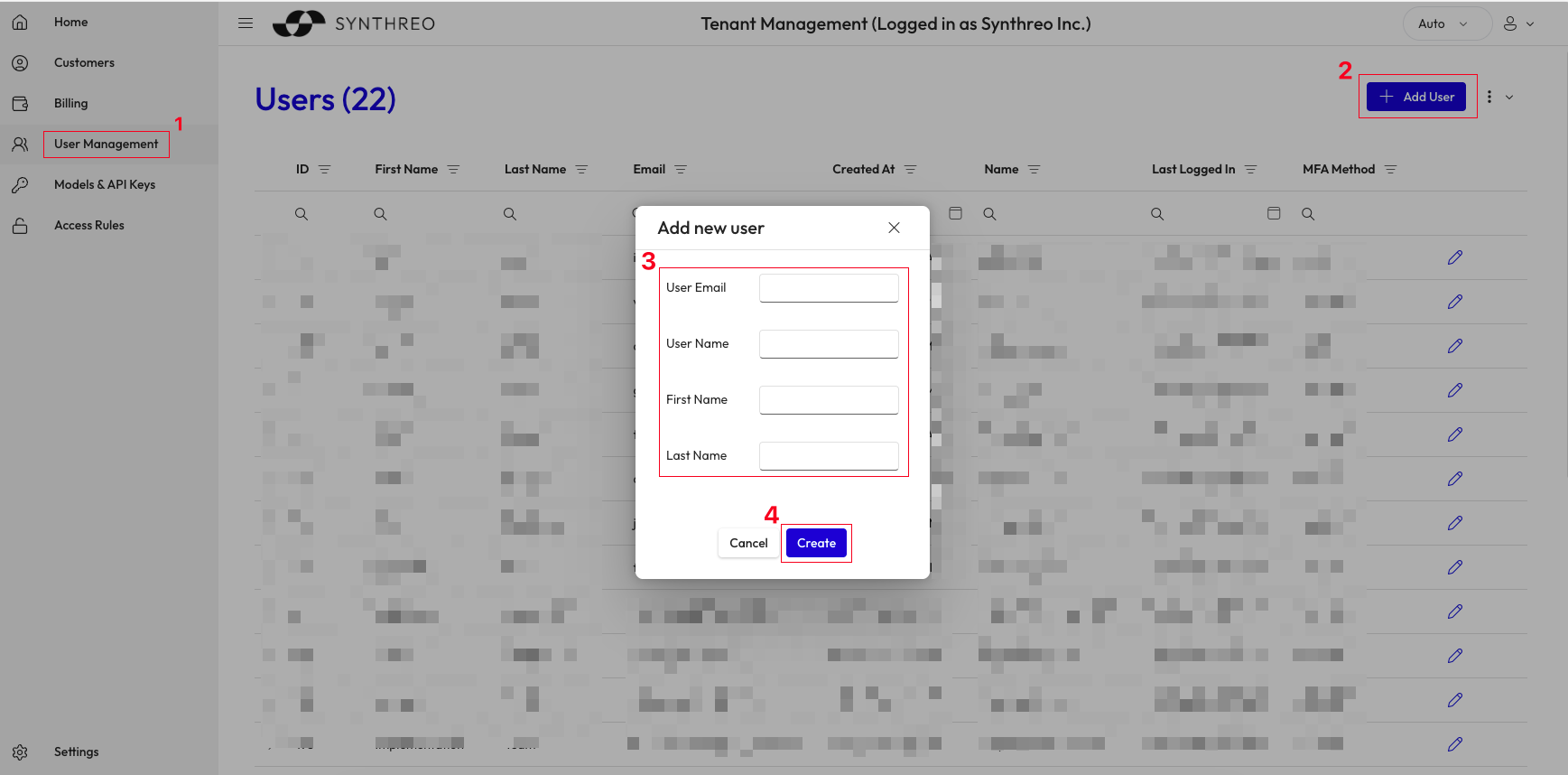
- Select User Management in the left sidebar
- Select the Add User button at the top right
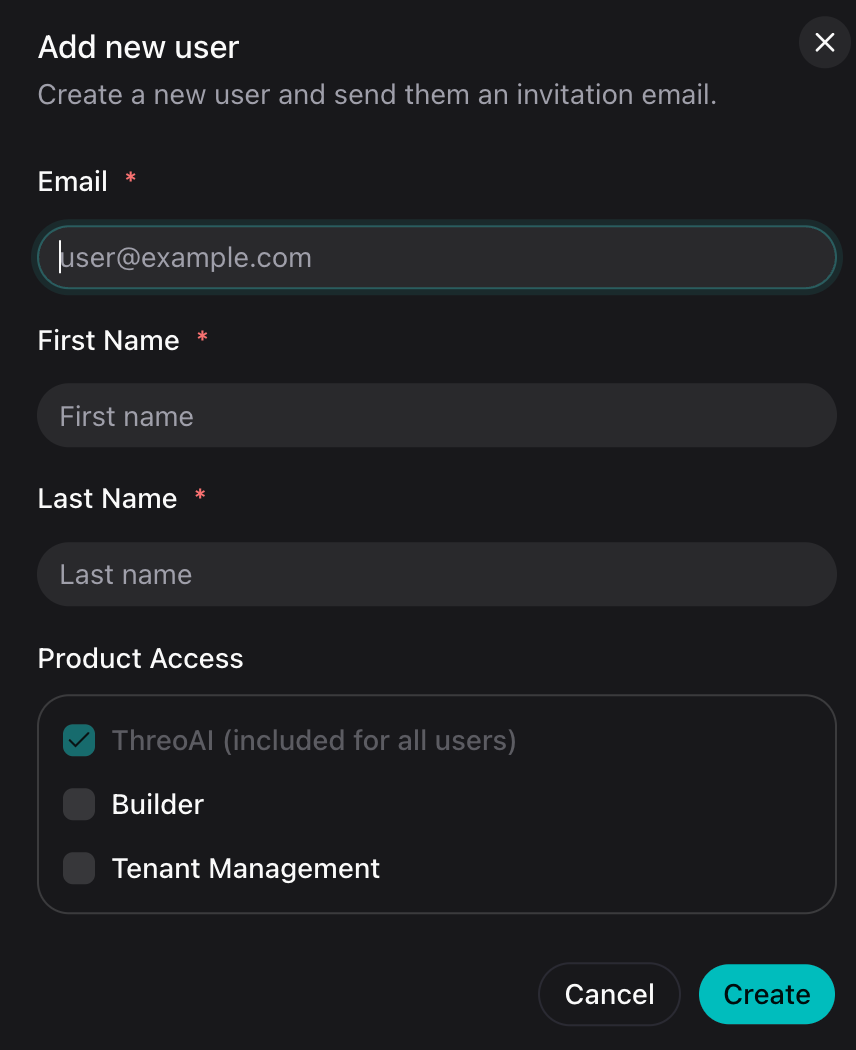
- In the Add new user dialog, enter:
- First Name
- Last Name
- Customer - shown when the account could belong to more than one customer, and required when you administer several
- Set Product Access (see below)
- Select Create
Product Access
Section titled “Product Access”The Product Access block holds one checkbox per application:
| Checkbox | Behaviour |
|---|---|
| ThreoAI | Checked and disabled, labelled “ThreoAI (included for all users)“ |
| Builder | Optional |
| Canopy | Optional |
| Pylon | Optional |
Builder, Canopy, and Pylon are each region-gated. If the application is not available in that customer’s region the checkbox is disabled, and its tooltip reads “X is not available in this customer’s region.” While Canopy is still checking, the tooltip reads “Checking availability…”.
Adding a User to a Child Customer
Section titled “Adding a User to a Child Customer”Prerequisites
Section titled “Prerequisites”- Access to the Canopy portal with permission to manage customer tenants
- The user’s email address
- The user’s first and last name
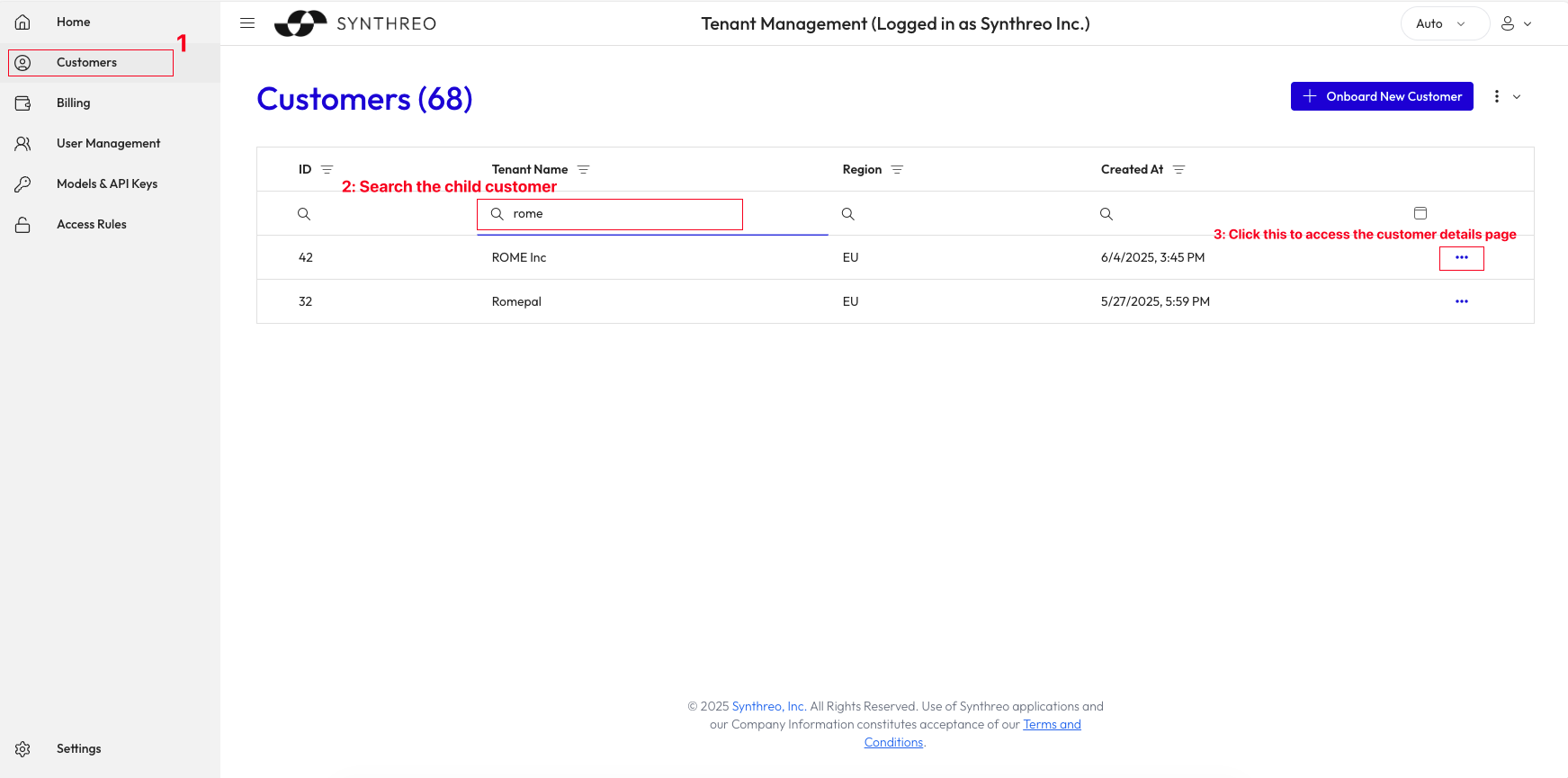
- In Canopy, select Customers in the left sidebar
- Search for the tenant name of the child customer
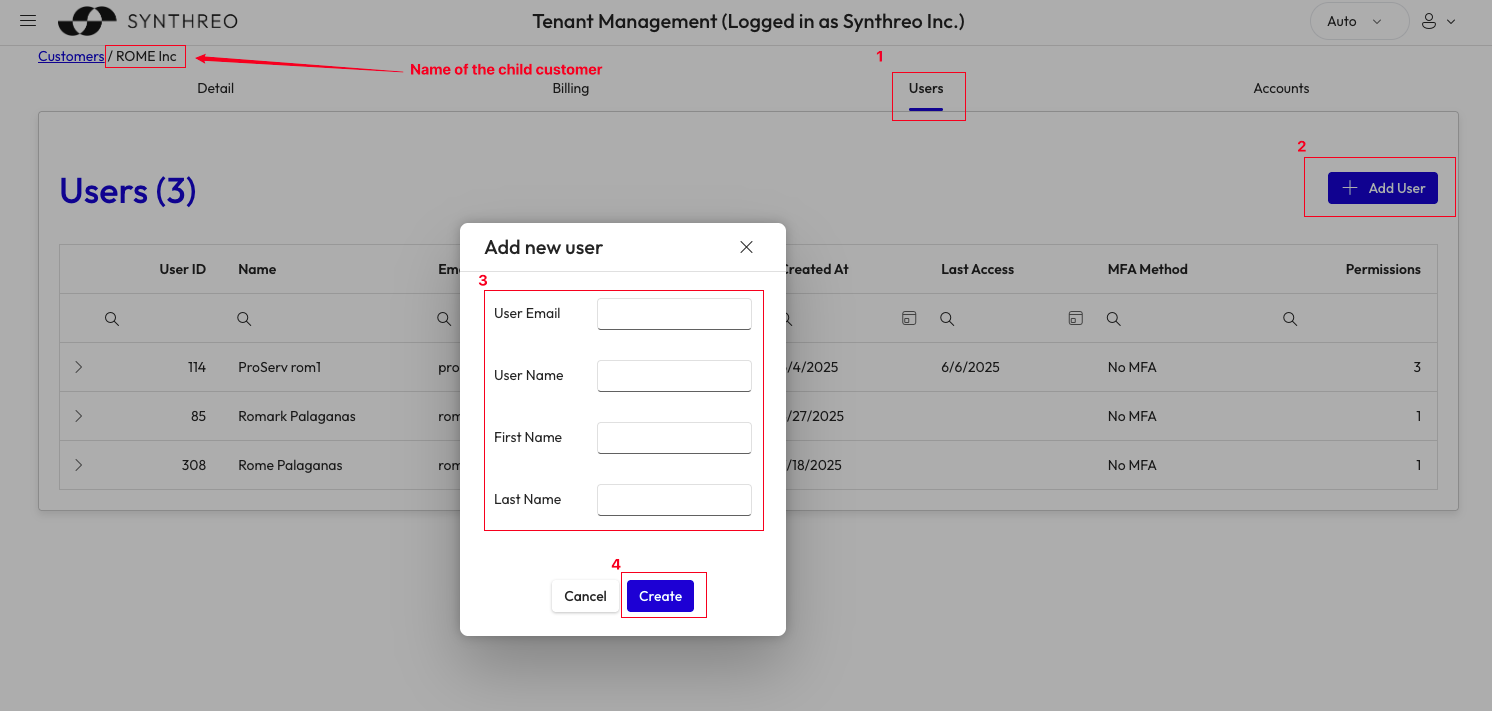
- Select the customer name to open the customer detail page
- Go to the Users tab
- Select Add User and enter:
- First Name
- Last Name
- Set Product Access
- Select Create
What Happens Next
Section titled “What Happens Next”- The new user receives a welcome email with setup instructions
- The setup link is valid for 7 days
- Until they finish setup their status reads Pending, and their detail page offers Resend Invitation
- After completing setup, the user can access their assigned applications
Bulk Import
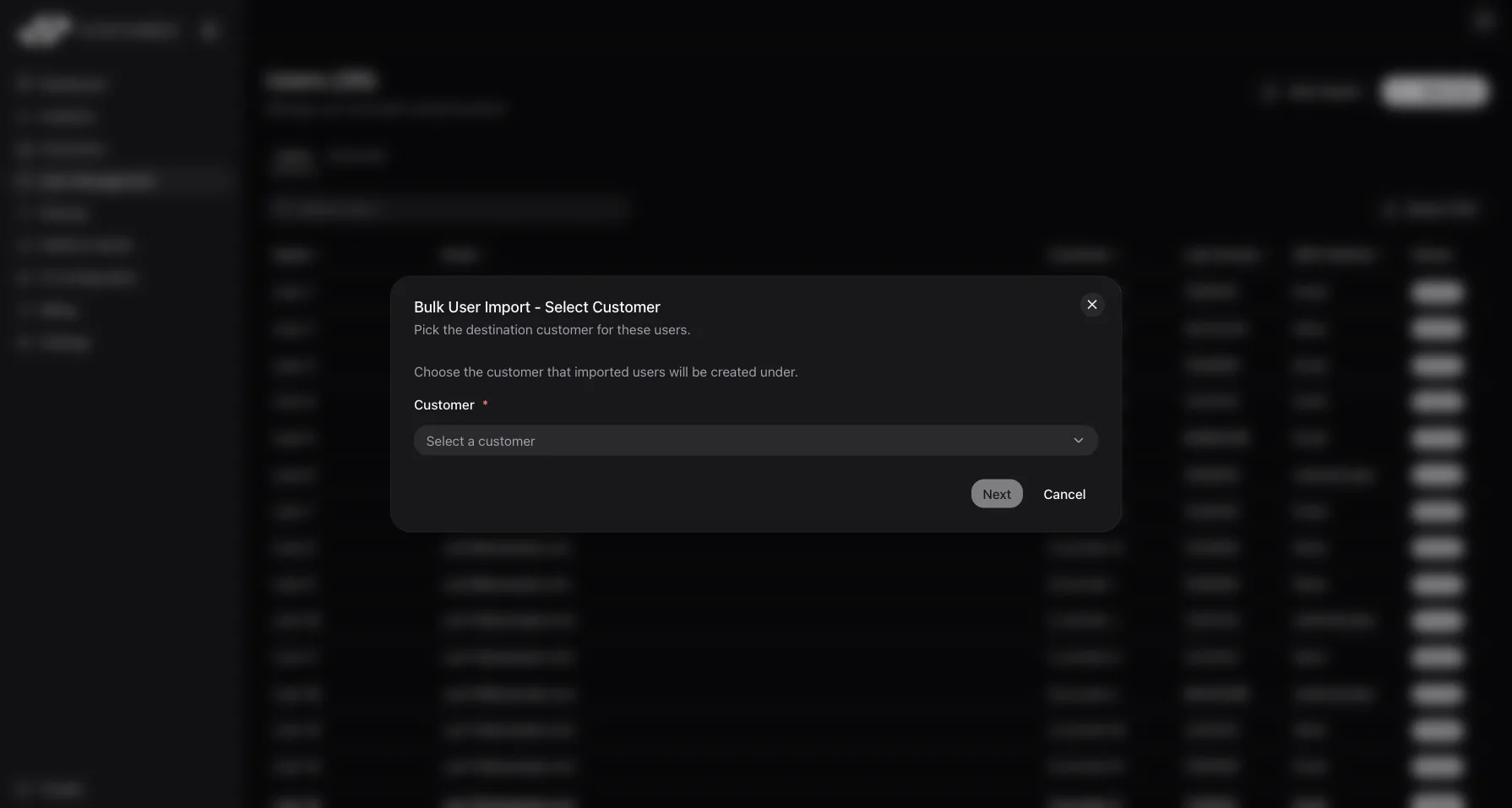
Section titled “Bulk Import”To add many users at once, use Bulk Import from the User Management screen instead of creating each account by hand. The button sits beside Add User and opens a six-step wizard:
- Select Customer - choose the customer the imported users will be created under.
- Upload CSV - upload a CSV (5 MB maximum). Download Sample Template gives you a correctly shaped file to start from.
- Preview Data - review the parsed rows before anything is created.
- Configure Settings - set the batch size and the default product access, and optionally run validate-only, which checks the file without creating accounts.
- Processing - Canopy creates the accounts in batches.
- Results - see what succeeded and download an error report for any rows that failed.
The CSV
Section titled “The CSV”email, firstname, and lastname are required; a missing one is reported as Required column "email" not found before anything is parsed. first_name and last_name are accepted as aliases.
threo, builder, and tenant are optional columns that set product access per row, and a value in the row overrides the default you set in Configure Settings. true, yes, 1, and y all count as on. There is no Pylon column.
Rows are validated individually, so a bad address does not stop the run: it is listed in Results with its row number.
Each imported user is created through the same path as a single add, so each one receives a welcome email. Use bulk import when onboarding a whole team or migrating a customer’s users in one pass.
Resetting MFA for a User
Section titled “Resetting MFA for a User”If a user is locked out of their second factor (a lost device or a reset authenticator), reset their MFA from their detail page:
- Select User Management in the left sidebar
- Select the user’s row to open their detail page
- In the Security card, under Two-Factor Authentication, select Reset MFA and confirm
Their current authenticator is removed and a setup email is sent so they can enroll a new one.
Resending a Welcome Email
Section titled “Resending a Welcome Email”For Parent Tenant Users
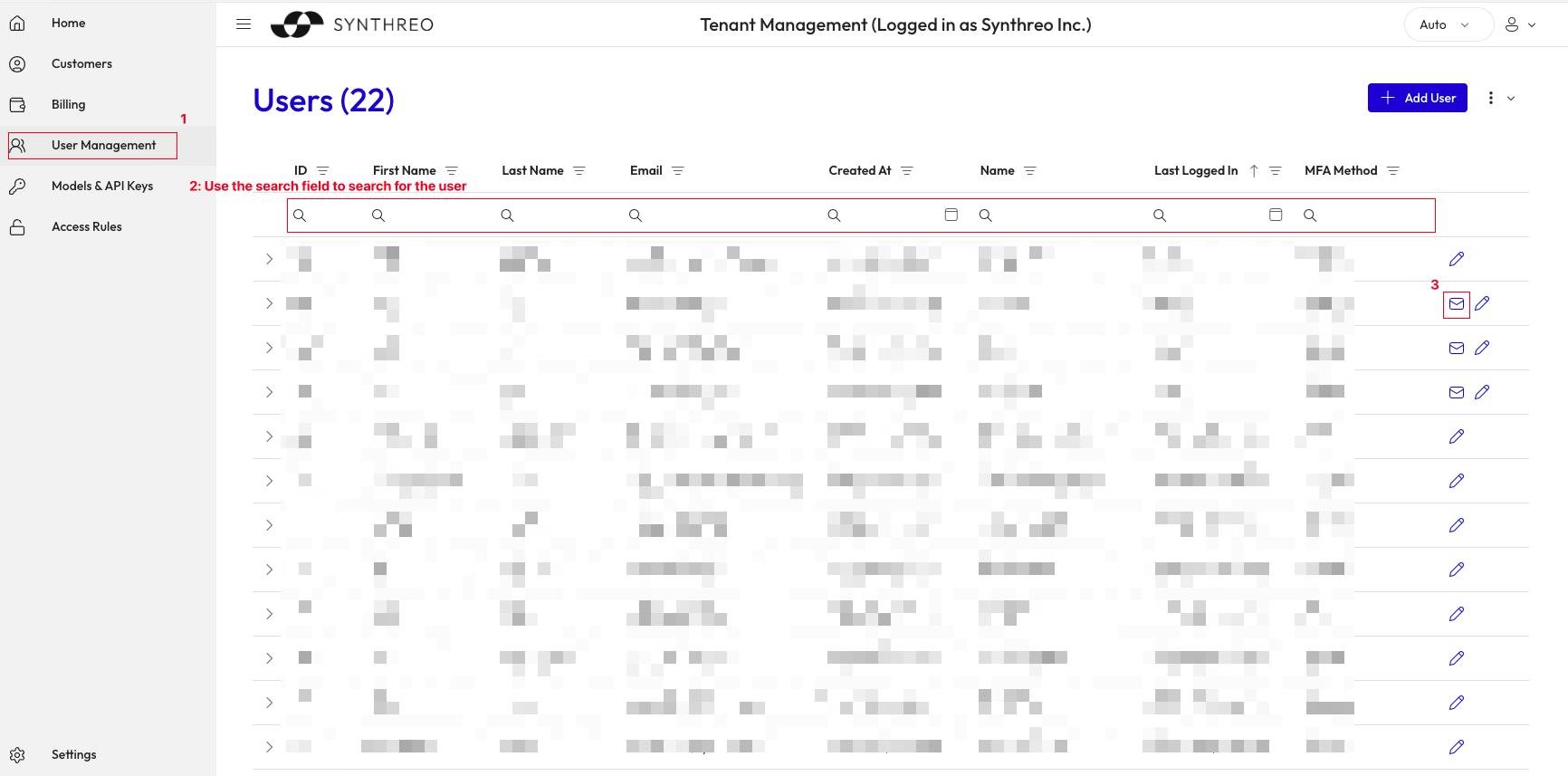
Section titled “For Parent Tenant Users”- Go to https://canopy.synthreo.ai
- Select User Management in the left sidebar
- Locate the user and select their row to open the account detail page
- In the Security card, under Invitation, select Resend Invitation
For Child Customer Users
Section titled “For Child Customer Users”- In Canopy, select Customers in the left sidebar
- Search for the tenant name of the child customer
- Select the customer name to open the customer detail page
- Go to the Users tab
- Select the user’s row to open their detail page, then select Resend Invitation
As with parent-tenant users, Resend Invitation appears only while the user has not finished account setup.
Troubleshooting
Section titled “Troubleshooting”If the setup email is not received:
- Check the Spam/Junk folder
- Verify the email address entered is correct
- Resend the welcome email using the steps above
- If the issue persists, ask your administrator or MSP help desk. They escalate to Synthreo through the partner support channel.
| Issue | Cause | Fix |
|---|---|---|
| Add User and Bulk Import are greyed out | The user roster has not loaded, or failed to load | Wait for the list, or retry the load; both buttons stay disabled until the roster is available |
| The buttons are missing entirely | You are on the Accounts tab | Switch to the Users tab; they are only offered there |
| A Product Access checkbox cannot be checked | That application is not available in the customer’s region | Hover the checkbox for the reason, or choose a customer in a region that has it |
| Duplicate email error on create | A user with that email already exists | Check User Management for an existing account with the same email |
| Welcome email not received | Email in spam, or address entered incorrectly | Check spam folder, verify the address, then resend |
| Setup link expired before user acted | The link is valid for 7 days only | Resend the welcome email to generate a fresh setup link |
Can I add multiple users at the same time? Yes. Use Bulk Import from the User Management screen to create many accounts in one pass. See Bulk Import above. Each imported user receives a welcome email automatically.
What if the user’s name changes after the account is created? Open the user’s detail page and update First Name or Last Name in the Account Details card, then select Save Changes. The email address is changed separately, in the Security card, through a confirmation-link flow: it only takes effect after the user opens the link at the new address. See Managing Permissions.
Can a user belong to both a parent tenant and a child customer? A single sign-in identity can hold permissions in more than one customer, and their Profile lists every organization their account can act in. What cannot be split is the ThreoAI account: it belongs to exactly one customer. Adding an existing user to a second customer with no other application selected is refused, because it would need a second ThreoAI account.