

Starting a Chat in ThreoAI
Start a conversation in ThreoAI - use the composer, pick a model before you send, open the Wingtip agent workspace, attach files, and manage your chat history.
Overview
Section titled “Overview”Chatting in ThreoAI works like any AI chat tool - type a message, press Enter, and the AI answers. What sets ThreoAI apart is that the models you can pick are curated by your organization, so they meet your company’s security and compliance rules.
This guide covers the composer, picking a model, Wingtip, attaching files, the quick-action chips, and keeping your chat history tidy.
Starting a new chat
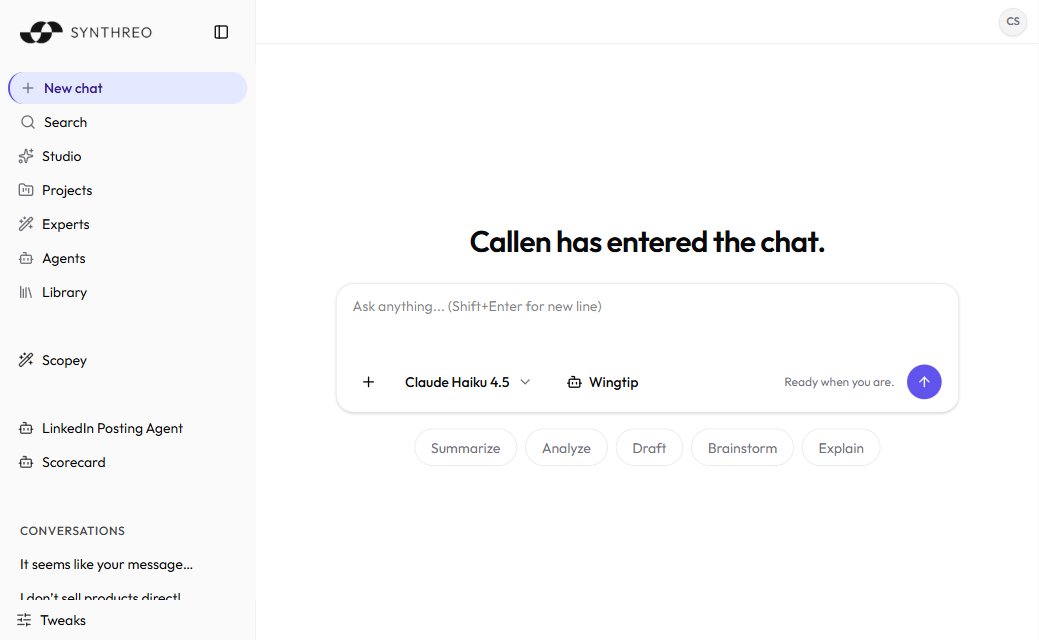
Section titled “Starting a new chat”To begin a fresh conversation, select New chat at the top of the left sidebar. Each new chat lands in your general chat history.
The home screen opens with a greeting that uses your first name - the wording rotates between a handful of variants such as “Hey Sam!” and “Welcome back, Sam.” - and puts the composer front and centre. From there:
- Type your message in the composer.
- Press Enter to send. The AI starts answering right away.
Press Shift + Enter to drop in a line break without sending - useful for a multi-line prompt, structured instructions, or formatting your message before it goes out.
Tip: The answer is only as good as the prompt. Be specific. Instead of “help me with this,” try “summarize the three main arguments in this document and list the supporting evidence for each.”
The composer
Section titled “The composer”The composer is the input bar at the bottom of the screen. The row of controls under the text box holds everything you need to shape a message before you send it:
| Control | What it does |
|---|---|
| + (Add attachment) | Opens the file picker so the AI can read and analyze what you attach. You can also drag and drop or paste files. |
| Model selector | Shows the current model and lets you pick one, up until the conversation has its first message. Capability badges here tell you what each model can do - see Tools and Capabilities. |
| Reasoning effort | A brain icon that appears on models that support it, with Low, Medium, High, and Off. Your administrator can turn this control off. |
| Wingtip (Preview) | A doorway into the Wingtip agent workspace. It appears only if your organization is entitled to Wingtip. |
| Send | The circular arrow button on the right. Enter sends too. |
Quick-action chips sit just below the composer on an empty home screen - they disappear as soon as you start typing.
Picking a model
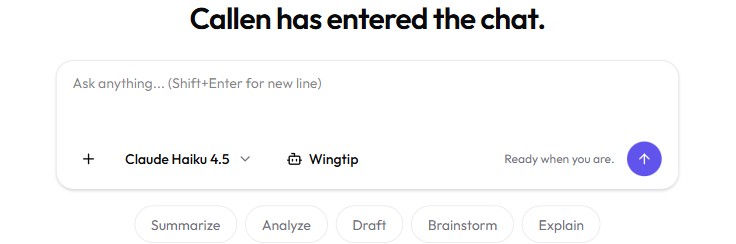
Section titled “Picking a model”The model selector in the composer shows the model for the conversation (for example, a GPT, Claude, or Grok model). Open it to see every model available to you, search by name, and pick one.
Pick before you send. Once a conversation has messages in it, the selector locks: it greys out and the tooltip reads “Model is locked once a conversation starts.” To use a different model, start a new chat - or send the same prompt to several models at once with Model Comparison, which you can open from the top of the model picker.
Each model in the list carries capability badges for what it can do: Web search, Code, Image gen, Computer use, and Reasoning. Use those badges to pick a model that fits the task. The badges and the built-in tools behind them are covered in Tools and Capabilities.
The models you see are configured by your organization’s administrator in Canopy. Different models have different strengths - some are stronger at creative writing, others at technical analysis or following complex instructions. If a model you need is missing, ask your admin to enable it.
Setting a default model
Section titled “Setting a default model”If you keep reaching for the same model, set a default in your Profile Settings so every new chat starts there:
- Open Profile from your account menu.
- Go to the About tab.
- Pick a model from the Default AI model dropdown.
There is no Save button - the About tab saves on its own a moment after you stop editing, and shows a “Saved just now” note when it has. Leave the field alone and ThreoAI falls back to your organization’s default model.
Quick-action chips
Section titled “Quick-action chips”On an empty home screen you will find quick-action chips just below the composer - Summarize, Analyze, Draft, Brainstorm, Explain. Select one and it drops a starter phrase into the composer, ready for you to add your own detail before sending. They are a fast way to get going when you are not sure how to phrase a prompt. Inside an Expert or Agent that has its own prompt starters, those replace the generic five.
Skills and Agents in the composer
Section titled “Skills and Agents in the composer”Two characters open a picker inside the composer:
- Type / to search your enabled Skills. The one you pick rides along with that message as a chip, and you can remove the chip before sending.
- Type @ to search Agents and aliases, and bind one to the conversation.
Wingtip
Section titled “Wingtip”Wingtip is a separate agentic workspace in ThreoAI, not a switch inside a normal chat. Reach it from the segmented Threo / Wingtip toggle at the very top of the left sidebar, or from the Wingtip (Preview) button in the composer, which first shows a short explainer. Both appear only if your organization is entitled to Wingtip, and the toggle is hidden when the sidebar is collapsed to its icon rail.
Give Wingtip a goal and point it at your data, and it plans the work, builds a deliverable such as a dashboard, app, report, spreadsheet, or document, shows you a preview, and lets you download it. Its own nav is New chat, Search, Studio, and Library.
For the full walkthrough - sessions, plans, approvals, and deliverables - see the Wingtip documentation.
Attaching files
Section titled “Attaching files”Use the + button in the composer to bring files into the conversation for the AI to read and analyze. This works in any chat - the home chat, a Project, or an Expert. Drag and drop and paste work too.
- Select + in the composer.
- Choose one or more files from your device.
- The files appear as chips above the composer, showing upload progress until they read Ready.
- Type what you want done with them, then press Enter.
ThreoAI accepts around 120 file extensions, including PDF, DOCX, XLSX, PPTX, TXT, MD, CSV, JSON, images, source code, and ZIP bundles. Anything outside the allowlist is refused with a message naming the file. Files stay available on later turns of the same conversation, so you do not need to re-upload them. For the full rundown, see Uploading and Working with Files.
Chatting with an Expert or Agent
Section titled “Chatting with an Expert or Agent”An Expert is a reusable assistant set up with its own instructions, knowledge, and actions. An Agent is an autonomous Pylon agent you can run from chat. Both behave like a normal conversation, just pre-configured for a job.
- Experts live under Experts in the sidebar and in Studio. Open one and start chatting. See Using an Expert.
- Agents live under Agents in the sidebar. Pick one to start a conversation, or type @ in the composer to bind one to the chat you are already in.
If an Expert or Agent has prompt starters set by its creator, they show up as suggested first messages - select one to send it, or type your own.
Managing your chat history
Section titled “Managing your chat history”Conversations save automatically the moment you send your first message. Nothing to save by hand - your history is kept and reachable from the left sidebar, grouped into Today, Yesterday, Previous 7 days, and Older.
Finding past conversations
Section titled “Finding past conversations”Earlier chats are listed in the sidebar, newest first. Scroll to find one, or select Search in the sidebar to open the conversation-search overlay and look one up by keyword.
Renaming a conversation
Section titled “Renaming a conversation”ThreoAI names each conversation from its content. To rename one:
- Hover the conversation in the sidebar to reveal the … menu.
- Select …, then Rename.
- Type a new name and confirm. You can also select the title of the active conversation to edit it in place.
Deleting a conversation
Section titled “Deleting a conversation”- Hover the conversation in the sidebar to reveal the … menu.
- Select …, then Delete.
- Confirm when prompted.
Note: Deleting a conversation is permanent.
Organizing with Projects
Section titled “Organizing with Projects”The same … menu carries Move to project (listing the projects you already have) and New Project, so you can file a conversation without leaving the sidebar. Conversations inside a project stay out of your general history, which keeps the sidebar focused. See Projects.
Tips for better conversations
Section titled “Tips for better conversations”- Be specific. More detail means a better-aimed answer. Instead of “write an email,” try “write a professional email to a client explaining that their project deadline has moved out two weeks.”
- Give context. If the AI needs background to answer well, include it: “I’m an IT support specialist. A user says Outlook keeps crashing after the latest Windows update. What troubleshooting steps should I suggest?”
- Break big tasks into steps. For multi-part requests, take one part at a time.
- Use follow-ups. If the first answer misses, refine it: “Make that more concise” or “Focus on the cost comparison.”
- Set your personal context. Fill in your Profile Settings with your role and preferences so answers come back more relevant without you repeating yourself.
Related
Section titled “Related”- Navigating the Interface - full interface reference
- Tools and Capabilities - built-in tools and what each model can do
- Uploading and Working with Files - attach documents to a conversation
- AI Model Comparison - run one prompt against several models
- Projects - group conversations into workspaces
- Using an Expert - find and use a reusable assistant
- Profile Settings - set your default model and personalize your experience