

ThreoAI Memory and Personalization
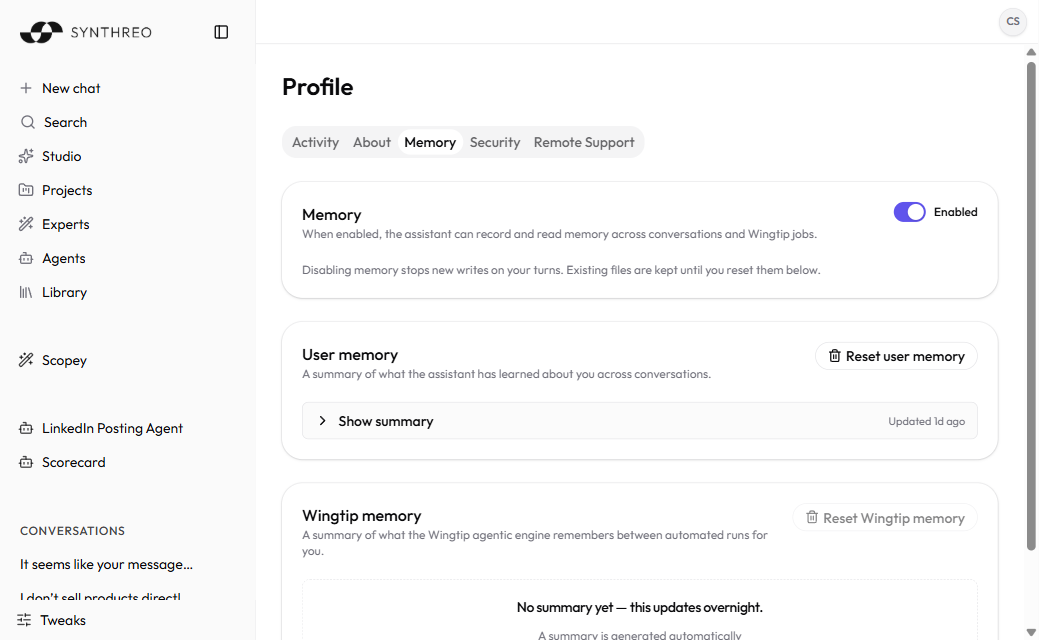
Use the ThreoAI Profile Memory tab to control what Threo remembers: switch memory on or off, review or reset User memory, and import from another assistant.
Overview
Section titled “Overview”Memory carries context from one chat to the next, so you stop repeating yourself. Mention your role, a project, or a preference once. Threo can bring it back later, no reminder needed.
You run it all from the Memory tab in your profile: one switch, the stores that hold what gets remembered, and a way to import memory from another assistant.
For the rest of the Profile page and its other tabs, see ThreoAI Profile Settings.
The Memory tab vs. the Memory tool
Section titled “The Memory tab vs. the Memory tool”Two things share the word “memory,” and they’re easy to mix up:
- The Memory tab in your profile is the control panel - the switch, the stored summaries, the reset buttons, the import. This page covers the tab.
- The Memory tool is what Threo uses mid-chat to save and recall facts. It’s one of the built-in tools, covered in Tools and Capabilities.
The tab is where you steer. The tool does the remembering.
Switch memory on or off
Section titled “Switch memory on or off”The first card is titled Memory, with a switch beside it that reads Enabled or Disabled. As the card puts it: “When enabled, the assistant can record and read memory across conversations and Wingtip jobs.”
Switching it off wipes nothing: “Disabling memory stops new writes on your turns. Existing files are kept until you reset them below.” Switch it back on and Threo picks up where it left off.
User memory
Section titled “User memory”User memory is “a summary of what the assistant has learned about you across conversations.”
- Select Show summary to read it. The control notes when the summary last changed, such as “Updated 3d ago”.
- Select Reset user memory to clear it and start fresh. Resetting is confirmed first and cannot be undone. The button stays unavailable while the store is still empty.
You don’t type this summary in. Threo writes it for you as you chat, and it fills out over time. Until there is anything to show, the card reads “No summary yet - this updates overnight.”
Import memory
Section titled “Import memory”Below User memory is an Import memory card: “Bring what ChatGPT or Claude remembers about you into Threo. You review every fact before anything is saved.”
It runs in three steps:
- Pick where you’re importing from, ChatGPT or Claude. Threo shows a ready-made prompt with a Copy button. Paste that prompt into the other assistant and copy its reply.
- Paste the reply into the box (up to 12,000 characters, with a live counter) and select Find memories.
- Review the facts it found. Accept, edit, or reject each one, then select Import to save the accepted ones. Start over clears the whole attempt.
Nothing is saved until you commit the accepted facts. If more than 30 facts are found, Threo shows the first 30 and invites you to paste the rest afterwards.
Wingtip memory
Section titled “Wingtip memory”Where Wingtip is enabled for you, a third card appears: Wingtip (Preview) memory, “a summary of what the Wingtip agentic engine remembers between automated runs for you.” It keeps your Wingtip work consistent from one run to the next.
- Empty at first, the store reads “No summary yet - this updates overnight.”
- Select Reset Wingtip memory to clear it. Like the other reset, it stays unavailable until the store holds something.
Wingtip memory is gated on the Wingtip feature being turned on for your organization and rolled out in your region, so the card is simply absent for everyone else.
Experts have their own memory
Section titled “Experts have their own memory”The memory on your Profile tab is account-wide and personal to you. Experts are separate. Each Expert keeps its own per-person memory that fills in as you use it, walled off from your profile memory and your chat history. An Expert can hold details about the work you do with it, and none of that leaks into your general memory.
Own an Expert? Review and reset it from the Memory tab of the Expert editor, where it is labelled Assistant memory with a Reset assistant memory button. Resetting there clears your own slice only, not what the Expert remembers for colleagues. See Creating an Expert.
Frequently Asked Questions
Section titled “Frequently Asked Questions”Where do I manage memory? On the Memory tab in your profile. It holds the on/off switch, the User memory summary, the Import memory card, the Wingtip memory summary where that is enabled, and the reset buttons.
Does switching memory off delete what is stored? No. Disabling memory stops new writes on your turns. Existing files stay. To clear a store, use Reset user memory or Reset Wingtip memory.
Why is there no Wingtip memory card? Wingtip memory shows only where Wingtip is enabled for your organization and available in your region. If neither applies, the card does not render at all.
Is Expert memory the same as my profile memory? No. Every Expert holds its own per-person memory, kept apart from your account-wide profile memory. See Creating an Expert.
Is the Memory tab the same as the Memory tool? They pair up. The tab is your control panel; the tool is what remembers during a chat. See Tools and Capabilities.
Related
Section titled “Related”- ThreoAI Profile Settings - the full Profile page and its tabs
- Tools and Capabilities - the built-in Memory tool and other in-chat capabilities
- Creating an Expert - Experts and their separate per-person memory
- ThreoAI Tweaks - appearance settings saved to your profile