

ThreoAI Overview
ThreoAI platform overview - chat with many models, build Experts, run Agents, create in Studio, add Connectors, and organize work in Projects, all governed.
Overview
Section titled “Overview”ThreoAI is Synthreo’s secure, organization-managed AI platform. You chat with leading AI models, build reusable Experts, run Agents, and keep work organized in Projects - all inside an environment your administrator controls.
The difference from a consumer AI tool is governance. Your administrator decides which models are available, who has access, and how the platform is set up. You get the same conversational experience, and your IT and compliance teams keep their oversight.
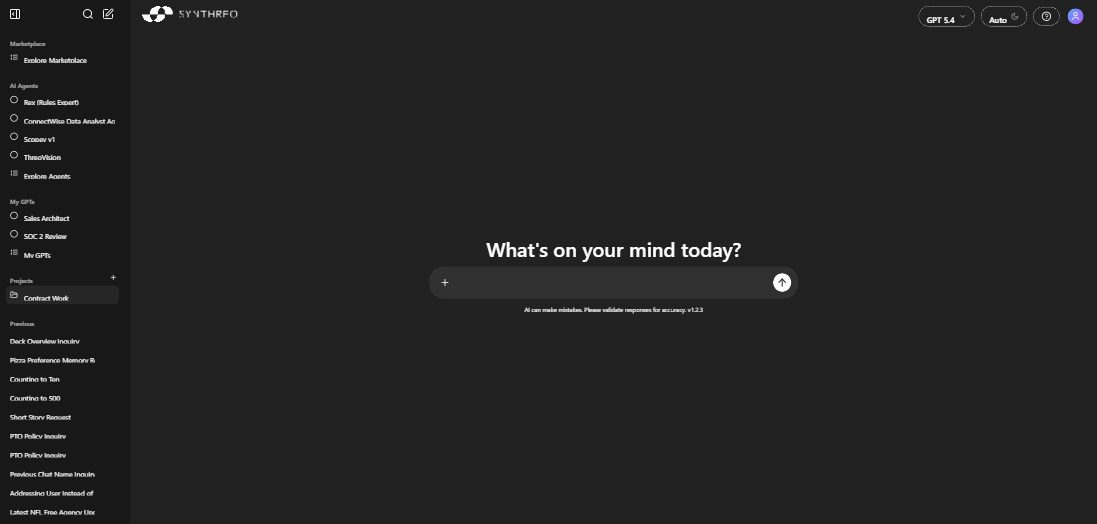
Platform capabilities
Section titled “Platform capabilities”Chat with many models
Section titled “Chat with many models”Pick a model from the selector in the composer and start typing. Each model carries capability badges that show what it can do - Web search, Code, Image gen, Computer use, and Reasoning.
Pick your model before you send the first message. Once a conversation has messages in it, the model selector locks and the tooltip reads “Model is locked once a conversation starts.” Start a new chat to work with a different model.
Use the chat for everyday work: drafting emails and reports, answering questions, brainstorming, generating code, translating, or summarizing what you paste in. On an empty home screen, quick-action chips sit just below the composer (Summarize, Analyze, Draft, Brainstorm, Explain) and prefill a common kind of request. Every conversation saves to your sidebar history.
See Starting a Chat and Tools and Capabilities.
Experts
Section titled “Experts”An Expert is a reusable assistant tuned to one job. It chats like a normal conversation but follows the instructions and knowledge its creator gave it. You can build your own or use ones shared with you.
When you build an Expert you set:
- instructions that define its role, tone, and rules,
- optional training documents it treats as a knowledge base,
- actions it can take, each backed by a Pylon Agent, and
- who can use it.
Experts were previously called Custom GPTs. See Creating an Expert and Using an Expert.
Agents
Section titled “Agents”Agents are Pylon agents surfaced in chat. Where an Expert shapes how a model answers, an Agent runs a plan - it uses tools and works through multi-step tasks for you. Your administrator shares Agents with your organization, and they show up in the Agents catalog. You can also pull one into the conversation you are already in by typing @ in the composer.
Agents are documented in the Pylon section. See Welcome to Pylon.
Studio
Section titled “Studio”Studio is the creation hub. Once you build something there, it shows up across chat, Projects, and the Explore catalog. Studio has tabs for Overview, Experts, Agents, Capabilities, Projects, and Aliases. Connectors and Skills live as sub-tabs inside Capabilities, and that tab only appears if your organization has Connectors or Skills enabled.
See Studio Overview.
Skills
Section titled “Skills”Skills give chat task-specific know-how. Turn on a Synthreo skill or upload your own SKILL.md package, then invoke one by typing / in the composer and picking it from the menu - the skill you choose rides along with that message as a chip. You manage Skills in Studio, under Capabilities then Skills.
See Skills in ThreoAI.
Connectors
Section titled “Connectors”Connectors bring external systems into your chat through MCP - search engines, calendars, ticketing tools, internal APIs. Pick from a catalog or point at any MCP server URL to add your own. A connector you add by URL is personal to your account rather than shared with your organization. Once connected, the AI can act on those systems from inside a conversation.
See Connectors.
Projects
Section titled “Projects”A Project groups related conversations and shared context together, so a thread of work keeps memory across chats. Use one per client, topic, or workstream. Conversations inside a Project stay there instead of cluttering your general history.
See ThreoAI Projects.
Wingtip (Preview)
Section titled “Wingtip (Preview)”Wingtip is a separate agentic workspace that builds a deliverable - a dashboard, app, report, or document - from a goal plus your data, with a live preview you can download. Its own Library holds what it has built and is where you control whether something stays private, goes to your organization, or is shared with specific people.
You reach it from the Threo / Wingtip toggle at the top of the sidebar, or from the Wingtip (Preview) button in the composer. Both appear only if your organization is entitled to Wingtip.
See the Wingtip documentation.
Model comparison
Section titled “Model comparison”Model Comparison sends one prompt to two models at the same time and lays their answers side by side, and you can add a third and a fourth panel from the Add model button. It is the quick way to see which model summarizes a document better, writes cleaner code, or handles a tricky question. Follow-up messages go to every open panel.
See AI Model Comparison.
Attach files to any conversation - the home chat, a Project, or an Expert.
- Supported formats: around 120 extensions. Documents (PDF, DOCX, XLSX, PPTX, plus the older DOC/XLS/PPT and the macro-enabled DOCM/XLSM/PPTM), text and data (TXT, MD, CSV, TSV, JSON, JSONL, XML, HTML, LOG), images (PNG, JPG, JPEG, GIF, WEBP, SVG, BMP), source and configuration files (PY, JS, TS, CS, JAVA, GO, RS, SQL, YAML, TOML, INI, TF and more), Jupyter notebooks, and ZIP or SKILL bundles. Executables are refused.
- The AI reads, summarizes, extracts data, and answers questions about what you attach.
- Attach several files at once to compare or cross-reference them. Files stay available on later turns of the same conversation, so you do not re-upload them.
See Working with Files.
Memory and personalization
Section titled “Memory and personalization”ThreoAI remembers facts from your chats and applies them later, and you can shape that from your Profile. Set a preferred name, describe your role, and decide what the AI keeps. You can also import what ChatGPT or Claude remembers about you: you paste a supplied prompt into that assistant, paste its answer back into ThreoAI, and review every fact before anything is saved.
See Memory and Personalization.
Tweaks
Section titled “Tweaks”Tweaks is the appearance panel in the sidebar footer. It controls theme, depth, accent color, chart colors, corners, spacing, animations, font, text size, and content width - purely visual, applied instantly, and personal to you.
Common use cases
Section titled “Common use cases”- IT support. An Agent or Expert answers from your runbooks and SOPs so people get help without filing a ticket.
- Document analysis. Upload contracts, policies, or reports and ask for a summary, the key risks, or specific data points.
- Internal knowledge base. An Expert grounded in your own documents answers policy questions in plain language.
- Onboarding. An Expert walks new hires through benefits, equipment, and setup, one question at a time.
- Process automation. An Expert’s actions, each backed by a Pylon Agent, file a ticket or update a record straight from chat.
- Model evaluation. Use Model Comparison to pick the right model before you commit to it.
- Content creation. Draft proposals, emails, and marketing copy, then refine through conversation.
- Data analysis. Upload a spreadsheet and ask for trends, outliers, or a summary of the numbers.
Using ThreoAI with Pylon
Section titled “Using ThreoAI with Pylon”ThreoAI and Pylon work together in two ways. Each action you wire onto an Expert calls a Pylon Agent, so an assistant can reach into ticketing platforms, CRMs, and email services. And Agents are Pylon agents surfaced right in chat. Build the Agent in Pylon, then use it from ThreoAI.
- Welcome to Pylon - introduction to the no-code AI agent platform.
- Pylon User Manual - the full reference for building workflows and agents.
- Canopy Overview - where administrators manage users, customers, AI model configuration, and permissions.
Related
Section titled “Related”- Welcome to ThreoAI - getting access and first steps
- Navigating the Interface - the sidebar, composer, and account menu
- Studio Overview - where Experts, Connectors, and Projects are built
- Profile Settings - personalization, memory, and your default model