

Logging In to ThreoAI
How to log in to ThreoAI for the first time - set up your account from the invitation email, choose an MFA method, sign in again, and fix access problems.
Overview
Section titled “Overview”ThreoAI is accessed at https://threo.synthreo.ai. Access is provided by your organization - you will receive an invitation email to set up your account before your first login. This guide walks you through both the first-time account setup process and the standard login flow for returning users.
First-Time Login
Section titled “First-Time Login”When your organization’s administrator grants you access to ThreoAI, you will receive an invitation email. Follow these steps to activate your account and log in for the first time.
Step 1: Check Your Email
Section titled “Step 1: Check Your Email”Look for an invitation email from noreply@synthreo.ai with the subject [Synthreo] Access granted. The email contains your account email address and a Complete Account Setup button. Click it to begin activation.
Important: The activation link expires in 7 days. If the link has expired, contact your organization’s ThreoAI administrator to have a new invitation sent.
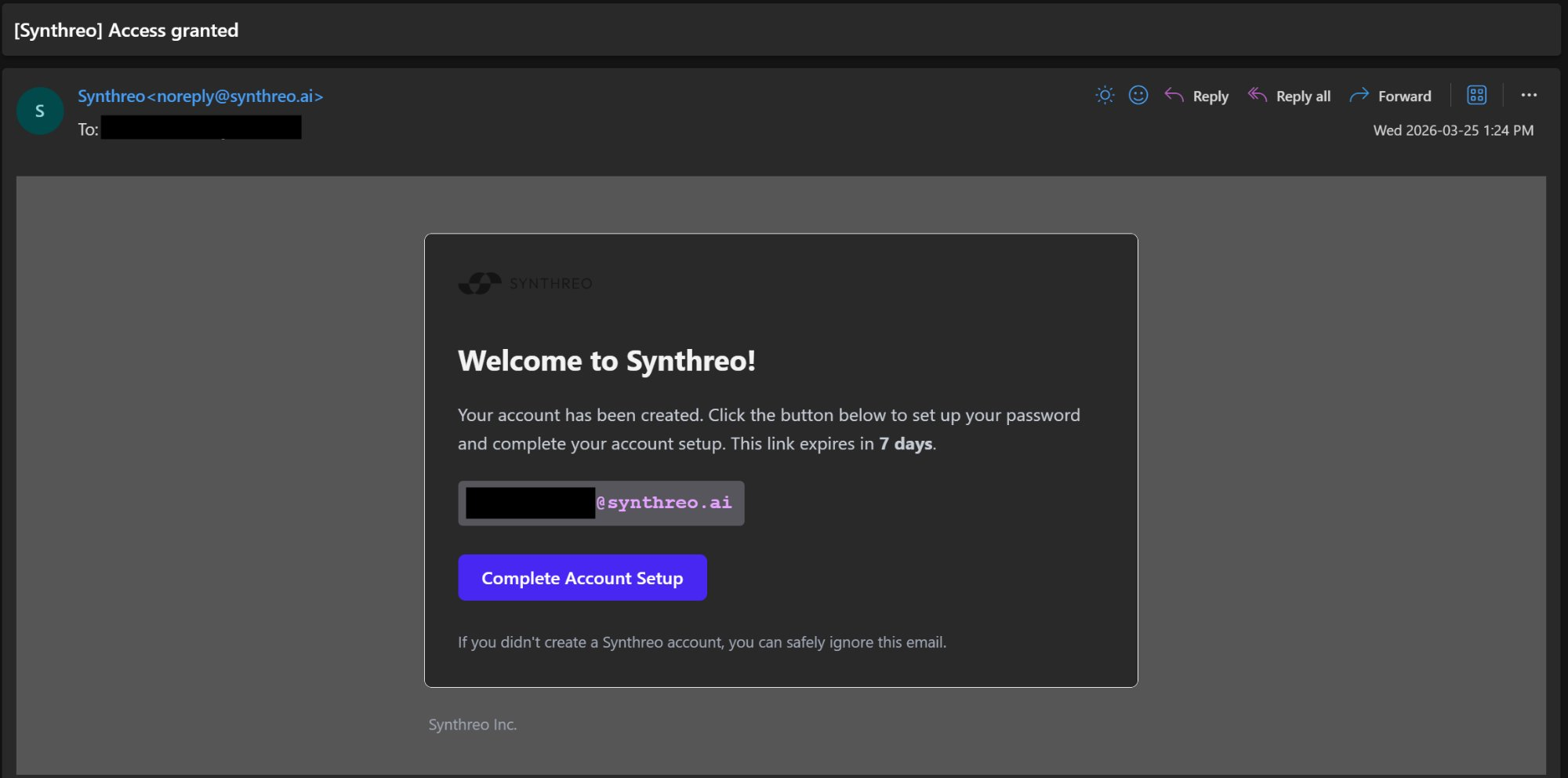
If you don’t see the email, check your spam or junk folder. Some email systems may filter messages from noreply@synthreo.ai. If you still cannot find the invitation after checking these folders, contact your organization’s ThreoAI administrator to confirm the invitation was sent and that the correct email address was used.
Step 2: Complete the Setup Form
Section titled “Step 2: Complete the Setup Form”The invitation link takes you to a page headed Initial User Setup. Everything happens on one form rather than a sequence of screens, so fill it in top to bottom:
- First Name and Last Name, if your account does not already have a name on file. These fields are skipped when your administrator already entered them.
- Password and Confirm Password. The two must match.
- MFA Method - the two-factor method you want to use. See Step 3.
- The terms and privacy checkbox. Setup will not submit until you tick it.
Then select Complete Setup.
Your password has to be eight or more characters and contain at least one upper case letter and one number. There is no special-character rule and no maximum length. Keep the password somewhere secure; you will need it every time you log in.
Step 3: Choose Your Two-Factor Method
Section titled “Step 3: Choose Your Two-Factor Method”The MFA Method dropdown on the setup form is where you pick how you will verify yourself at every future login. The entries are written as a short name followed by a description:
- Email: Codes sent by email - a verification code is sent to your registered email address each time you log in. Nothing else to set up here; the first code arrives when you next sign in.
- App: Using authenticator app - a time-based code generated by an app on your phone, such as Google Authenticator, Microsoft Authenticator, or Authy. Choosing this reveals an App pairing button and a One time password field. Select App pairing to show the QR code, scan it with your authenticator app, and type the 6-digit code the app shows into the One time password field before submitting.
Which entries you are offered is controlled by your organization, so the exact list can differ. For a detailed walkthrough of each option, including troubleshooting tips, see Setting Up MFA.
Step 4: Log In
Section titled “Step 4: Log In”Once your account is active, go to https://threo.synthreo.ai and sign in with your email and password.
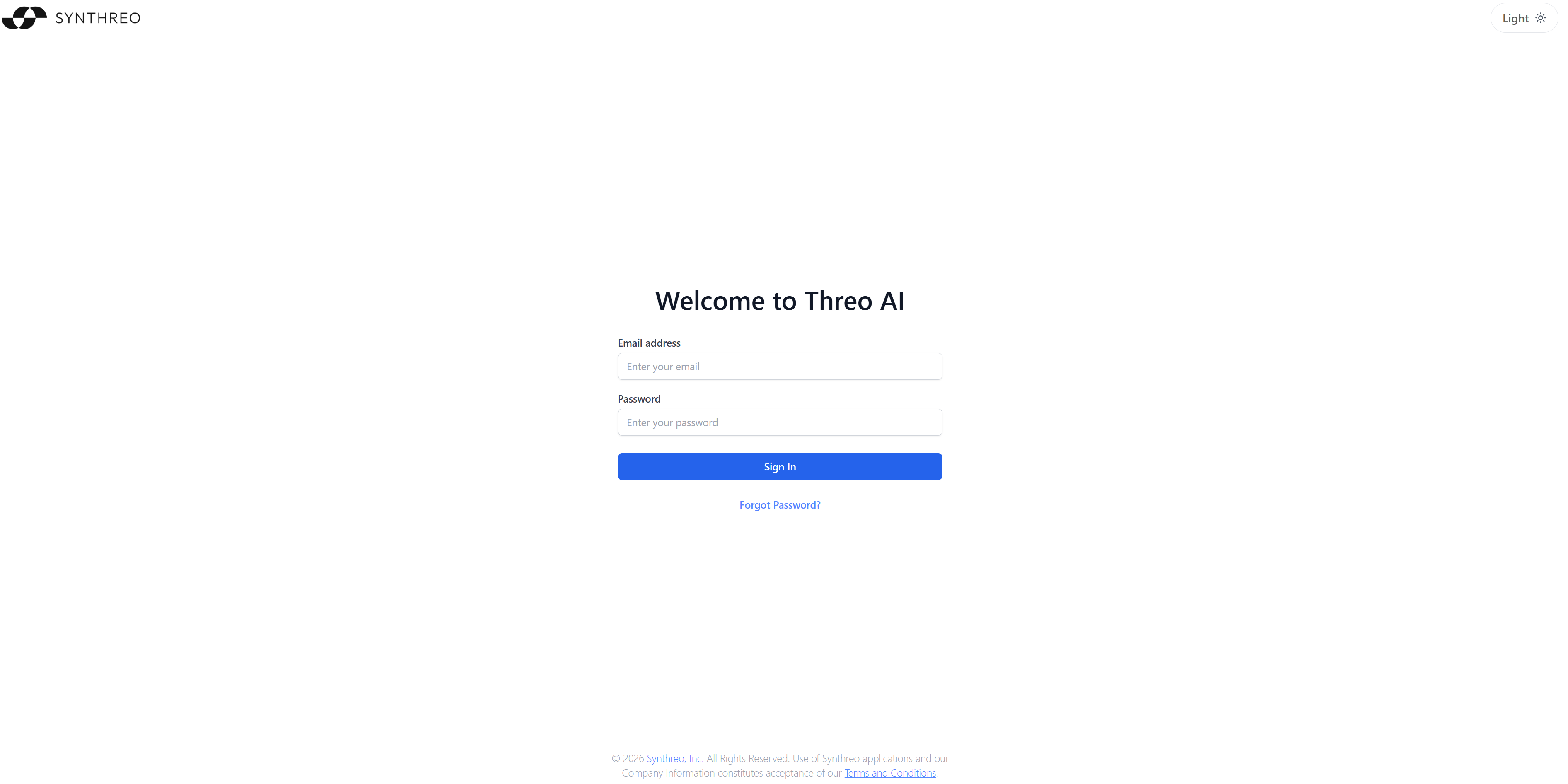
After entering your credentials and clicking Sign In, a Confirmation code field appears. Supply the code from your email or authenticator app, depending on the method you chose during setup.
You will then be taken directly to the ThreoAI home screen, where you can start chatting with the AI, browse Experts and Agents, or open your Projects.
Returning Logins
Section titled “Returning Logins”If you have already set up your account and are logging in again, follow these steps:
-
Navigate to https://threo.synthreo.ai in your web browser.
-
Enter your email address in the email field.
-
Enter your password in the password field.
-
Click Sign In.
-
If two-factor authentication is set on your account, a Confirmation code field appears. Check your email inbox or open your authenticator app, depending on your configured method, and enter the verification code.

-
After entering a valid code, you are taken directly to the ThreoAI home screen.
Tip: If you use the Email method and do not see the verification code in your inbox, check your spam or junk folder. Email verification codes are sent from noreply@synthreo.ai. If you use an authenticator app and the code is not accepted, make sure your phone’s clock is set to automatic/network time, as authenticator apps require accurate time synchronization to generate valid codes.
Forgot Your Password?
Section titled “Forgot Your Password?”If you cannot remember your password, you can reset it directly from the login screen:
- Navigate to https://threo.synthreo.ai.
- Click Forgot Password? below the password field on the login screen.
- Follow the on-screen instructions to receive a password reset email and create a new password.
For a complete walkthrough of the password reset process, see Reset Your Password.
Troubleshooting Login Issues
Section titled “Troubleshooting Login Issues”If you are having trouble logging in, here are some common issues and how to resolve them:
I never received an invitation email.
- Check your spam or junk folder for an email from noreply@synthreo.ai.
- Confirm with your organization’s ThreoAI administrator that your account has been created and that the correct email address was used.
- Ask your administrator to resend the invitation if needed.
My invitation link has expired.
- Invitation links expire after 7 days. Contact your organization’s ThreoAI administrator to request a new invitation.
My password was rejected during setup.
- It must be eight or more characters and include at least one upper case letter and at least one number.
- The Password and Confirm Password fields have to match exactly.
My password is not accepted at sign-in.
- Make sure you are entering the password exactly as you created it, including uppercase and lowercase letters.
- If you have forgotten your password, use the Forgot Password? link on the login screen to reset it.
My confirmation code is not working.
- If you receive codes by email, check your spam folder. The code email comes from noreply@synthreo.ai.
- If you use an authenticator app, ensure your phone’s clock is set to automatic/network time. Authenticator codes refresh every 30 seconds - wait for a fresh code and try again.
- Repeated wrong codes temporarily block further attempts on your account. Wait a few minutes before trying again; the exact threshold is set by your Synthreo environment.
- If you have lost access to your authenticator app, contact your organization’s ThreoAI administrator to reset MFA on your account.
I can access the login page but the site does not load after signing in.
- Try clearing your browser cache and cookies, then logging in again.
- Try using a different web browser or a private/incognito browsing window.
- If the issue persists, contact your organization’s ThreoAI administrator. Your administrator or MSP help desk escalates to Synthreo through the partner support channel.
Related
Section titled “Related”- Setting Up MFA - configure two-factor authentication on your account
- Navigating the Interface - a tour of the ThreoAI workspace after login
- Reset Your Password - recover access to your account
- Profile Settings - update your personal context, default model, and memory after logging in