

Navigating the ThreoAI Interface
A tour of the ThreoAI interface - the sidebar nav, the Threo and Wingtip switch, Studio, the composer and model picker, the account menu, and the shortcuts.
Overview
Section titled “Overview”ThreoAI has three areas: the left sidebar for navigation, the composer at the bottom where you type, and the conversation in the middle. The logo sits top-left and your account menu sits top-right. Once you know where each piece lives, the rest is fast.
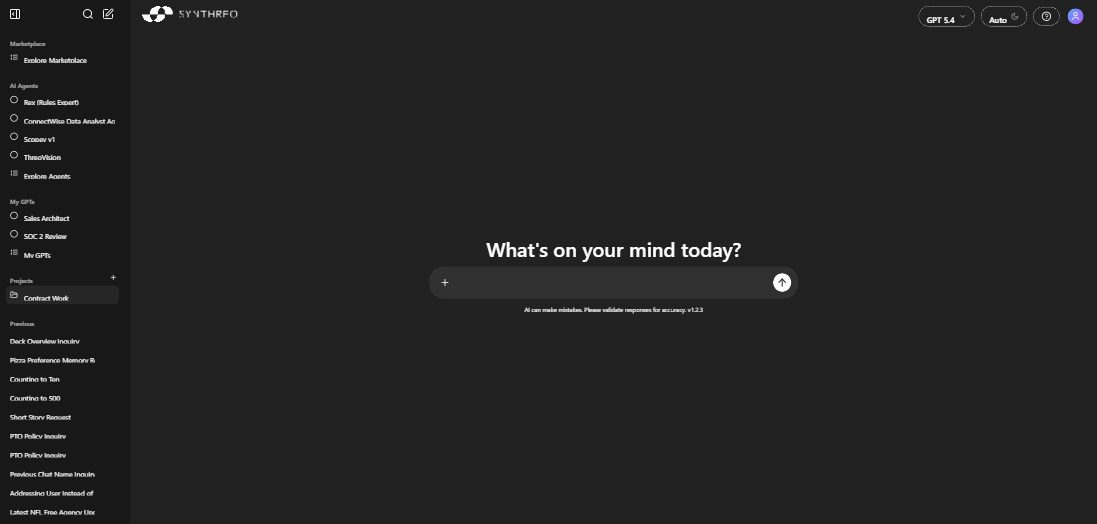
Left sidebar
Section titled “Left sidebar”The sidebar is your map of ThreoAI.
The Threo and Wingtip switch
Section titled “The Threo and Wingtip switch”At the very top of the sidebar is a two-option switch: Threo and Wingtip. It picks which product the sidebar is showing, and the nav items below it change with your choice. Threo is fast chat for questions, research, files, and everyday tasks; Wingtip is an AI agent for complex tasks that can plan, use tools, run code, and complete multi-step work.
The switch is only there if your organization has Wingtip enabled, and it is hidden while the sidebar is collapsed to its icon rail - expand the sidebar to see it.
The Threo nav
Section titled “The Threo nav”With the switch set to Threo, the sidebar holds:
| Item | What it does |
|---|---|
| New chat | Starts a fresh conversation with your default model. |
| Search | Opens the conversation-search overlay and searches your whole conversation history by keyword. |
| Studio | The creation hub - where you build Experts, capabilities, and Projects. |
| Projects | The Projects catalog. It is always in the nav, whether or not you have created one. |
| Experts | The catalog of Experts you own or can use. |
| Agents | The catalog of Pylon agents shared with you. |
| Tweaks | Appearance settings, pinned to the sidebar footer. |
Below these you will find your conversation list. The sidebar collapses if you want more room for the chat.
The Wingtip nav
Section titled “The Wingtip nav”With the switch set to Wingtip, the sidebar holds New chat, Search, Studio, and Library. New chat and Search behave the same way in both products, Studio is shared between them, and Library opens the Wingtip library hub (your library, your organization’s, and what has been shared with you). Below the nav is your Wingtip session history rather than your chat list.
Studio
Section titled “Studio”Studio is where you create the building blocks. It opens with tabs for Overview, Experts, Agents, Capabilities, Projects, and Aliases. Connectors is not a top-level tab: it is a sub-tab inside Capabilities, alongside Skills. The Capabilities tab itself only appears if your organization has connectors or skills enabled.
See Studio Overview.
Wingtip
Section titled “Wingtip”Wingtip is a separate agentic workspace. Give it a goal and your data, and it plans the steps, builds a deliverable such as a dashboard, app, report, or document, shows a live preview, and lets you download or publish it. Open it with the Wingtip side of the switch at the top of the sidebar. See Wingtip.
Experts
Section titled “Experts”Experts opens the catalog of every Expert available to you - the ones you built and the ones shared with you. Each card shows a name and description, and a search box sits at the top. Select a card to open the Expert and start chatting.
Experts were previously called Custom GPTs. See Using an Expert and Creating an Expert.
Agents
Section titled “Agents”Agents opens the catalog of agents shared with your organization. Studio describes them as “autonomous Pylon agents … tools, plans, and multi-step workflows shared with you”: an Agent runs multi-step tasks and tools for you, rather than just answering. Select one to start a conversation.
Agents are built in Pylon, not in ThreoAI. See the Pylon Overview.
Projects
Section titled “Projects”A Project groups related conversations and shared context so a thread of work keeps memory across chats. Projects is always in the sidebar, even before you have created one. You create Projects from Studio’s Projects tab.
Pinned Projects are different: the pinned-Projects group in the sidebar appears once you have pinned at least one.
See ThreoAI Projects.
Tweaks
Section titled “Tweaks”Tweaks sits in the sidebar footer. It is the appearance panel - theme, accent color, corners, spacing, font, text size, and more. Changes are visual, apply instantly, and are personal to you.
Conversation list
Section titled “Conversation list”Your past conversations sit below the nav items, newest first. Select one to reopen it. Hover over any conversation for a … menu to rename or delete it. Conversations you start inside a Project stay with that Project rather than in this list.
Search
Section titled “Search”Search scans every conversation you have, including those inside Projects. Open it from the sidebar, then type a keyword to jump to a past chat. You can also reach it through the command palette (Ctrl + K, or Cmd + K on Mac), which lists the six sidebar nav items: New chat, Search, Studio, Projects, Experts and Agents. Tweaks is a sidebar footer control rather than a nav item, so it is not in the palette.
The composer
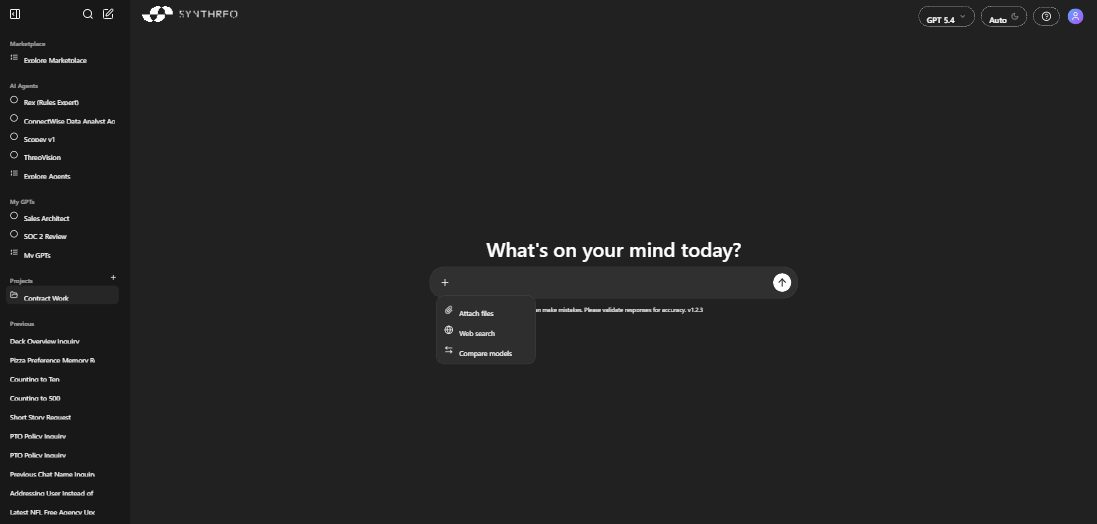
Section titled “The composer”The composer runs along the bottom of every chat - the home screen, a Project, an Expert, or an Agent. The home screen greets you by name (“Hey
| Control | What it does |
|---|---|
| Model selector | Picks the AI model for this conversation. Each model shows capability badges (web search, image generation, charts, and so on). Choose it before your first message: the selector locks once a conversation has messages in it, and reads “Model is locked once a conversation starts.” Start a new chat to use a different model. |
| Attachment | Attaches files - PDFs, Office documents, spreadsheets, images, and more. They appear as thumbnails above the composer. |
| Quick-action chips | Shortcuts above the composer: Summarize, Analyze, Draft, Brainstorm, Explain. Select one to seed your prompt. |
| Send | Press Enter to send. Press Shift + Enter for a line break without sending. |
The available models come from your administrator’s configuration in Canopy. If you need a model that is not listed, ask your administrator.
See Starting a Chat and Tools and Capabilities.
Tutorial (the guided tour)
Section titled “Tutorial (the guided tour)”On the chat screen, look for the Tutorial button in the top-right of ThreoAI, next to the help (?) icon and your avatar. It launches a short guided tour of the essentials:
- Chat with Threo - where you type a message, attach files, and press Send; start a fresh chat anytime from New chat in the sidebar.
- Pick a model - choose which AI model answers, and switch anytime before you send.
- Threo vs Wingtip - Threo is fast chat for everyday questions; for heavier, multi-step work (plan, use tools, run code, produce a report), switch to Wingtip with the toggle at the top of the sidebar.
- Replay anytime - the tour never disappears. Open the Tutorial button whenever you want to take it again.
The tour skips any step whose control is not on your screen, so if your organization does not have Wingtip you will not see the Threo vs Wingtip step.
If you are ever unsure where something lives - especially when deciding whether to stay in Threo or move to Wingtip - the Tutorial is the fastest way to reorient.
Account menu
Section titled “Account menu”Your avatar sits in the top-right corner. Select it to open the account menu.
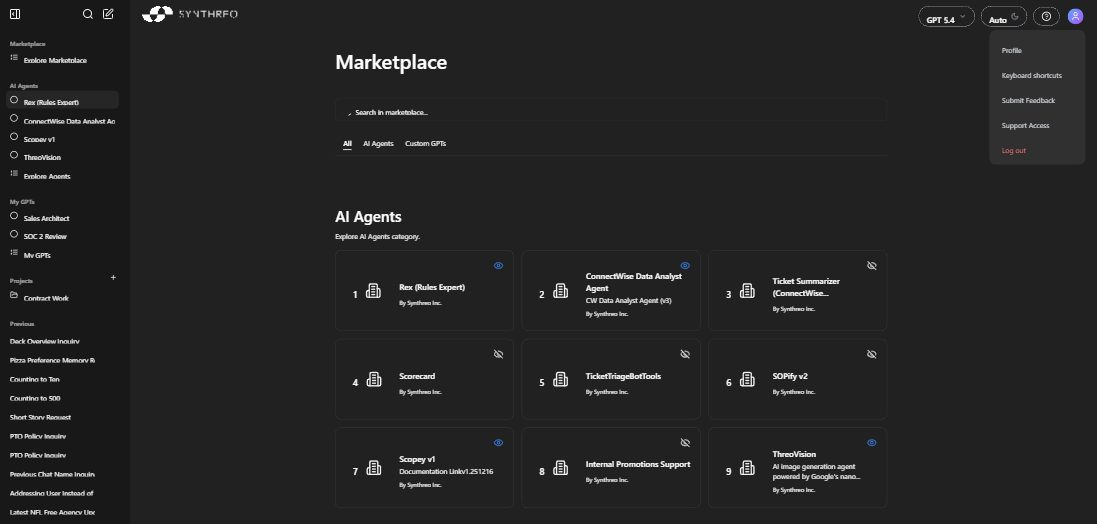
- Profile - opens your Profile, with tabs for Activity, About, Memory, Wingtip, Security, API Keys, and Remote Support. Set your preferred name, manage memory, review security, and more. See Profile Settings.
- Report a bug - opens the bug-report dialog and sends it straight to the Synthreo team. It is bug-only, so take feature suggestions to your administrator instead. See Report a bug or send feedback.
- Download for Windows / Download for macOS - the desktop app installer for your operating system. These rows are hidden when you are already in the desktop app.
- Log out - signs you out. You will log in again with your email, password, and MFA code.
The help (?) icon is not in this menu: it sits beside your avatar in the header and opens the Synthreo documentation in a new tab.
Keyboard shortcuts
Section titled “Keyboard shortcuts”| Shortcut | Action |
|---|---|
Ctrl + K / Cmd + K | Open the command palette, which jumps to New chat, Search, Studio, Projects, Experts or Agents |
Ctrl + Shift + N / Cmd + Shift + N | Start a new conversation |
Ctrl + ? / Cmd + ? | Show the keyboard shortcut list |
Shift + Enter | New line in the composer without sending |
For the full list, press Ctrl + ? (Cmd + ? on Mac) to open the shortcuts panel.
Related
Section titled “Related”- Starting a Chat - send messages and pick your model
- Studio Overview - build Experts, capabilities, and Projects
- ThreoAI Projects - organize conversations by topic or client
- Profile Settings - personal context, memory, and your default model