

ThreoAI Profile Settings
Manage your ThreoAI profile tab by tab - Activity usage, About and personal context, Memory, Wingtip defaults, Security, API Keys, and Remote Support access.
Overview
Section titled “Overview”The Profile page is where you control how ThreoAI knows and works with you. The route is /profile, and it has seven tabs: Activity, About, Memory, Wingtip, Security, API Keys, and Remote Support.
The Wingtip tab appears only if your organization has Wingtip enabled, so you may see six.
Activity is the default view. The others let you tell Threo about yourself, pick the model new chats start with, decide what Threo remembers, set your Wingtip defaults, change your two-factor method, manage API keys, and grant support access.
To open the page, select your profile avatar in the top corner and choose Profile, or go to /profile directly.
Activity
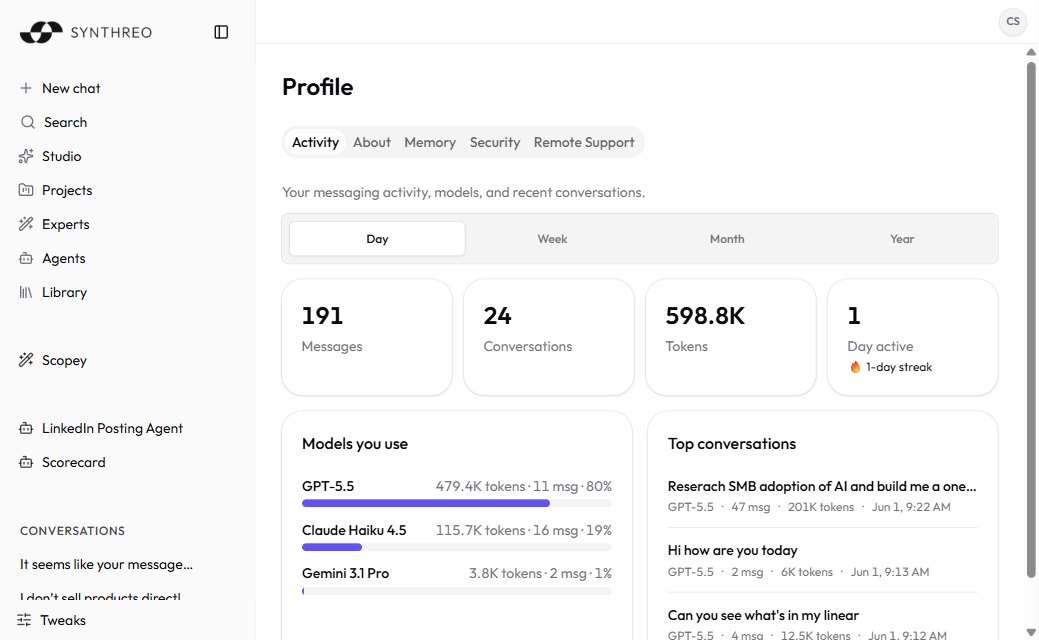
Section titled “Activity”Activity is the default view. It shows your messaging activity, models, and recent conversations.
A range toggle across the top switches between Day, Week, Month, and Year. Everything below it updates to match.
Four stat cards summarize the range:
- Messages - how many messages you sent.
- Conversations - how many chats you had.
- Tokens - total tokens used.
- Days active - days you used ThreoAI, with a 🔥 streak count.
Below the cards are two lists:
- Models you use - one row per model, with its name, tokens, message count, and percentage share of your activity. This is a quick read on which models do the most work for you.
- Top conversations - one row per chat: title, model, message count, tokens, and date. Select any entry to open that conversation and jump straight back into recent work.
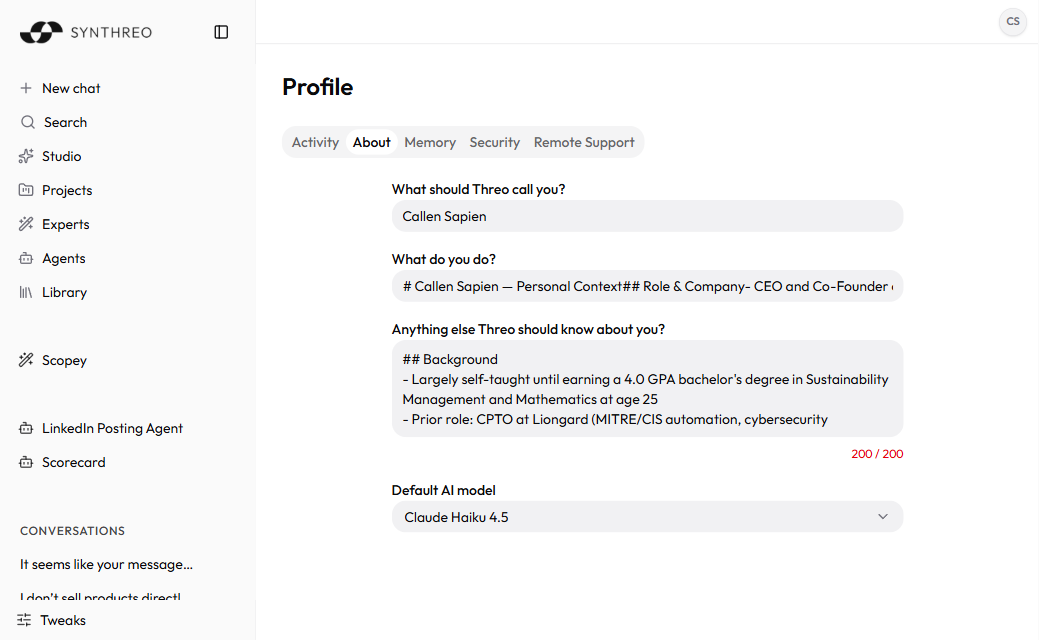
The About tab holds free-text personal context that Threo uses to tailor its answers, plus the default model for new chats.
Three fields describe you:
- What should Threo call you? - the name you want Threo to use, such as “Alex” or “Dr. Martinez”.
- What do you do? - your role or a short bio, so answers land in the right domain. The more specific, the better.
- Anything else Threo should know about you? - a free-text field with a character limit, shown as a counter such as “200 / 200”. Use it for working style, recurring topics, tools you rely on, or things to avoid.
Below those is the Default AI model dropdown. It sets the model each new chat opens with. You can still pick a different model in the composer before you send your first message, but the selector locks once a conversation has messages in it, so this setting is what every new chat starts from.
Changes on this tab autosave. You do not press a Save button - the page confirms with “Saved just now” as you edit.
Memory
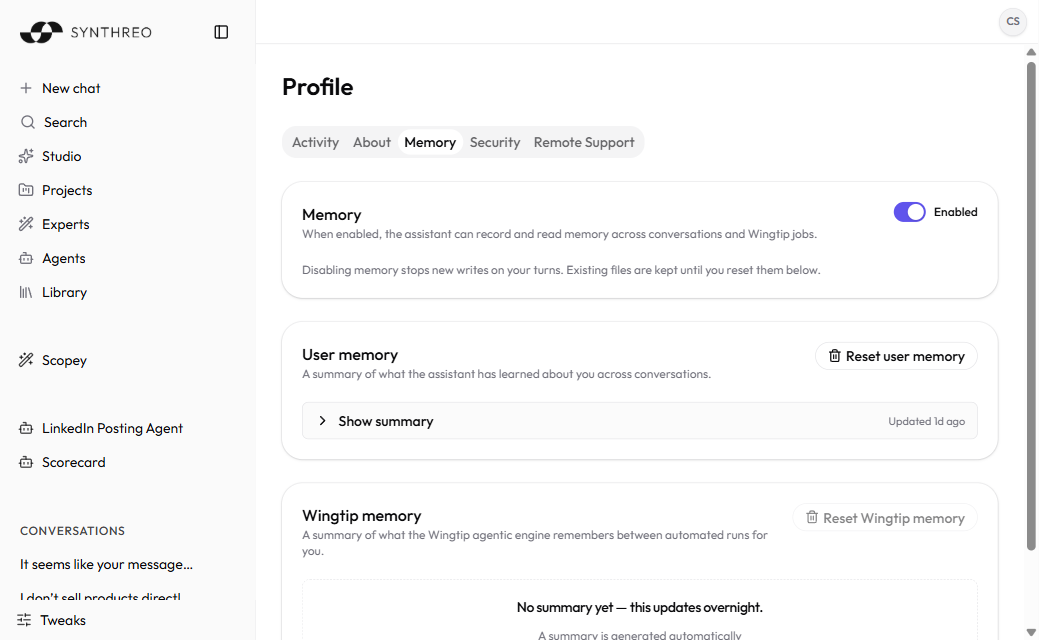
Section titled “Memory”The Memory tab turns memory on or off and manages the two stores Threo keeps for you. A switch at the top reads Memory enabled: flip it on and the assistant can record and read memory across conversations and Wingtip jobs.
Below the switch sits User memory, a summary of what Threo has learned about you, with Show summary to read it and Reset user memory to clear it. A reset button stays unavailable while its store is still empty.
Below that is an Import memory card, which brings across what ChatGPT or Claude remembers about you: you paste their reply, then accept, edit or reject each fact before anything is saved.
A third card, Wingtip (Preview) memory, appears only where Wingtip is enabled for your organization and available in your region. If you do not have Wingtip, that card is simply not there.
This tab has its own page. For the full walkthrough - the on/off behavior, the summaries, the import flow, and the reset controls - see Memory and Personalization.
Wingtip
Section titled “Wingtip”The Wingtip tab holds the preferences Wingtip applies to each new job, so you can change them outside the new-job wizard. It appears only for organizations that have Wingtip enabled.
- Default role - how Wingtip tailors each new job. The role tunes the assistant’s tone and how results are presented. Pick a category first, then the specific role within it. No preference clears the setting, and Wingtip asks every time instead.
- New-job options - a switch that shows or hides the options panel (role, data source, connectors, skills) on the Wingtip start screen. Turn it back on if you previously chose “Don’t show this again”.
Security
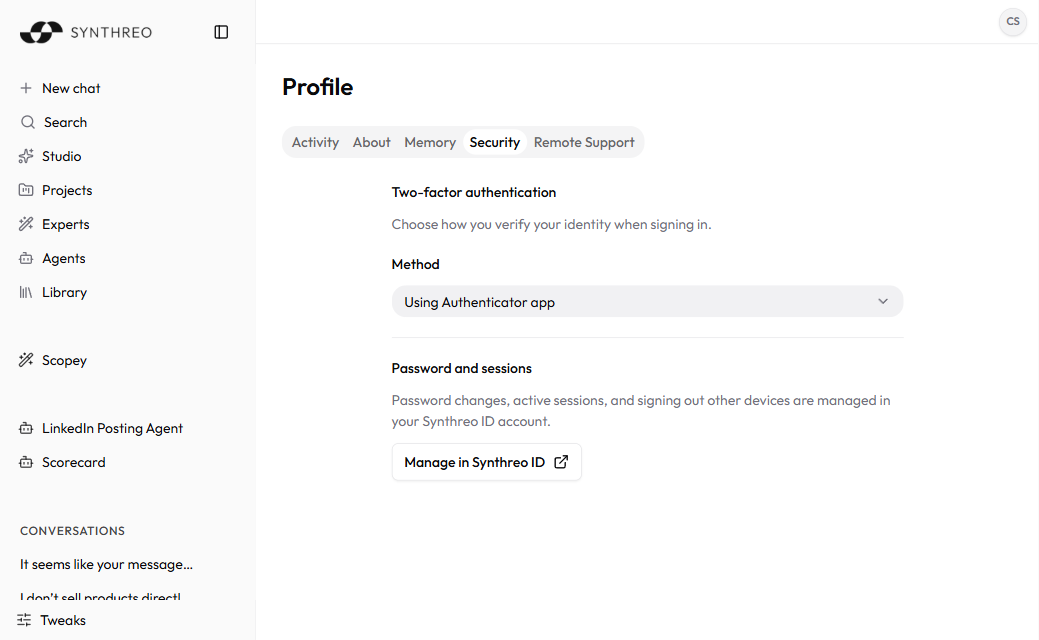
Section titled “Security”The Security tab covers two-factor authentication and points you to your Synthreo ID account for everything else.
Two-factor authentication is where you pick how you verify your identity at sign-in. Password and sessions are not here - password changes, active sessions, and signing out other devices all live in your Synthreo ID account. The Manage in Synthreo ID link takes you there, at https://login.synthreo.ai.
Changing your two-factor method
Section titled “Changing your two-factor method”Your verification method lives in the Method dropdown under Two-factor authentication, shown with your current choice such as “Using Authenticator app”.
To change it, open the Method dropdown and pick the method you want. That dropdown is how you switch your two-factor method.
For first-time setup or codes that will not work, see Setting Up MFA.
API Keys
Section titled “API Keys”The API Keys tab is where you create and manage keys for programmatic access. Each key pairs a Client ID with a secret, and you exchange the two for a token.
- Add key creates one. The secret is shown only once, when you create the key - copy it then, because it is never shown again.
- The table lists each key’s Label, Client ID, Status (Active, Expired, or Revoked), Created, Expires, and Last used.
- Active and All switch between only-live keys and the full history, so a key never silently vanishes from view.
- Revoke stops the key being exchanged for new tokens immediately, and cannot be undone.
If the tab reads “API keys aren’t enabled for your account”, your administrator has not enabled API-key access for you - ask them to.
Remote Support
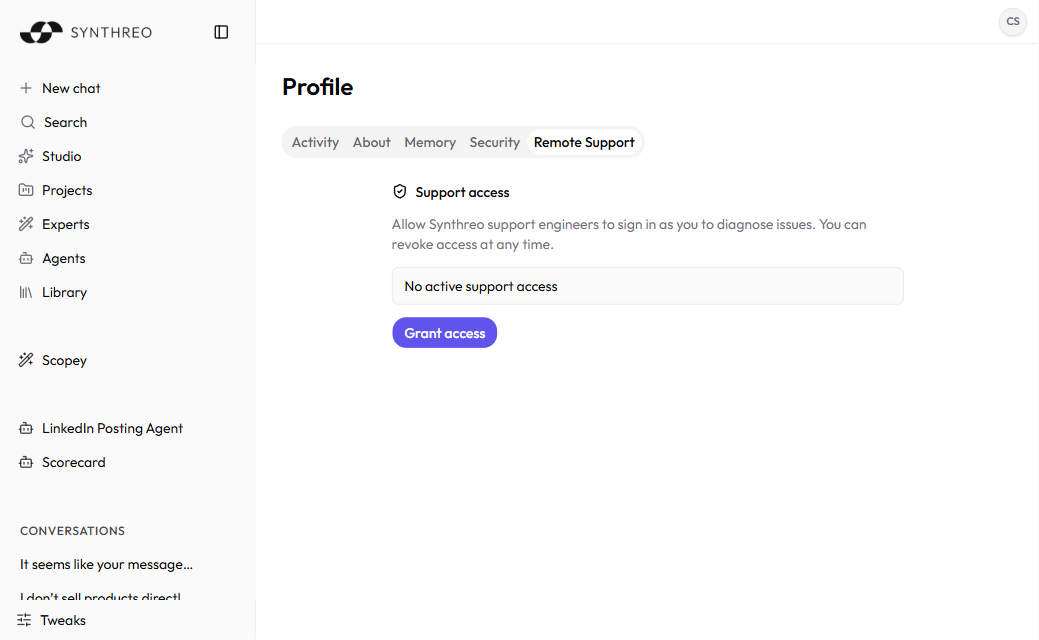
Section titled “Remote Support”The Remote Support tab lets a Synthreo support engineer sign in as you to diagnose an issue. Support access spells it out: you allow support engineers to sign in as you, and you revoke that access whenever you want.
The tab reads No active support access when no one is signed in.
This is also the consent that an MSP administrator’s Sign In As depends on for ThreoAI - until you grant it here, that button stays disabled for them.
Granting support access
Section titled “Granting support access”Grant access only when you are working with support and they ask for it.
- Open the Remote Support tab.
- Select Grant access.
While access is active, the button becomes a revoke action. Select it to end the session as soon as you are done - you stay in control and can revoke at any time.
Frequently Asked Questions
Section titled “Frequently Asked Questions”How do I open the Profile page?
Select your profile avatar in the top corner and choose Profile, or go to /profile directly.
What are the tabs? Activity (usage by Day/Week/Month/Year), About (personal context and the default model), Memory (what Threo remembers), Wingtip (your defaults for new Wingtip jobs, shown only where Wingtip is enabled), Security (two-factor method), API Keys (programmatic access), and Remote Support (support access).
Where do I pick the model new chats start with? On the About tab, in the Default AI model dropdown. It autosaves. You can still choose a different model in the composer before your first message, but not once a conversation is under way.
How do I change my two-factor method? On the Security tab, open the Method dropdown under Two-factor authentication and pick a new method. See Setting Up MFA.
I lost an API key secret. Can I see it again? No. The secret is shown once, at creation. Revoke that key and create a new one.
How do I change my password or sign out other devices? Those live in your Synthreo ID account. Use the Manage in Synthreo ID link on the Security tab, which opens https://login.synthreo.ai.
Is remote support always on? No. It stays off until you grant it on the Remote Support tab, and you can pull that access back whenever you want.
Related
Section titled “Related”- Memory and Personalization - the full Memory tab walkthrough
- Setting Up MFA - first-time two-factor setup and troubleshooting
- ThreoAI Tweaks - appearance settings, separate from these account settings
- Starting a Chat - how your context and default model apply to new conversations
- ThreoAI Overview - full platform overview