

ThreoAI Tools and Capabilities
ThreoAI built-in tools explained - web search, image generation, charts, document export, code, and memory, plus how capability badges tie tools to your model.
Overview
Section titled “Overview”ThreoAI ships with a set of built-in tools the model can reach for on its own during a chat - searching the web, making an image, drawing a chart or a table, exporting a file, running code, searching your own past conversations, or remembering useful context. You do not turn these on one at a time. Which tools are on the table depends on the model you pick, and the model decides when to use one based on what you ask.
These built-in tools are different from three other things in ThreoAI that also get called “tools” in places:
- Connectors bring outside systems into chat over MCP - your calendar, a ticketing system, an internal API. See Connectors.
- Actions are function-calls wired onto an Expert, backed by a Pylon Agent. See Creating an Expert.
- Skills are task-specific instruction packages you invoke by typing / in the composer. See Skills in ThreoAI.
This page is about the built-in AI tools that come with the chat itself.
How tools surface
Section titled “How tools surface”You see these tools in two places, and for most of them you never have to flip a switch.
Capability badges in the model selector. When you open the model picker, each model shows small badges for what it can do. There are exactly five, and they always render in this order: Web search, Code, Image gen, Computer use, Reasoning. Use these to pick a model that has what your task needs. No badge means the model does not advertise that capability. If your organization offers the Threo Auto entry, it shows no badges at all: it routes each turn to a model behind the scenes, so it has no fixed capability set.
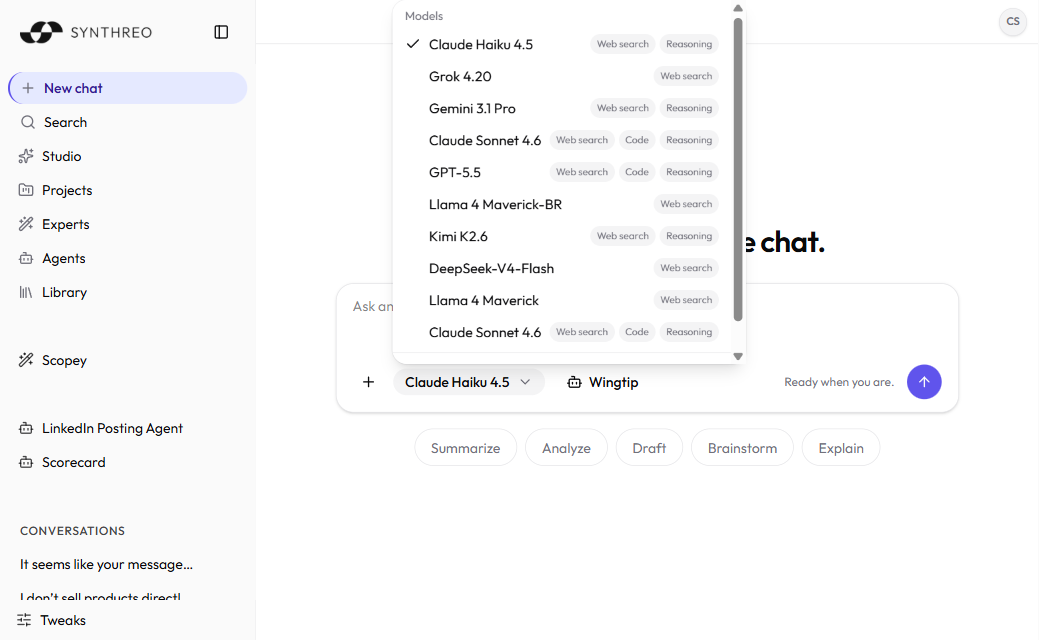
Progress chips during a reply. While the model works, it tells you which tool it is using - “Searching the web”, “Running code”, “Generating image”, “Creating document”, “Rendering chart”, “Rendering grid”, “Searching history”, “Using computer”. This is your cue that the model picked up a tool to answer you, and it lets you follow what it is doing. Tools that came from a Connector show the connector’s own name instead.
Because the model is fixed once a conversation has messages in it, the set of tools available to a chat is fixed with it. If you need a capability the current model does not have, start a new chat.
The built-in tools
Section titled “The built-in tools”Web search
Section titled “Web search”The model looks things up on the web when your question needs current or outside information, then can cite the sources it used. This is handy for recent news, fresh pricing, the latest version of a product, or anything past the model’s training cutoff.
Image generation
Section titled “Image generation”Describe an image and the model creates one, shown right in the chat. Ask for a diagram, an illustration, a mockup, or a quick visual to go with your text.
Charts and tables
Section titled “Charts and tables”When your data reads better as a picture, the model renders a chart inline - a bar chart of monthly totals, a trend line, a breakdown by category. It can also render a data grid when a table is the clearer view. You can ask for either directly or just hand over the numbers and ask for the clearest view.
Document export
Section titled “Document export”Turn chat content into a file you can download. Ask the model to export or download, and it produces a document from what is in the conversation - PDF, Word, PowerPoint, CSV, Markdown, and plain text all come back as downloadable files, and the code sandbox can hand back spreadsheets and images the same way. This is the quick path from a draft in chat to a file you can share.
Code execution
Section titled “Code execution”The model runs code in a sandbox to work out an answer, then shows you the result. This is useful for calculations, data wrangling, and anything where running real code beats estimating.
Files you attach carry over between turns in the same conversation: once you upload a spreadsheet or dataset, it stays available on later turns, so you can keep working with it without re-uploading.
The internal sandbox code is not shown in the chat; you see the results, charts, and files it produces (code you explicitly ask for as output still appears). Code execution is available on models that carry the Code badge.
Searching your history
Section titled “Searching your history”The model can search your own past conversations when an answer depends on something you discussed before. You will see a “Searching history” chip when it does.
Memory
Section titled “Memory”Memory lets the model carry useful context from one chat into the next, so you do not repeat yourself. Memory is deliberately not a capability badge - a model that supports tool-calling supports memory. What you control is the per-user switch: turn it on or off under Profile then Memory. For what gets remembered and how to manage or import it, see Memory and Personalization.
Reasoning and extended thinking
Section titled “Reasoning and extended thinking”Some models can spend extra effort thinking a problem through before they answer - shown as a Reasoning badge in the model picker.
On models that let you tune how hard they think, the composer also shows a reasoning effort control, marked with a brain icon, with four settings:
| Setting | What it does |
|---|---|
| Low | Lighter reasoning, so straightforward questions come back sooner. |
| Medium | Balances response speed against reasoning depth. |
| High | Deeper reasoning for complex tasks; it may take longer. |
| Off | Skips the extra reasoning when speed matters more than depth. |
The trigger label shows what the last turn actually ran at; your new pick applies from the next message. Your administrator can turn this control off for the whole organization, in which case the brain icon does not appear.
Picking the right model
Section titled “Picking the right model”Because tools ride along with the model, choosing a model is how you choose your tools:
- Need sources from the live web? Pick a model with the Web search badge.
- Want an image in your reply? Pick one with Image gen.
- Doing math or data work that should actually run? Pick one with Code.
- Tackling a thorny, multi-step question? Pick one with Reasoning.
Choose before you send the first message: the picker locks once a conversation has messages in it, so switching means starting a new chat. To weigh two or more models against each other on the same prompt, see AI Model Comparison, which you can open from the top of the model picker.
Frequently Asked Questions
Section titled “Frequently Asked Questions”How do I turn a tool on or off? There is no per-tool switch. Which tools are available comes from the model you pick. The capability badges in the model selector show what a model can do, and the model uses those tools on its own when your request calls for them. The two exceptions are Memory, under Profile then Memory, and reasoning effort, in the composer.
Why can one model search the web but another cannot? Tools are tied to the model. If a model does not show a capability badge for web search, it cannot search the web. Start a new chat with a model that shows the badge you need.
Can I make a model use a specific tool? You cannot force it, but you can steer it. Ask plainly - “search the web and cite your sources,” “make a chart of this,” “export this as a PowerPoint” - and a model that supports the tool will use it.
Are these the same as Connectors, Actions, and Skills? No. The built-in tools on this page come with chat and depend on the model. Connectors are MCP integrations to outside systems, Actions are function-calls set up on an Expert, and Skills are instruction packages you invoke with /. See Connectors, Creating an Expert, and Skills in ThreoAI.
Related
Section titled “Related”- Starting a Chat - the composer, the model selector, and capability badges
- AI Model Comparison - test two or more models on the same prompt
- Memory and Personalization - control what ThreoAI remembers for you
- Connectors - bring outside systems into chat over MCP
- Creating an Expert - set up Actions on a reusable assistant