

Skills in ThreoAI
Give ThreoAI chat task-specific know-how with Skills. Turn on a Synthreo skill or upload your own SKILL.md package in Studio, and it loads when needed.
Overview
Section titled “Overview”Skills give ThreoAI chat task-specific know-how. Turn on a Synthreo skill or upload your own, and ThreoAI uses it when your request matches what the skill is for. You can also invoke one deliberately by typing / in the composer and picking it from the menu.
A Skill is a packaged SKILL.md file, optionally with a few bundled files alongside it. The SKILL.md describes what the skill does and how to do it; ThreoAI reads that description and loads the skill on its own when it fits the task in front of you.
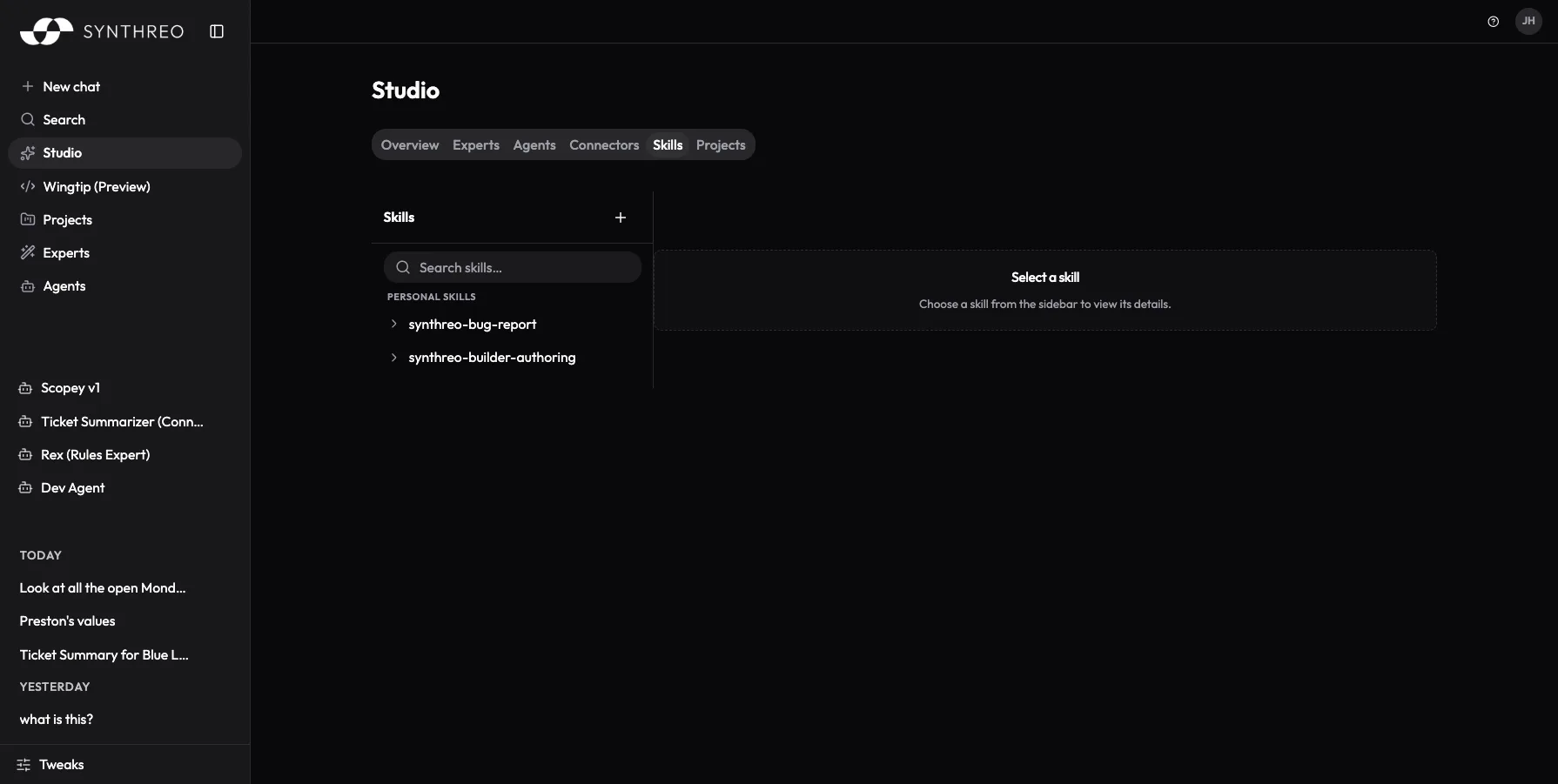
You manage Skills in Studio. Open Studio from the left sidebar, select the Capabilities tab, then the Skills sub-tab.
Skills vs Experts vs Connectors
Section titled “Skills vs Experts vs Connectors”These three extend chat in different ways:
| Type | What it is | How it activates |
|---|---|---|
| Skill | Packaged know-how (a SKILL.md) | Applied when your request matches its description, or invoked with / |
| Expert | A reusable assistant or persona you set up | You pick it to start a focused chat |
| Connector | A link to an external system over MCP | The AI calls it when it needs that system |
In short, a Skill adds know-how, an Expert gives you a persona to work with, and a Connector reaches an outside system. Skills and Connectors sit side by side as the two sub-tabs of Capabilities. See Creating an Expert and Connectors.
The Skills sub-tab
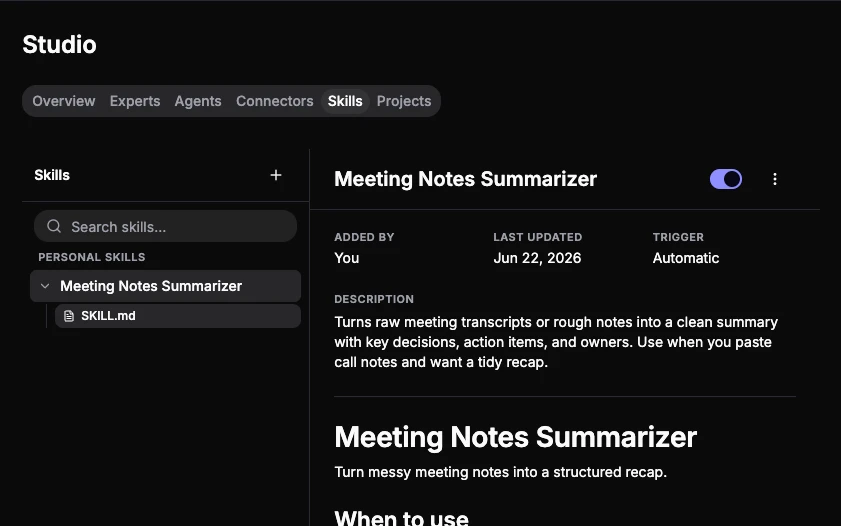
Section titled “The Skills sub-tab”Skills is a two-pane view.
The left sidebar groups your skills:
- Personal skills - skills you uploaded just for yourself.
- Organization skills - skills your administrator has published to your whole team from the Canopy Skill Catalog.
- Browse - the Synthreo catalog plus an Add your own entry. The curated Synthreo catalog is rolling out, so it may not be populated in your tenant yet.
Search filters the list by name and description. Each installed skill expands into a file tree, with SKILL.md at the top and any bundled files beneath it. A skill that is turned off is marked as such.
The right detail pane shows the selected skill: its name, an on/off switch, a kebab menu, a metadata grid, the description, and the rendered file contents.
| Metadata field | What it tells you |
|---|---|
| Added by | Who added it: You, You (admin), Your admin, or Synthreo |
| Last updated | When the skill was last changed |
| Trigger | Always Automatic - “Loaded when the model matches the description” |
The kebab menu holds the per-skill actions: Turn on / Turn off, Download, Replace, and Remove or Uninstall. These are covered in Managing a skill below. Which of them appear depends on the skill and on your permissions.
Prerequisites
Section titled “Prerequisites”- Access to ThreoAI with the Skills feature enabled for your organization.
- To upload your own skill, a SKILL.md package: either a bare
SKILL.mdfile or a.zip/.skillbundle that contains one. Uploads are limited to 4 MB. - Uploading and replacing your own skills is separately enabled by your organization. Where it is off, Add your own reads “Custom skill uploads are turned off for your organization” and Replace reads “Replace (custom uploads off)”.
Turn on a Synthreo skill
Section titled “Turn on a Synthreo skill”Step 1: Open Browse
Section titled “Step 1: Open Browse”In the Skills sub-tab, select Browse in the left sidebar to see the Synthreo catalog.
Step 2: Turn it on
Section titled “Step 2: Turn it on”Select a skill to open its detail pane, review the description, and select Turn on (or flip the switch). The skill moves into your list and is active immediately, ready to be applied when a request matches its description or invoked with /.
Upload your own skill
Section titled “Upload your own skill”Step 1: Open Add your own
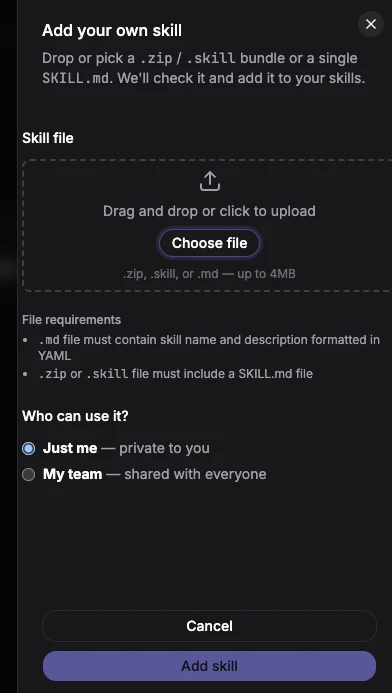
Section titled “Step 1: Open Add your own”In the left sidebar, select Browse, then Add your own to open the Add your own skill panel: “Upload a .zip / .skill bundle or a single SKILL.md to add it to the catalog.”
Step 2: Choose your package
Section titled “Step 2: Choose your package”Drop in or select your file. ThreoAI accepts .zip, .skill, or .md, up to 4MB:
- a
.zipor.skillfile must include aSKILL.md, and - a bare
.mdfile must contain the skill name and description formatted in YAML frontmatter.
ThreoAI validates the package on upload. It checks the frontmatter, file count, and size, and rejects unsafe archives.
Step 3: Add the skill
Section titled “Step 3: Add the skill”Skills you upload are personal to you - there is no team-visibility choice on upload. To make a skill available to your whole organization, an administrator publishes it from the Canopy Skill Catalog (see below).
Select Add skill to finish. The skill appears under Personal skills and is turned on.
Use a skill in chat
Section titled “Use a skill in chat”Leave the skill turned on and chat normally: when your request matches the skill’s description, ThreoAI uses its know-how in the answer. To reach for one deliberately, type / in the composer and pick it from the menu - it appears as a chip on the message, and you can remove the chip before sending. To stop a skill being used at all, turn it off.
Managing a skill
Section titled “Managing a skill”Open a skill and use the switch or the kebab menu:
- Turn off - ThreoAI stops using the skill until you turn it back on. It stays in your list. Turning off is confirmed first.
- Download - export the skill as a
.zipso you can back it up or share it. - Replace - upload a new package to update the skill in place. Needs custom uploads to be enabled for your organization.
- Remove - for a skill you uploaded, deletes it.
- Uninstall - for a catalog skill, removes it from your list and returns it to the catalog so you can turn it on again later.
Troubleshooting
Section titled “Troubleshooting”| Issue | Cause | Fix |
|---|---|---|
| No Skills sub-tab in Studio | The skills feature is not enabled for your organization | Ask your administrator to enable Skills for your tenant |
| Add your own is greyed out | Custom skill uploads are turned off for your organization | Ask your administrator to enable custom uploads |
| Upload rejected | Missing SKILL.md, missing name/description frontmatter, over 4 MB, or an unsafe archive | Check the bundle contains a valid SKILL.md and is under the size limit, then re-upload |
| Skill never seems to load | Its description does not match the requests you are making | Edit the description to clearly state what the skill is for, then Replace the skill |
| A teammate cannot see a skill you uploaded | Uploaded skills are personal to you only | Ask your administrator to publish it to the whole team from the Canopy Skill Catalog |
Frequently Asked Questions
Section titled “Frequently Asked Questions”Do I type a command to use a skill? Not necessarily. A skill that is on is applied when the model matches your request to its description. If you want to be certain a particular skill is used, type / in the composer and choose it - the skill rides along with that message as a chip.
What is the difference between Remove and Uninstall? Remove deletes a skill you uploaded. Uninstall takes a Synthreo catalog skill off your list but leaves it in the catalog, so you can turn it on again later.
Who can see a skill I upload? A skill you upload is personal to you. To make a skill available across your organization, an administrator publishes it from the Canopy Skill Catalog.
How do skills relate to Connectors? A Skill is self-contained know-how, applied on a match or invoked with /. A Connector links chat to an external system over MCP. They are the two sub-tabs of Studio’s Capabilities tab, and administrators manage both catalogs in Canopy. See Connectors.
Can my administrator publish skills for everyone? Yes. Administrators publish and scope skills in Canopy under Platform Admin - Skill Catalog, and those appear to your organization as Synthreo or organization skills.
Related
Section titled “Related”- Studio Overview - the hub where Experts, Agents, Capabilities, Projects, and Aliases live
- Creating an Expert - build a reusable assistant you select for a chat
- Connectors - the other Capabilities sub-tab, linking chat to external systems over MCP
- ThreoAI Overview - the full platform at a glance