

ThreoAI Tweaks - Appearance Settings
Restyle ThreoAI with Tweaks - ten appearance controls for theme, depth, accent, chart colors, corners, spacing, motion, font, text size, and content width.
Overview
Section titled “Overview”Tweaks are ThreoAI’s appearance settings. They control how the app looks - the theme, colors, spacing, fonts, and more - without changing anything about how Threo answers you.
Open Tweaks from the Tweaks button in the left sidebar footer (the sliders icon). It opens a popover holding ten dropdowns in a two-column grid, with a Reset button underneath. Each change applies instantly, and your choices are saved to your profile, so they stay the same the next time you log in and follow you across Chat, Pylon, and Admin.
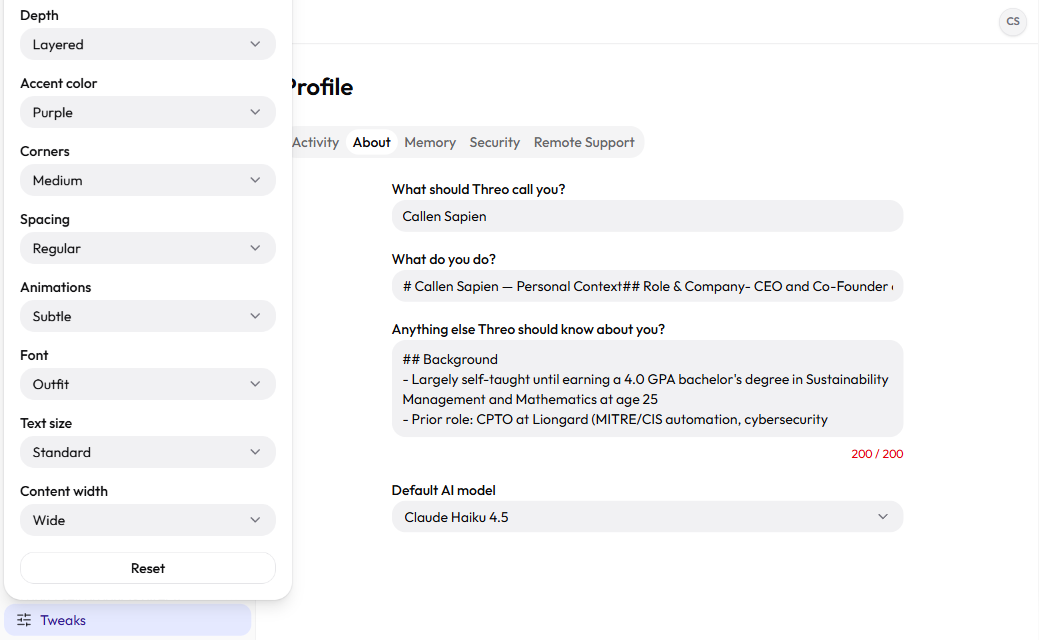
The ten controls
Section titled “The ten controls”Pick an option from any dropdown and the app updates as you watch. There is no Save button - changes take effect on the spot.
| Control | Options | What it does |
|---|---|---|
| Theme | Light / Dark | Light or dark background. |
| Depth | Flat / Layered / Glass | How much shadow and translucency panels have. |
| Accent color | Neutral / Purple / Blue / Teal / Green / Amber | The highlight color used for buttons and active items. |
| Chart colors | Match accent / Colorful | Whether charts draw their series from the accent hue or from a fixed multi-hue palette. |
| Corners | Sharp / Medium / Soft | How rounded the corners of cards and buttons are. |
| Spacing | Compact / Regular / Spacious | How much room sits between elements. |
| Animations | Off / Subtle / Lively | How much the interface moves and transitions. |
| Font | Outfit / Inter / Geist / IBM Plex / Mono | The typeface used across the app. |
| Text size | Small / Standard / Large | Overall text scale. |
| Content width | Narrow / Standard / Wide / Full | How wide the main content column stretches. |
A few combinations are worth knowing:
- Compact spacing with Small text fits more on screen at once - handy on a small laptop.
- Large text with Spacious spacing is easier to read from a distance.
- Off animations removes motion if you prefer a still interface.
- Colorful chart colors makes a chart with several series easier to read than a single-hue ladder.
Reset to defaults
Section titled “Reset to defaults”The Reset button in the popover returns all ten controls to their default values in one step: Dark theme, Layered depth, Blue accent, Colorful chart colors, Medium corners, Regular spacing, Subtle animations, the Outfit font, Standard text size, and Standard content width. Use it if you have changed several settings and want a clean starting point. Reset is instant, like the individual controls.
Tweaks are purely visual
Section titled “Tweaks are purely visual”Tweaks only change the look of the app. They do not change which model you use, what tools are available, how Threo answers, or any of your content. Switching from Light to Dark or from Inter to Mono has no effect on a conversation - it just restyles the screen. If you want to change how Threo behaves, that lives elsewhere: see your Profile settings and Tools and Capabilities.
Frequently Asked Questions
Section titled “Frequently Asked Questions”Where is the Tweaks button? In the footer of the left sidebar. Look for the sliders icon labeled Tweaks.
Do I have to save my changes? No. Every control applies the moment you pick it, and your choices are written to your profile automatically.
Do Tweaks change how Threo answers? No. Tweaks only restyle the app. They never touch chat behavior, model choice, or answer quality.
Will my Tweaks follow me to Pylon and Admin? Yes. The same Tweaks footer ships in every Synthreo app’s sidebar, and because your choices are saved to your profile the same look applies across Chat, Pylon, and Admin, carrying over between sessions and devices.
How do I undo everything at once? Select Reset in the Tweaks popover to put all ten controls back to their defaults.
Related
Section titled “Related”- ThreoAI Profile Settings - account info, memory, security, and other personal settings
- Memory and Personalization - control what Threo remembers about you
- Tools and Capabilities - what Threo can do in a chat, by model