

Adding a New Customer
Create a customer tenant in Synthreo Canopy: the Onboard a New Customer dialog, its Canopy, Pylon and ThreoAI permissions, and the customer detail page tabs.
This guide explains how to create a new customer tenant in Synthreo’s Canopy system.
Prerequisites
Section titled “Prerequisites”- Access to the Canopy portal
- Administrative privileges
- Your own organization must have Can add customers enabled, or the New Customer button stays disabled
Steps to Create a Customer
Section titled “Steps to Create a Customer”1. Access Canopy
Section titled “1. Access Canopy”- Go to https://canopy.synthreo.ai
- Log in with your administrative credentials
2. Navigate to Customer Creation
Section titled “2. Navigate to Customer Creation”- Click Customers in the left sidebar
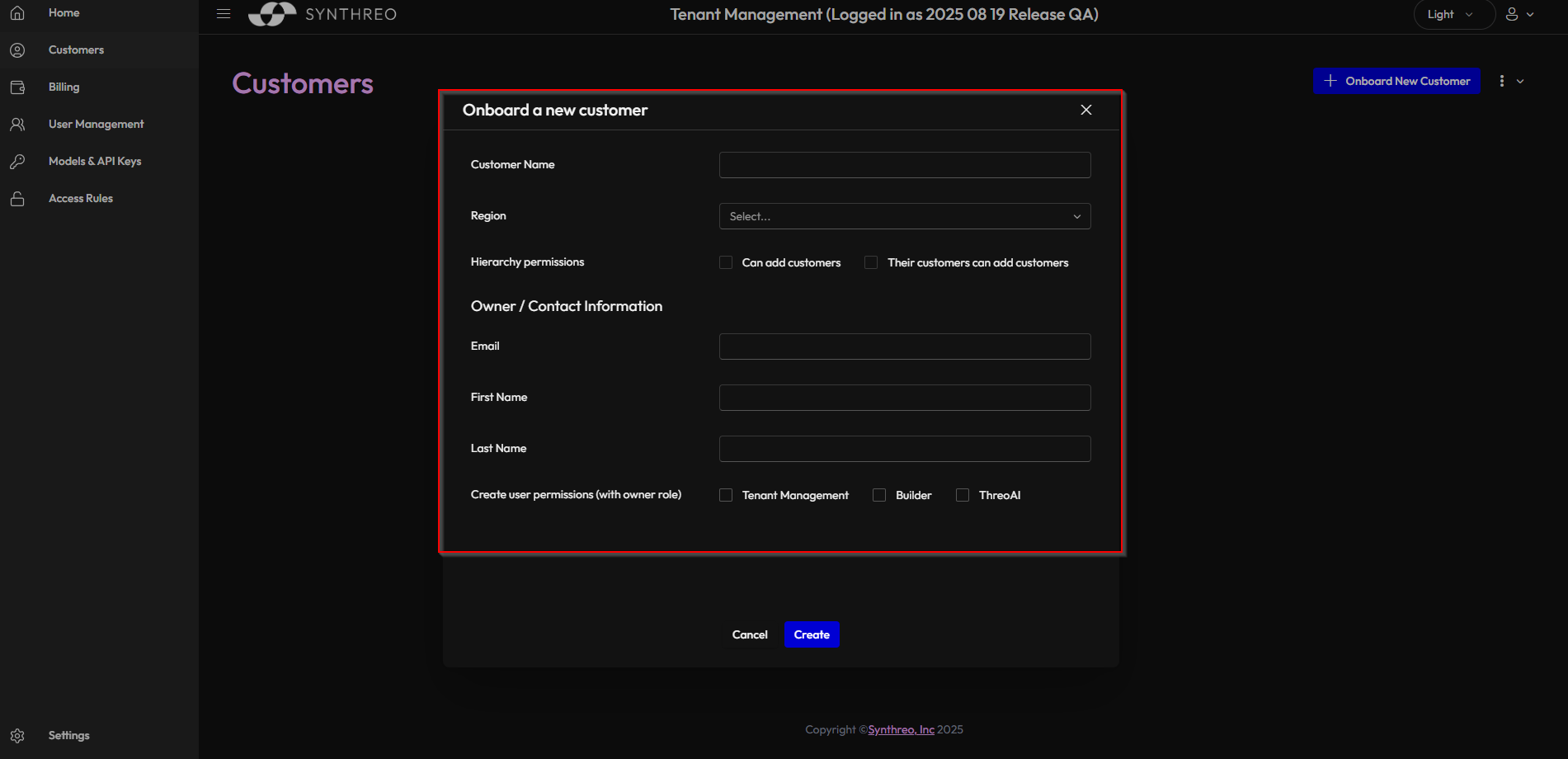
- Click New Customer to open the Onboard a New Customer dialog

3. Fill in Customer Details
Section titled “3. Fill in Customer Details”Complete the onboarding form:
Basic Information
Section titled “Basic Information”- Customer Name: Enter the company’s full legal name. Required.
- Region: Select the region the tenant is created in. Required. The region also decides whether Pylon can be granted - see User Permissions below.
Hierarchy Permissions
Section titled “Hierarchy Permissions”- Can add customers: whether this customer can create sub-customers.
- Their customers can add customers: whether those sub-customers can in turn create their own.
Owner / Contact Information
Section titled “Owner / Contact Information”- Email: Primary contact email for the customer account. Required.
- First Name: First name of the primary contact.
- Last Name: Last name of the primary contact.
User Permissions
Section titled “User Permissions”The section is labelled Create user permissions (with owner role). These are the applications the owner account is created with:
| Permission | Behaviour |
|---|---|
| Canopy | Optional. Tick it to give the owner access to the admin portal - users, settings, and the customer’s own sub-customers. |
| Pylon | Optional. Disabled when the selected region does not offer Pylon; the tooltip then reads “Pylon is not available in the selected region.” Changing the region to one without Pylon clears the tick. |
| ThreoAI | Always ticked and always disabled. The tooltip reads “ThreoAI is included for all customers.” |
4. Customer Setup Completion
Section titled “4. Customer Setup Completion”- A setup email is sent to the customer’s email address
- The customer receives instructions to complete their account setup
- Once the customer completes setup, onboarding is finished
The Customer Detail Page
Section titled “The Customer Detail Page”Once a customer exists, open it from the Customers list to manage it on its detail page. Click the customer’s row - the whole row is the link; there is no menu button and no expand arrow.
The page carries these tabs:
| Tab | What you manage |
|---|---|
| Detail | Core information and controls (see below) |
| Billing | Customer access and billing information (see below) |
| Users | The customer’s user accounts - add users, resend invitations, manage permissions. See Adding a New User |
| Accounts | App-level access per app (Canopy, ThreoAI, ThreoBuilder, Pylon), including Delegate Login and Sign In As. See Sign In As and Delegate Login |
| Customers | The child tenants beneath this customer |
| Authentication | The customer’s SSO enforcement, auto-provisioning rules, and the resulting provisioned-user and deny lists, all on one tab. See SSO and Auto-Provisioning |
| API Keys | Who in the customer may create API keys, and active-key revocation. See API Keys |
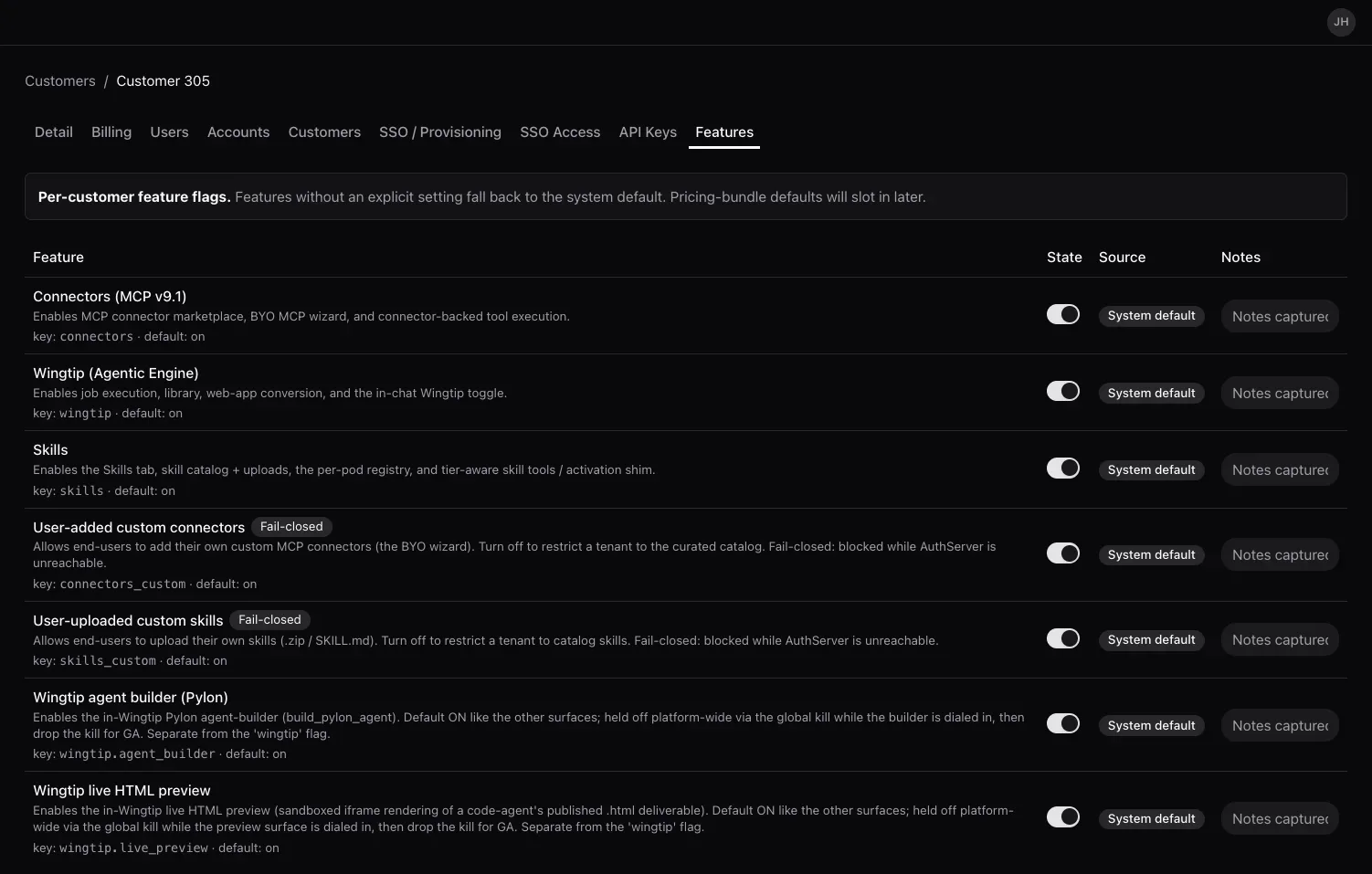
| Features | The feature flags enabled for the customer (see below). Shown only to administrator accounts |
Each tab is deep-linkable: /customers/info/<id>?tab=features opens the customer straight on its Features tab. The Accounts tab additionally remembers which app you were looking at, for example ?tab=accounts&accountsApp=pylon.
Detail tab
Section titled “Detail tab”The Detail tab opens on a Customer Information card holding the customer’s core fields (ID, Region, Parent, Name - only Name is editable) and these controls:
- Hierarchy permissions - Can Add Customers and Descendants Can Add Customers. Can Add Customers is editable only when the customer’s parent organization has that permission itself; Descendants Can Add Customers stays disabled until Can Add Customers is ticked. Use Save Changes to apply.
- Country-lock LLM inference - keep the customer’s AI inference in-country. This checkbox appears only when the country-lock feature is enabled for the customer; it is the per-customer version of the data residency setting.
- Branding - separate light and dark logo uploads, so branding renders correctly against both themes.
- MFA Method Configuration - which MFA methods the customer’s users may use, with the same migrate-on-disable option described in Settings.
- Danger Zone - Delete Customer (permanent). The button is disabled on your own organization.
Billing tab
Section titled “Billing tab”The Billing tab has two parts:
- Billing Information - Business ID, Tax ID, Billing Name, and Address (read-only here).
- Customer Access - enable or disable the customer and set a Trial Expiration Date. These controls are managed by Synthreo root administrators.
Features tab
Section titled “Features tab”The Features tab is a per-customer feature-flag table (Feature, State, Source, Notes). A feature without an explicit setting falls back to the system default; the Source column shows whether a value is a system default, an admin override, or from a plan. Flags include Connectors (MCP), Wingtip, Skills, user-added custom connectors, user-uploaded custom skills, and Wingtip live HTML preview. Some flags are marked “fail-closed,” meaning they block access if the backing service cannot be reached.
Deleting a customer
Section titled “Deleting a customer”Use Delete Customer in the Detail tab’s Danger Zone to remove a child customer tenant. Deletion is permanent and removes the customer’s tenant along with its users and configuration, so confirm before you proceed.
Troubleshooting
Section titled “Troubleshooting”| Issue | Cause | Fix |
|---|---|---|
| New Customer button not visible | Insufficient administrative privileges | Verify your account has the Owner or Admin role in Canopy |
| Customer not appearing in the Customers list after creation | Page not refreshed | Reload the Customers page; new tenants appear immediately after creation |
| Clicking a customer does nothing | You clicked outside the row, or the list failed to load and is showing “Couldn’t load customers.” | Click anywhere on the customer’s row; if the error banner is showing, check your access or connection and retry |
| New Customer is disabled | Your organization does not have Can add customers enabled, or the customer list failed to load | That setting lives on your organization’s own record and is managed a level up in the hierarchy; ask your parent organization’s administrator to enable it. If the list is showing an error banner, retry first |
| The hierarchy checkboxes are greyed out in the dialog | They are configurable at creation time by Synthreo root administrators only | Create the customer, then set them on its Detail tab |
| Pylon cannot be ticked | The selected region does not offer Pylon | Pick a region where Pylon is available, or grant Pylon later once it is offered there |
| Customer did not receive setup email | Email address entered incorrectly, or email landed in spam | Verify the email address in the customer record, then use Resend Invitation on the user |
| Setup link expired | Customer did not complete setup within 7 days | Use Resend Invitation to issue a fresh setup link |
Can I edit a customer’s details after creation? Yes. Open the customer from the Customers list and edit on the Detail tab. The Name is editable there; ID, Region and Parent are read-only.
Why can’t I tick Builder? Because this dialog does not offer it. It creates the owner with Canopy, Pylon and ThreoAI permissions only, and sends Builder explicitly off. Builder is still a supported application with its own permission and its own role catalog - it is simply not part of customer onboarding. Grant it afterwards from Add User if the customer needs it.
What is the difference between “Can add customers” and “Their customers can add customers”? “Can add customers” controls whether the new tenant itself can create sub-tenants beneath it. “Their customers can add customers” extends that ability one level further, allowing the new tenant’s sub-tenants to also create their own sub-tenants. In the New Customer dialog both are set by Synthreo root administrators only; afterwards they are editable on the customer’s Detail tab.
How many levels of customer hierarchy are supported? The platform supports multi-level nesting. Each level of the hierarchy is managed through the same Customers screen, with each tenant only able to see and manage the tenants directly beneath them.
Can I assign additional users to a new customer immediately after creation? Yes. After the customer is created, navigate to the customer’s detail page and add users from the Users tab. See Adding a New User for step-by-step instructions.
Next Steps
Section titled “Next Steps”After creating a new customer:
- Add users to the customer account
- Configure customer-specific settings
- Set up initial access permissions