

ThreoAI Library - Web Apps and Jobs
The ThreoAI Library collects what Threo produces across chats - the web apps it builds for you and the background jobs it runs - where your tenant enables it.
Overview
Section titled “Overview”The Library collects things Threo produces for you across conversations, so you can find them again without digging back through chat history. You open it from Library in the left navigation (route /library).
Available where enabled. The Library is gated behind a Wingtip feature flag, so it is not turned on for every organization yet. If you do not see Library in the left navigation, your tenant has not enabled it - that is expected, not a problem with your account.
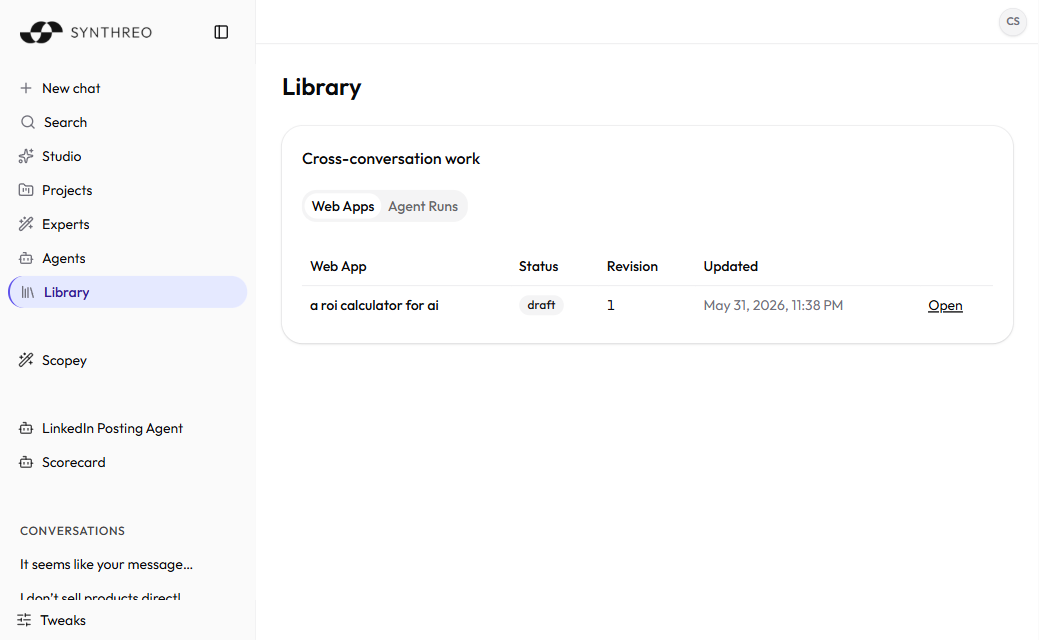
The Library has two tabs: Web apps and Jobs.
Web apps
Section titled “Web apps”Web apps are the flagship of the Library. These are small, self-contained apps that Threo generates for you out of a conversation - for example, a calculator, a form, or a small interactive tool built to match what you asked for. Each one you create is collected on the Web apps tab so you can return to it later.
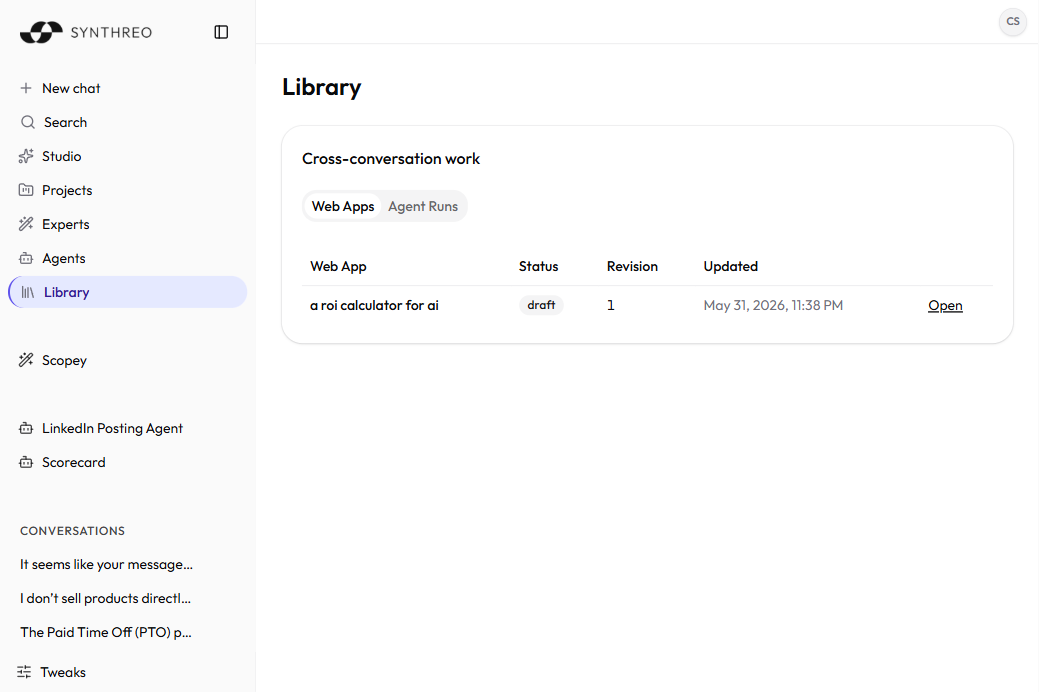
The Jobs tab tracks background tasks - work that runs on its own rather than finishing instantly in the chat. Use it to see what has run and check on tasks still in progress.
Frequently Asked Questions
Section titled “Frequently Asked Questions”Why do I not see a Library? The Library is behind a feature flag, so it shows up only where your organization has enabled it. A missing Library entry in the left navigation simply means your tenant has not turned it on yet.
What is the difference between the two tabs? Web apps holds the small apps Threo builds for you - the flagship of the Library. Jobs tracks background tasks so you can follow what has run and what is still going.
Where does Library content come from? From your conversations. As Threo produces a web app or kicks off a background job, it collects the result here so you can find it again later.
Related
Section titled “Related”- Starting a Chat - where conversations and the work behind the Library begin
- Tools and Capabilities - what Threo can build and run in a chat
- ThreoAI Overview - the full platform and where the Library fits