

Share LLM Models with Users and Customers
How to use Access Rules in Synthreo Tenant Management to grant or deny GPT model access — Customer Rules and User Rules explained.
Application: Synthreo Tenant Management (admin.synthreo.ai)
Role: MSP Administrator (logged in as your MSP organization)
Overview
Section titled “Overview”After creating a custom LLM model, you control who can use it through Access Rules. Access Rules let you grant or deny access to GPT Chat Models for specific customers (Customer Rules) or specific individual users (User Rules). Without an explicit access rule, the default behavior depends on your existing broad rules.
To manage Access Rules within a specific customer’s tenant, open a delegated session for that customer first, then follow the steps below within that session.
Navigating to Access Rules
Section titled “Navigating to Access Rules”-
Log in to admin.synthreo.ai.
-
In the left navigation menu, click Access Rules.
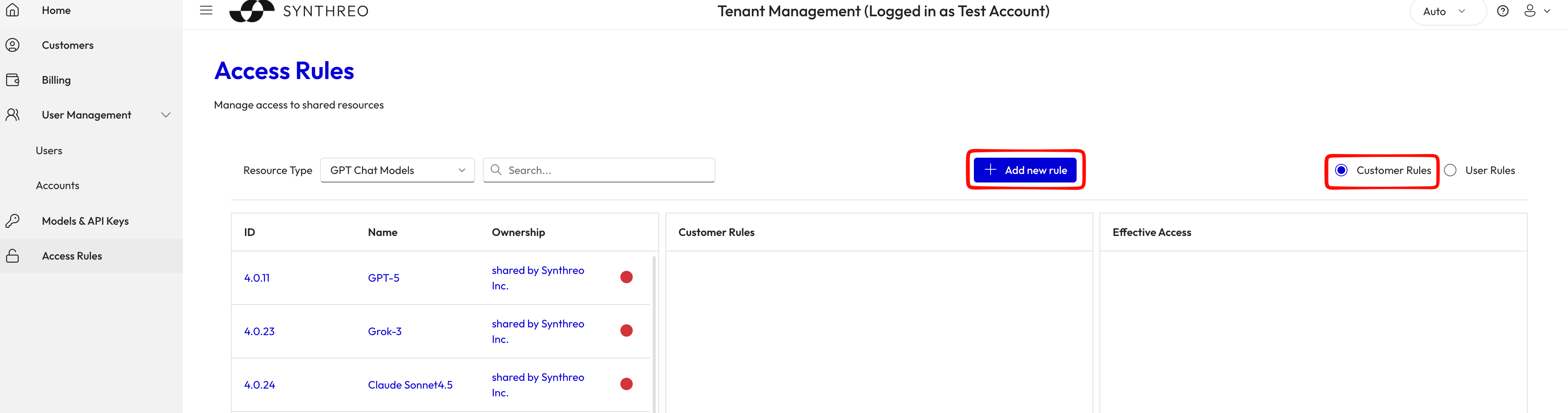
The Access Rules page appears. It shows three columns:
- Left — a list of resources (models, vendors, etc.) you own
- Middle — rules applied to the selected resource
- Right (Effective Access) — a live view of which customers or users currently have access
-
In the Resource Type dropdown, select GPT Chat Models.
The list on the left updates to show all your LLM models. The middle column shows existing Customer Rules.
Part A: Share a Model with Customers (Customer Rules)
Section titled “Part A: Share a Model with Customers (Customer Rules)”-
Ensure Customer Rules is selected (the radio button in the top-right, default).
-
Click on a model in the left column to select it (it will highlight).
The middle column updates to show rules that apply to that specific model.
-
Click + Add new rule.
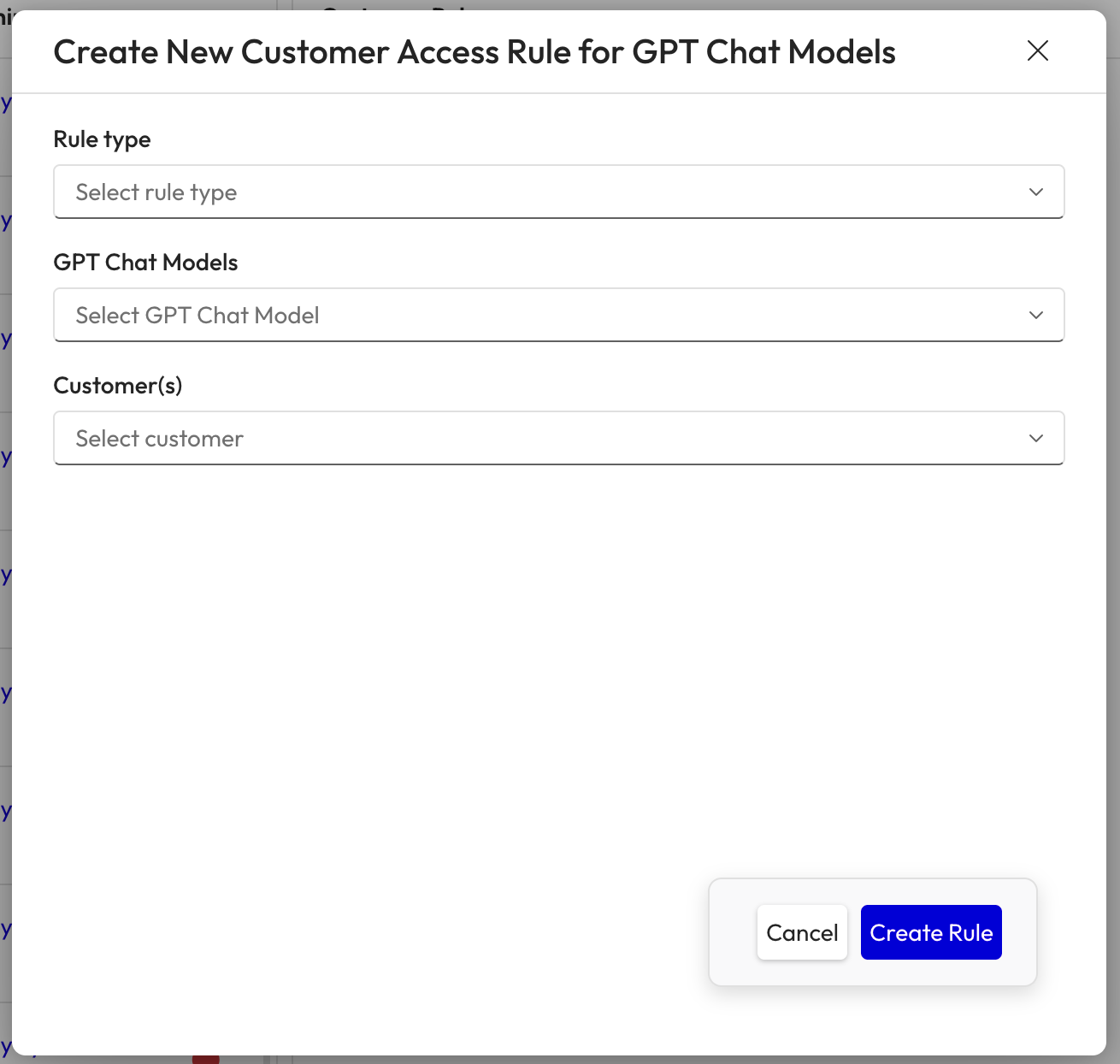
The “Create New Customer Access Rule for GPT Chat Models” dialog appears.
-
Configure the rule:
- Rule type — select from the dropdown:
- Grant access — allows the selected customer(s) to use this model in ThreoAI
- Deny access — explicitly blocks access (useful for overriding a broad grant rule)
- GPT Chat Models — select the specific model, or choose “All” to apply to all models
- Customer(s) — select one or more customers, or choose “All my customers” to apply broadly
- Rule type — select from the dropdown:
-
Click Create Rule.
The rule appears in the middle column. The Effective Access column on the right updates immediately to show which customers now have access (green dot = access granted, yellow/red = partial or denied).
Part B: Share a Model with Individual Users (User Rules)
Section titled “Part B: Share a Model with Individual Users (User Rules)”-
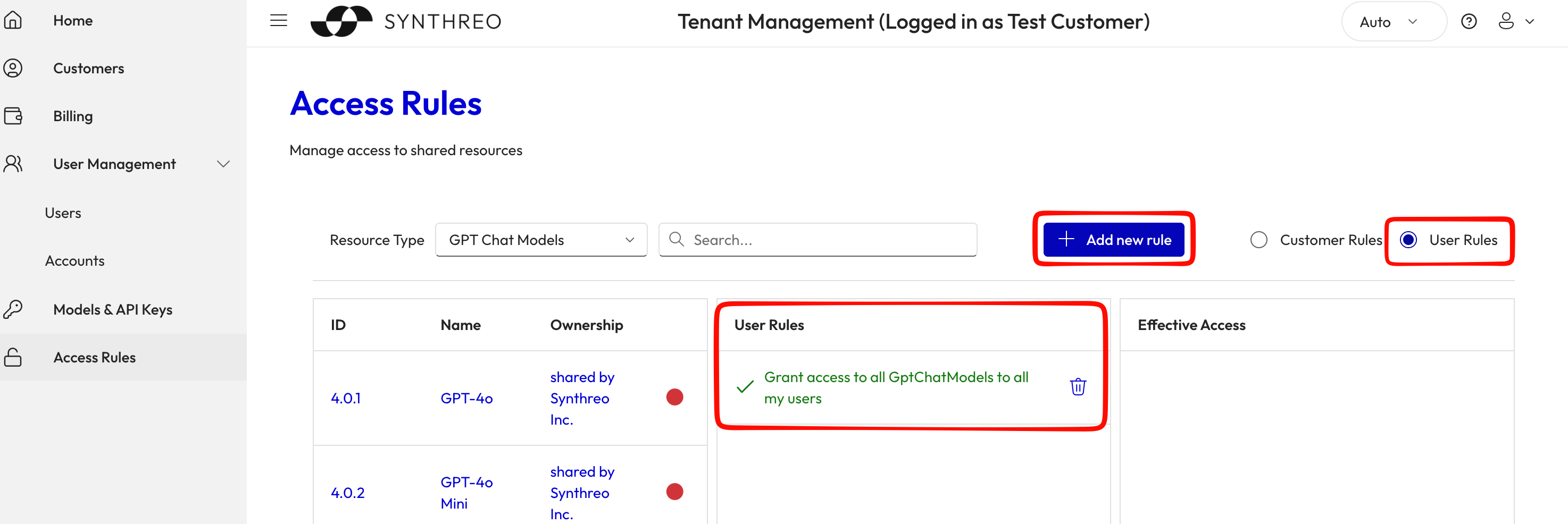
On the Access Rules page with GPT Chat Models selected, click the User Rules radio button in the top-right.
The middle column switches to show User Rules and the right column lists individual users with their access status.
-
Click + Add new rule.
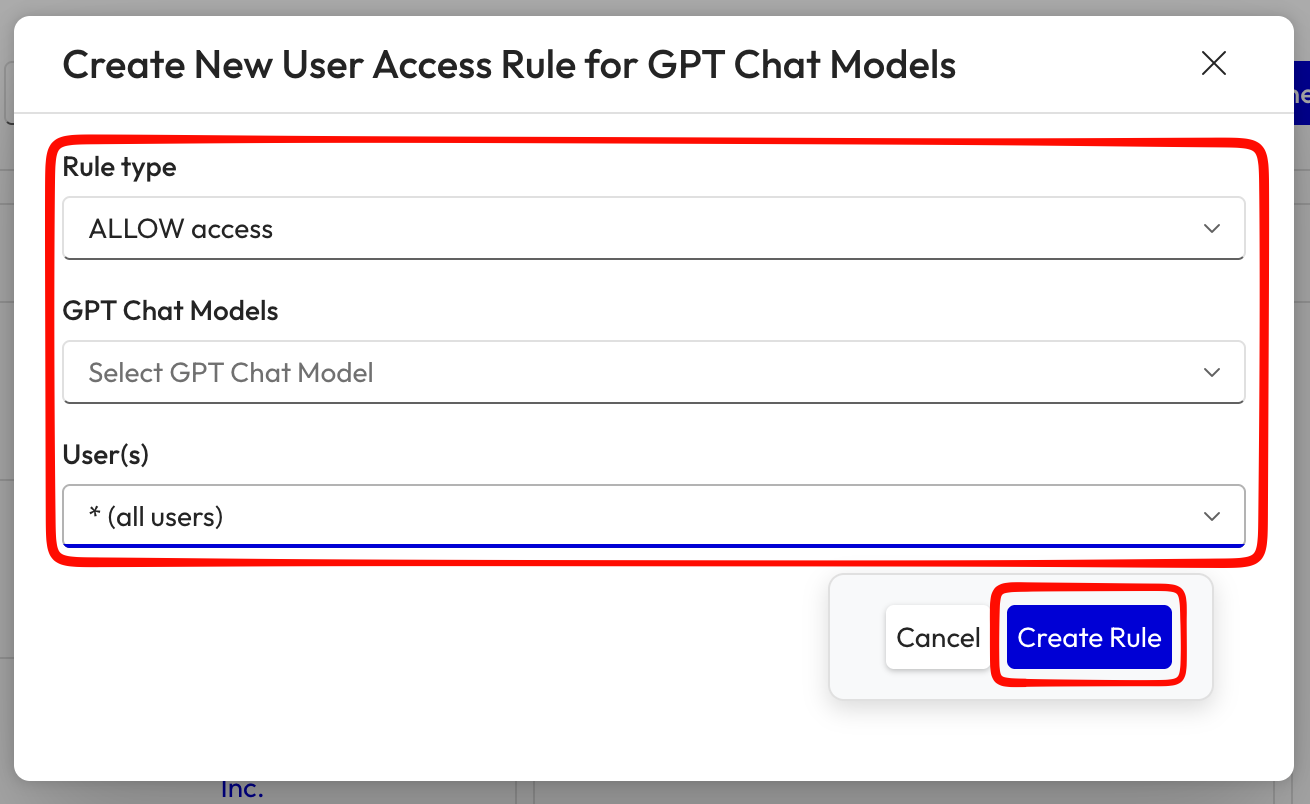
The “Create New User Access Rule for GPT Chat Models” dialog appears.
-
Configure the rule:
- Rule type — select Grant access or Deny access
- GPT Chat Models — select the specific model or “All”
- User(s) — select one or more individual users
-
Click Create Rule.
The rule is applied immediately. The user will see the newly shared model in ThreoAI’s model selector the next time they open or refresh the interface.
Understanding the Effective Access Column
Section titled “Understanding the Effective Access Column”The colored dots in the Effective Access column indicate the result of all rules combined:
- 🟢 Green — access is granted
- 🟡 Yellow — access is partial (some models granted, some denied)
- 🔴 Red — access is denied
Rules are evaluated in combination — a broad “Grant all” rule can be overridden by a specific “Deny” rule for a particular model or customer.
- Rules created for customers apply to all users within that customer tenant unless overridden by a User Rule.
- User Rules take precedence over Customer Rules for individual users.
- You can delete any rule by clicking the trash icon next to it in the middle column.
- To manage access for a customer’s own models within their tenant, use the Delegate Login feature to enter their session and manage Access Rules from there.