

Add a Custom LLM Model
How to create custom AI models with system prompts in Synthreo Tenant Management: configure vendor, deployment, and deploy branded AI assistants to users.
Application: Synthreo Tenant Management (admin.synthreo.ai)
Role: MSP Administrator (logged in as your MSP organization, or delegated as a customer)
Overview
Section titled “Overview”Custom LLM models allow you to expose a specific AI model to your users with a pre-configured identity and behavior defined by a System Message (system prompt). This is how you provision AI models that with structured intelligence on internal company mission, products, services, values, personnel, culture, etc.
To create a model scoped to a specific customer tenant rather than your MSP, open a delegated session for that customer first, then follow the steps below within that session.
-
Log in to admin.synthreo.ai.
-
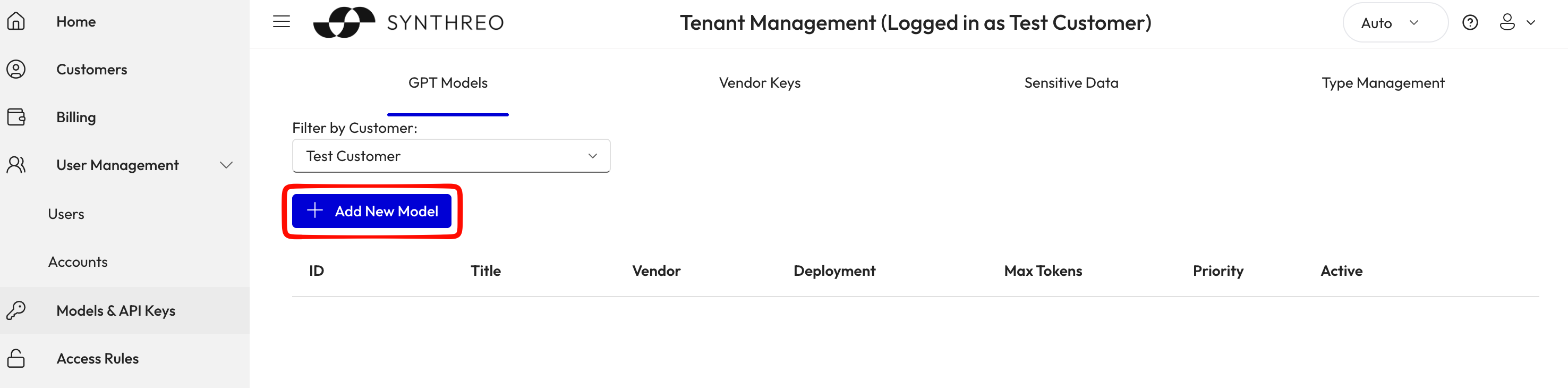
In the left navigation menu, click Models & API Keys.
The GPT Models tab is shown by default, listing all models currently configured for your organization. Use the Filter by Customer dropdown to view or manage models for a specific customer tenant.
-
Click the + Add New Model button.
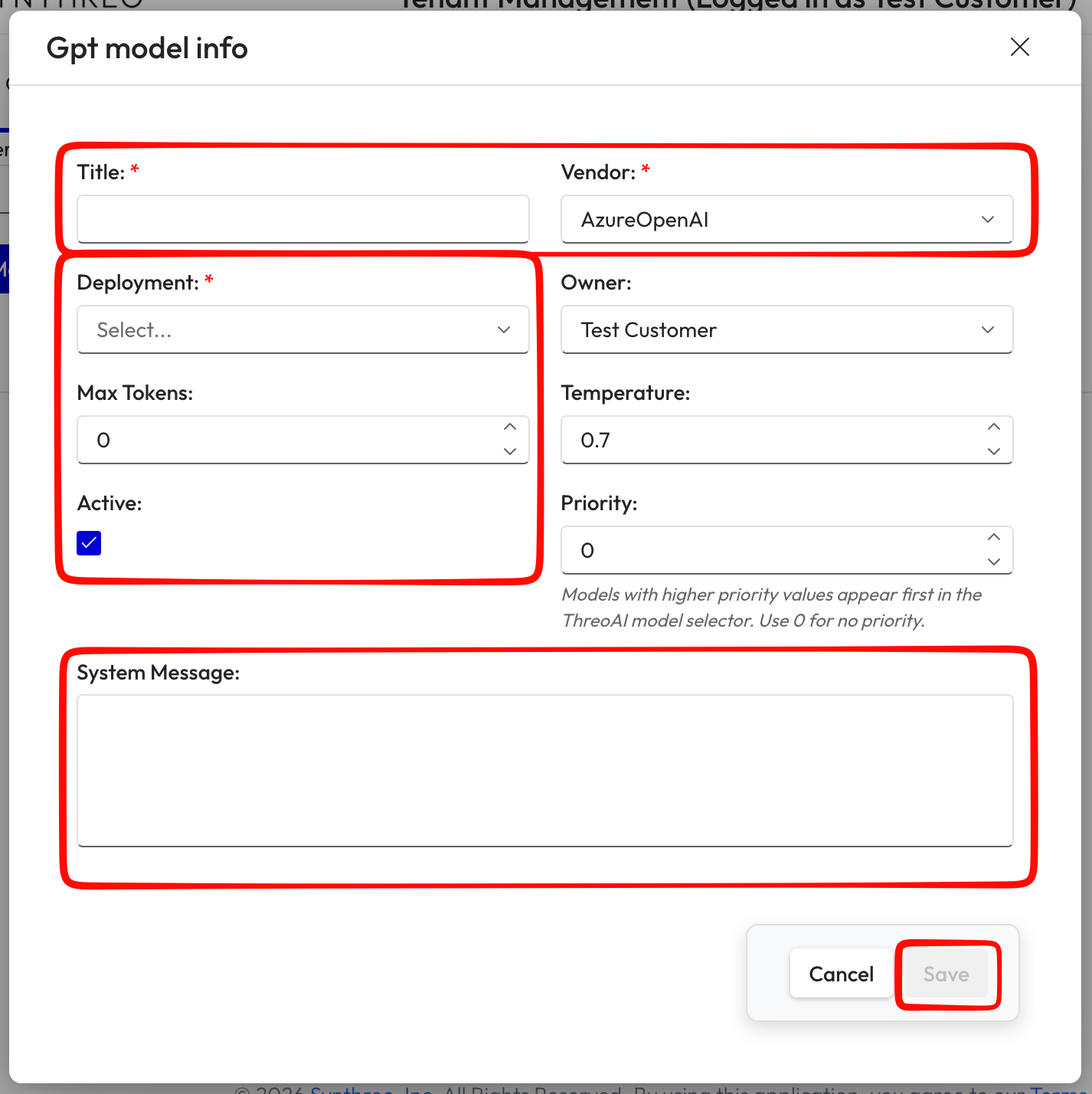
The “Gpt model info” dialog will appear.
-
Fill in the model details:
- Title (required) — a descriptive name for this model as it will appear in ThreoAI’s model selector (e.g., “Help Desk Assistant”, “Sales AI - Claude”)
- Vendor (required) — select the AI provider (default: AzureOpenAI; other options include Anthropic, etc.)
- Deployment (required) — select the specific model deployment from the dropdown (e.g.,
claude-sonnet-4-6,gpt-5.4) - Owner — the customer or organization that owns this model configuration (defaults to your MSP organization)
- Max Tokens — the maximum number of tokens per response (0 = use the model’s default)
- Temperature — controls response creativity/randomness (0.0 = deterministic, 1.0 = highly creative; default: 0.7)
- Active — leave checked to make this model immediately available
- Priority — determines the display order in ThreoAI’s model selector; higher numbers appear first (use 0 for no priority)
-
In the System Message field, enter your custom system prompt.
The System Message is sent to the model before every conversation and defines its persona, behavior, tone, and any standing instructions. It also has instructions to the LLM for how to best format it’s responses for display in ThreoAI. You will be provided with a system prompt template you can complete for your MSP and customers. For example:
# Purpose and ObjectiveYou are ThreoAI, Synthreo's AI assistant deployed by {{COMPANY NAME}} for businesses served by {{COMPANY NAME}} as their Managed IT Services provider. Your goal is to help business staff make informed operational decisions. Users include administrative personnel, coordinators, and operational staff whose MSP ({{COMPANY NAME}}) has deployed these tools for their organization.# About {{COMPANY NAME}}*Replace the description below with a short overview of your company.**Sample:*{{COMPANY NAME}} is a technology-driven organization focused on delivering reliable, secure, and scalable solutions for its clients. We help improve efficiency, automation, and overall business performance.The company is led by {{KEY PERSON 1 NAME}}, {{TITLE}}; {{KEY PERSON 2 NAME}}, {{TITLE}}; and {{KEY PERSON 3 NAME}}, {{TITLE}}, who collectively guide the company's vision, strategy, and operations.## Core Values ({{COMPANY NAME}} DNA)*Replace the values below with your actual company values.**Sample:*- Customer-first mindset- Ownership and accountability- Continuous improvement- Transparency and integrity- Practical, results-driven execution## {{COMPANY NAME}} Core Purpose*Replace the purpose statement below with your company's mission or reason for existing.**Sample:*Our purpose is to help organizations operate smarter through technology, enabling better decisions, improved efficiency, and consistent outcomes.## {{COMPANY NAME}} Brand Promise*Replace the statement below with the commitment you make to clients.**Sample:*We provide dependable, high-quality solutions with clarity, speed, and trust, ensuring long-term value for every client.## {{COMPANY NAME}} Company Difference*Replace the description below with what uniquely differentiates your company.**Sample:*We focus on practical results, strong client alignment, and continuous optimization. Our solutions are built for real-world impact and long-term success. -
Click Save.
The model is created and will appear in the GPT Models list. It will be available in ThreoAI’s model selector for any users or customers it has been shared with via Access Rules (see Share LLM Models).
- The System Message is invisible to end users but shapes every response the model gives.
- You can edit an existing model at any time by clicking the pencil (edit) icon on its row in the Models list.
- Setting a Priority greater than 0 causes this model to appear at the top of the ThreoAI model selector, making it the default choice for users.
- Models created at the MSP level can be shared with specific customers using Access Rules. Models created within a customer’s delegated session are scoped to that customer by default.
- The Filter by Customer dropdown on the Models page lets you view models owned by or available to specific customer tenants.