

Using a Custom GPT in ThreoAI
How to find and use a Custom GPT in ThreoAI - open a GPT from your list or the Marketplace, use conversation starters, attach files, switch models, and get the best results from purpose-built AI assistants.
Overview
Section titled “Overview”Custom GPTs are AI assistants built with a specific purpose, persona, and knowledge base. They behave like a regular ThreoAI chat but are tuned to a particular role - such as a policy compliance assistant, IT support helper, helpdesk ticket classifier, resume screener, or document reviewer. The GPT’s creator defines its behavior through a GPT Instruction Prompt (system prompt), optionally uploads Training Documents as a knowledge base, and can configure conversation starters that guide users toward the GPT’s intended use cases.
You can use Custom GPTs you have created yourself, as well as ones shared with you by your organization through administrator-configured access rules. Both types appear in your My GPTs list and function identically in conversation.
Finding a Custom GPT
Section titled “Finding a Custom GPT”There are two places to find and launch Custom GPTs in ThreoAI: your personal My GPTs list and the organization-wide Marketplace.
From My GPTs
Section titled “From My GPTs”The My GPTs section in the left sidebar provides quick access to all Custom GPTs available to you - both ones you have created and ones that have been shared with you.
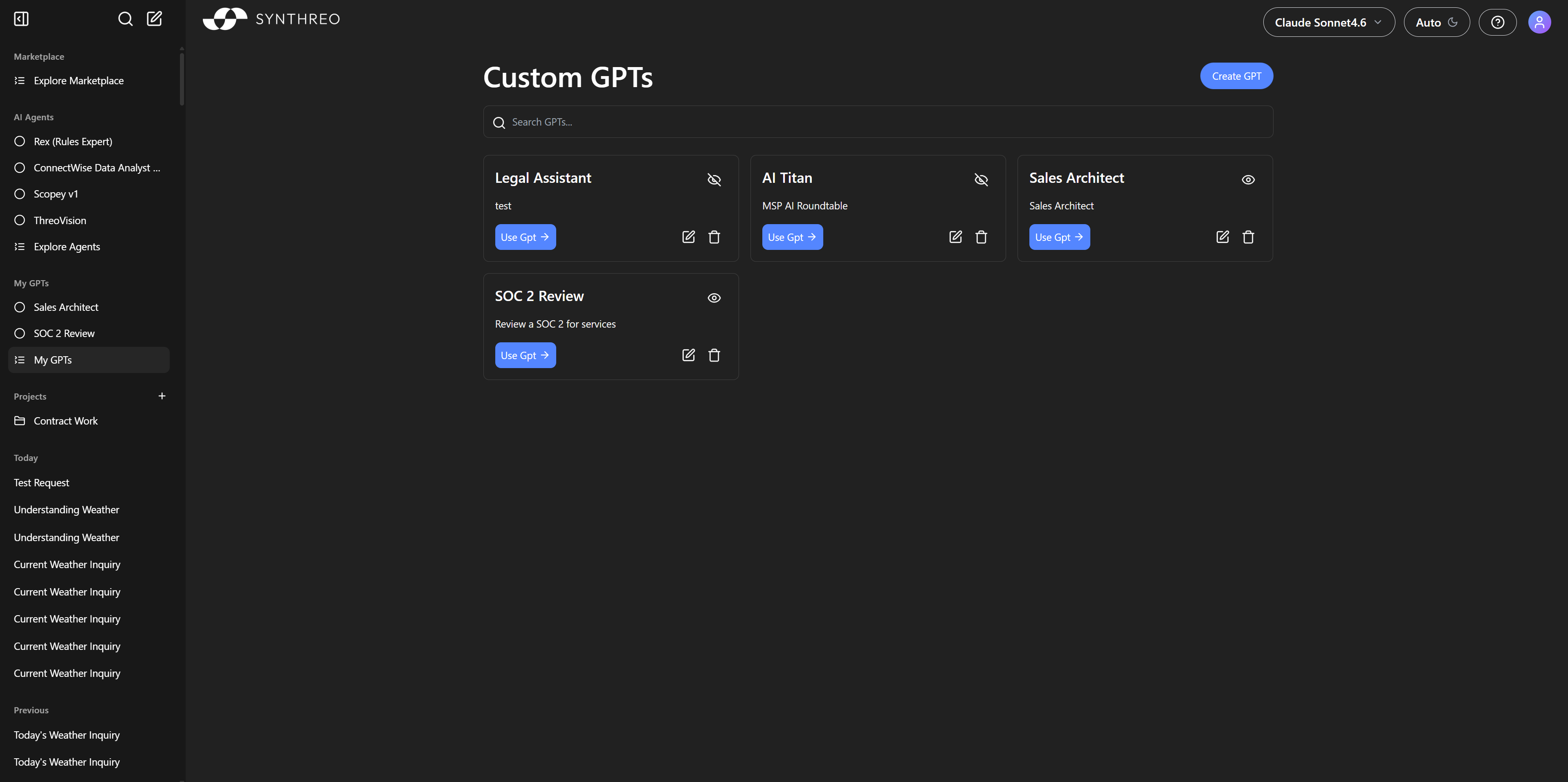
- In the left sidebar, click My GPTs at the bottom of the My GPTs section (or navigate directly to
#/my-gptsin your browser). - The My GPTs page displays a card for each Custom GPT available to you. Each card shows the GPT’s name, icon, and description.
- On each card, you will see these controls:
- Use Gpt - Click to open a conversation with this GPT immediately.
- Edit icon (pencil) - Opens the GPT configuration dialog so you can modify its name, instructions, training documents, actions, or sharing settings. This icon only appears for GPTs you own.
- Delete icon (trash) - Permanently removes the GPT. This icon only appears for GPTs you own.
- Visibility icon (eye) - Indicates whether the GPT is Private (eye with slash) or Shared (eye). This is a visual indicator, not a clickable toggle on this page.
- Click a GPT card or its Use Gpt button to open it and start a conversation.
From the Marketplace
Section titled “From the Marketplace”Custom GPTs that have been shared organization-wide by your administrator appear in the Marketplace alongside AI Agents. This is useful for discovering GPTs created by other users in your organization that you may not have known about.
- Click Explore Marketplace in the left sidebar (or navigate to
#/marketplace). - Use the Custom GPTs filter tab at the top of the Marketplace page to browse only Custom GPTs, hiding AI Agents.
- Click any GPT card to view its detail panel, which includes the GPT’s name, description, creator attribution, and a Start Chat button.
- Click Start Chat to open a conversation with that GPT.
For more details on browsing and using the Marketplace, see ThreoAI Marketplace.
Starting a Conversation with a GPT
Section titled “Starting a Conversation with a GPT”When you open a Custom GPT (either from My GPTs or the Marketplace), the chat interface loads with the GPT’s identity and configuration active.
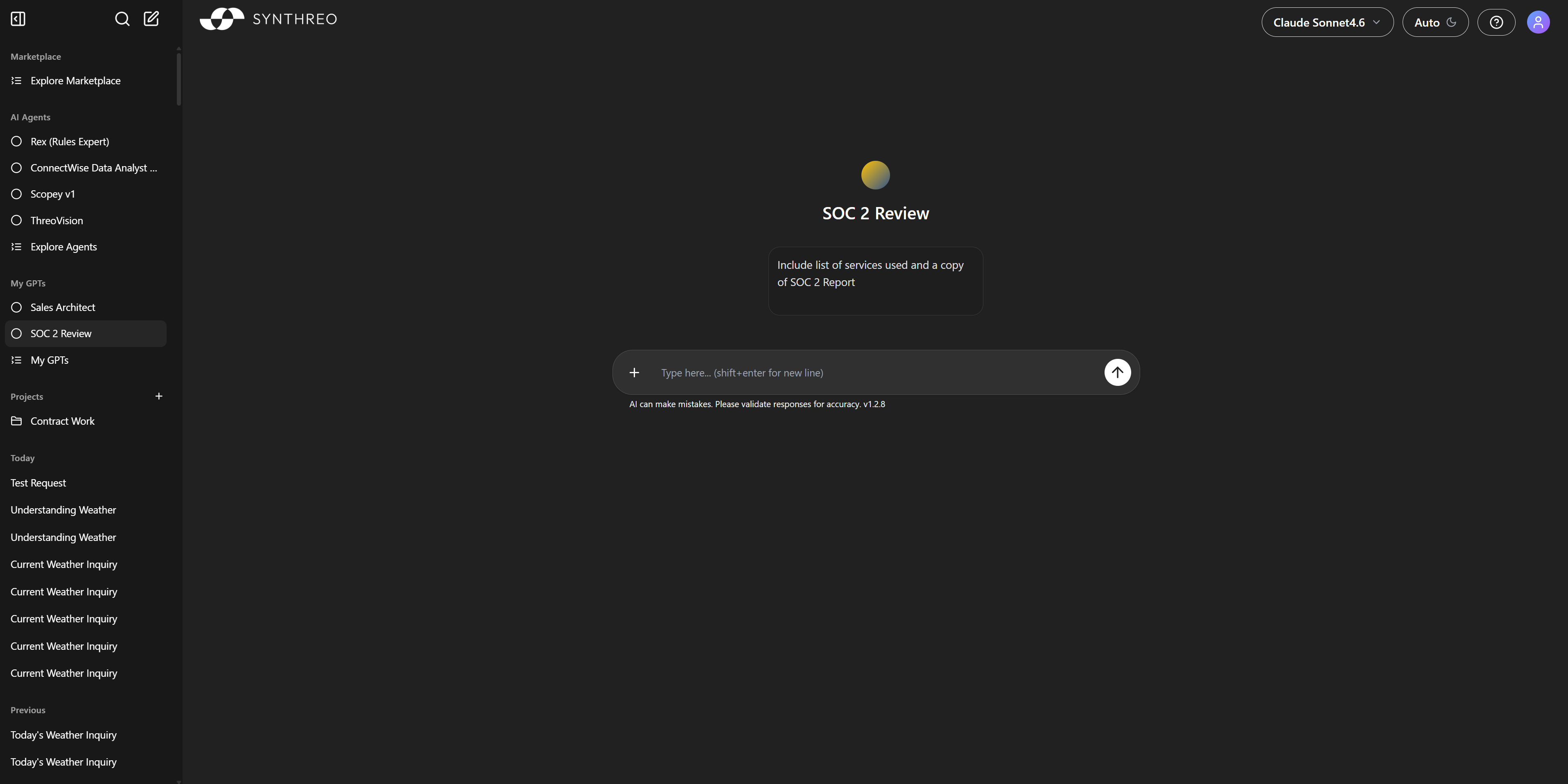
You will see the following elements on the GPT’s chat page:
- The GPT’s name and icon appear at the top of the chat area, identifying which GPT you are currently interacting with.
- Any Conversation Starters configured by the GPT’s creator appear as clickable suggested prompts below the GPT’s name. These are pre-written questions or instructions designed to demonstrate the GPT’s capabilities and help you get started quickly. Click any conversation starter to send it as your first message immediately.
- The standard chat input bar at the bottom of the screen, where you can type your own custom message instead of using a conversation starter.
To begin your conversation, either click one of the conversation starters or type your own message in the chat input and press Enter. The GPT responds according to its custom instructions, persona, and knowledge base.
Continuing the Conversation
Section titled “Continuing the Conversation”After your initial message, you can continue the conversation naturally with follow-up questions and messages. The GPT maintains context throughout the conversation, remembering what you have discussed earlier in the session. This allows you to have multi-turn conversations where you build on previous responses, ask for clarification, or drill deeper into a topic.
Getting the Best Results from a Custom GPT
Section titled “Getting the Best Results from a Custom GPT”Custom GPTs are designed and optimized for specific use cases. The quality of the responses you receive depends in part on how well your prompts align with the GPT’s intended purpose. Here are strategies for getting the most accurate and useful responses:
-
Use the conversation starters if they are present. These are specifically designed by the GPT’s creator to showcase what the GPT does best. They demonstrate the types of questions and tasks the GPT is optimized to handle, and they give you a quick way to see the GPT in action before writing your own prompts.
-
Stay on topic with the GPT’s purpose. A Custom GPT built for HR policy questions will perform best when asked HR-related questions. A GPT designed for IT support ticket classification will work most reliably when given support tickets to categorize. If you ask a GPT about topics outside its designed scope, the quality and accuracy of responses may decline because the GPT’s instruction prompt and knowledge base are not tailored for those topics.
-
Provide specific context in your prompts. If the GPT has Training Documents uploaded as a knowledge base, reference specific documents or topics to help the GPT focus its response. For example, instead of asking “What is the equipment policy?” try asking “Based on the onboarding guide, what is the process for requesting equipment?” This directs the GPT to the relevant document and produces a more targeted answer.
-
Attach files to the conversation. You can attach files to a Custom GPT conversation the same way you would in a regular ThreoAI chat - click the + button in the chat input bar and select Attach files. This is useful when you want the GPT to analyze, summarize, or answer questions about a specific document that is not part of its permanent Training Documents. Supported file types include PDF, DOCX, TXT, PPTX, images, XLSX, and CSV.
-
Be explicit about what you need. Instead of sending a vague message like “help with this,” specify exactly what you want: “Summarize the key findings in this report” or “Classify this support ticket according to the SOP categories.” Clear, specific prompts produce better results, especially with GPTs that have constraints or rules defined in their instruction prompts.
-
Test with realistic inputs. If you are evaluating a GPT that someone else built, try sending the kinds of messages that real users would send - including incomplete inputs, ambiguous requests, and edge cases. This helps you understand how the GPT handles real-world scenarios and where it might need improvement.
Switching Models Within a GPT Chat
Section titled “Switching Models Within a GPT Chat”The model selector in the top-right corner of the screen remains functional within a Custom GPT conversation. This means you can change the underlying AI model that powers the GPT’s responses without leaving the conversation.
When you switch models within a GPT chat:
- The GPT’s custom instructions, persona, and knowledge base remain exactly the same.
- Only the underlying AI model processing those instructions changes.
- This is useful for comparing how different models interpret the GPT’s persona and handle its specific tasks. For example, you might find that one model gives more concise answers while another provides more detailed explanations for the same GPT configuration.
Note: The GPT creator may have set a preferred model when building the GPT. Switching models in the model selector overrides this preference for your current session only. It does not permanently change the GPT’s configuration, and other users accessing the same shared GPT are not affected by your model switch.
To switch models:
- Click the model selector dropdown in the top-right corner of the screen.
- Select a different model from the list of available models.
- Continue your conversation. The GPT will now respond using the new model while maintaining its custom instructions and knowledge base.
All Chat Features Work Inside GPT Conversations
Section titled “All Chat Features Work Inside GPT Conversations”Custom GPT conversations support all the same features available in a standard ThreoAI chat:
| Feature | How to Access |
|---|---|
| Attach files | Click + in the chat input bar, then select Attach files |
| Enable web search | Click + in the chat input bar, then select Web Search |
| Compare models | Click + in the chat input bar, then select Compare models |
| Multi-line messages | Press Shift + Enter to add a line break without sending |
| Switch AI models | Use the model selector dropdown in the top-right corner |
Note: Some GPTs may have instructions that restrict certain behaviors. For example, a GPT instruction prompt might say “Do not use the internet” or “Only use uploaded documents.” In these cases, even if you enable web search, the GPT’s instructions may cause it to ignore web results and respond only from its knowledge base. This is by design and reflects the GPT creator’s intent.
Frequently Asked Questions
Section titled “Frequently Asked Questions”Can I edit a Custom GPT that was shared with me? No, you can only edit Custom GPTs that you created. Shared GPTs appear in your My GPTs list for use, but the edit and delete controls are only available to the GPT’s owner. If you believe a shared GPT needs changes, contact the GPT’s creator or your organization’s administrator.
Why does a GPT give different answers than a regular chat? Custom GPTs have a GPT Instruction Prompt (system prompt) that defines their behavior, constraints, and persona. This instruction prompt shapes every response the GPT gives. A regular ThreoAI chat does not have these custom instructions, so the same model may respond differently depending on whether it is operating as a plain chat or as a configured GPT.
Can I use a Custom GPT inside a Project? Custom GPT conversations are separate from Project workspaces. When you click a Custom GPT to start a conversation, it opens in its own dedicated chat context. If you want to use a GPT for work related to a project, you can start the GPT conversation separately and copy relevant outputs into your project conversations as needed.
What happens if the GPT creator deletes a shared GPT? If a Custom GPT that was shared with you is deleted by its creator, it will no longer be accessible. You will not be able to start new conversations with it, though any existing conversation history from past sessions may still be visible in your chat history.
Related
Section titled “Related”- Creating a Custom GPT - build your own Custom GPT with instructions, training documents, and actions
- Sharing a Custom GPT - how to make a GPT available to other users in your organization
- ThreoAI Marketplace - browse and discover AI Agents and shared Custom GPTs
- Uploading and Working with Files - attach files to GPT conversations for analysis
- AI Model Comparison - compare how different models handle the same prompt