

Adding a New User
How to add new users in Synthreo — invite and configure user accounts in parent tenant or child customer instances, assigning roles and application access permissions.
This guide explains how to add new users to both parent tenant instances and child customer instances in Synthreo’s Tenant Management portal, assign permissions, and ensure they can access the correct applications.
🏢 Adding a User (Parent Tenant)
Section titled “🏢 Adding a User (Parent Tenant)”📋 Prerequisites
Section titled “📋 Prerequisites”- Access to Tenant Management portal with appropriate permissions
- User’s email address
- User’s first and last name
🛠️ Steps
Section titled “🛠️ Steps”- Go to Tenant Management: https://admin.synthreo.ai/#/login
- Click User Management in the sidebar.
- Click the Add User button at the upper-right corner.
- Enter:
- User Email (also used as the username)
- First Name
- Last Name
- Click Save to create the account.
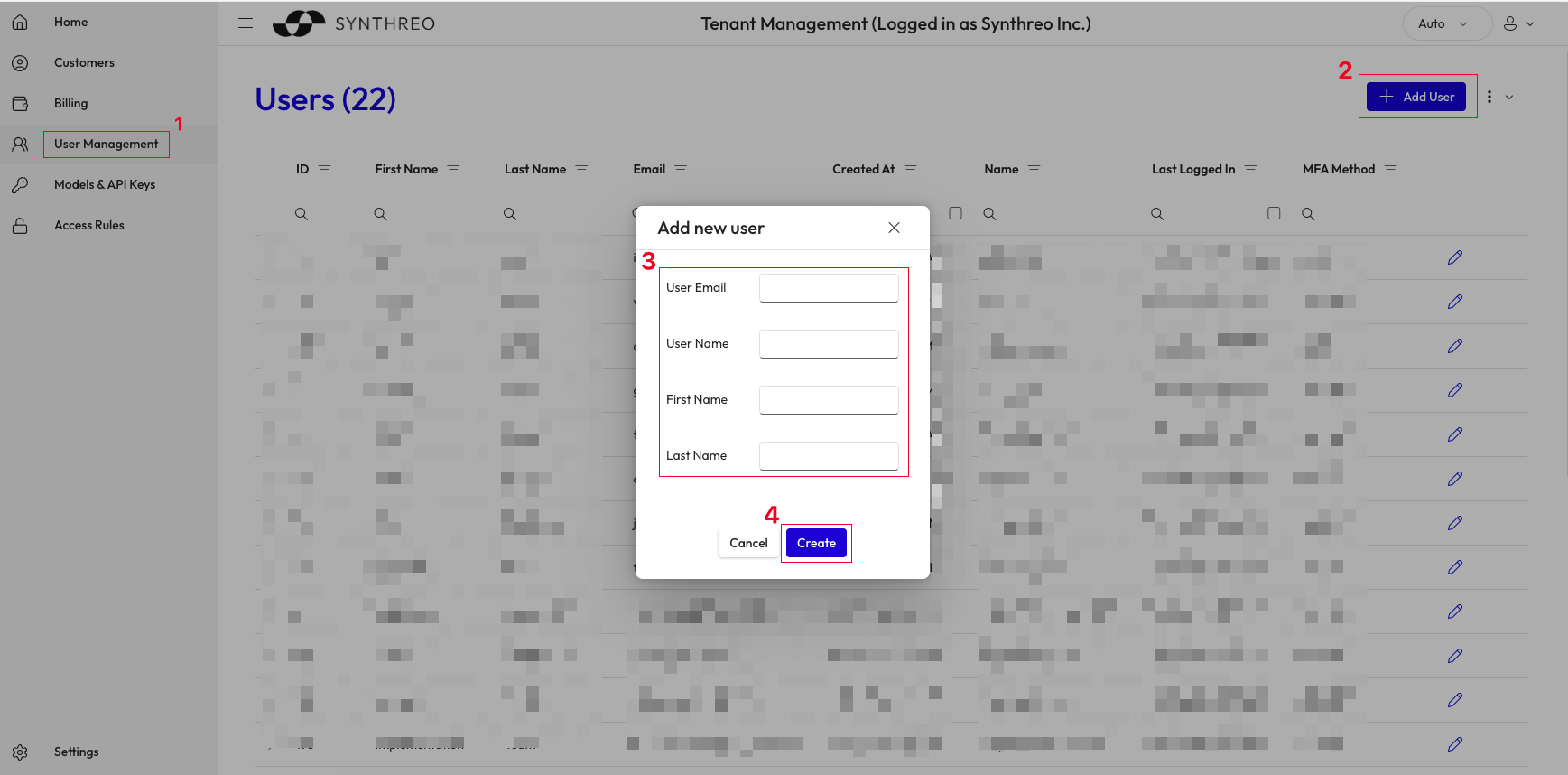
Note: Upon creation, the user automatically receives ThreoAI app permission. You can add more permissions as needed.
🏢 Adding a User to a Child Customer
Section titled “🏢 Adding a User to a Child Customer”📋 Prerequisites
Section titled “📋 Prerequisites”- Access to Tenant Management portal with permissions to manage customer tenants
- User’s email address
- User’s first and last name
🛠️ Steps
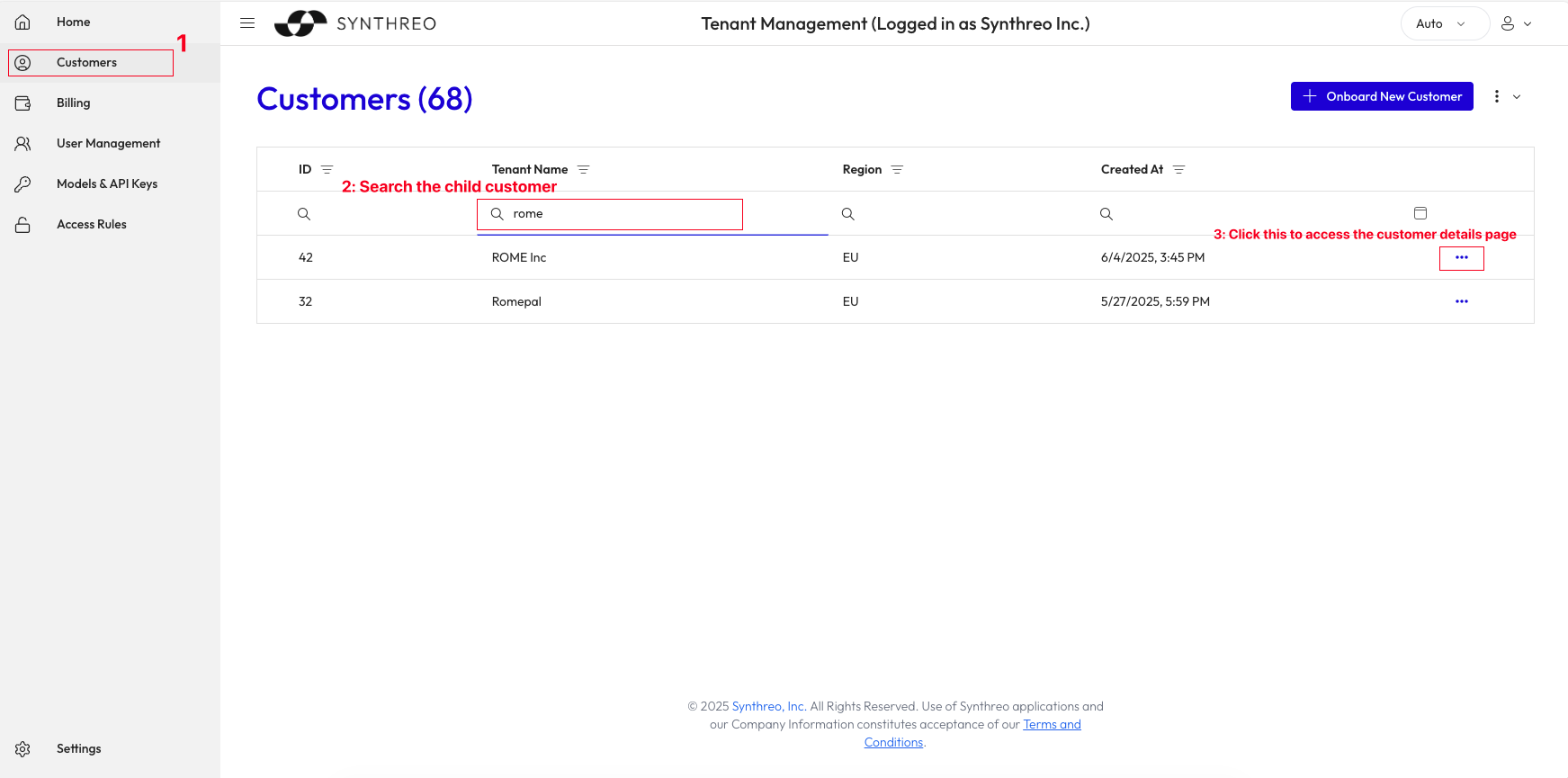
Section titled “🛠️ Steps”- In Tenant Management, click Customers in the sidebar.
- Search for the tenant name of the child customer.
- Click the meatballs menu (three dots) to access the customer detail page.
- Go to the Users tab.
- Click Add User and enter:
- User Email (also used as the username)
- First Name
- Last Name
- Click Save to create the account.
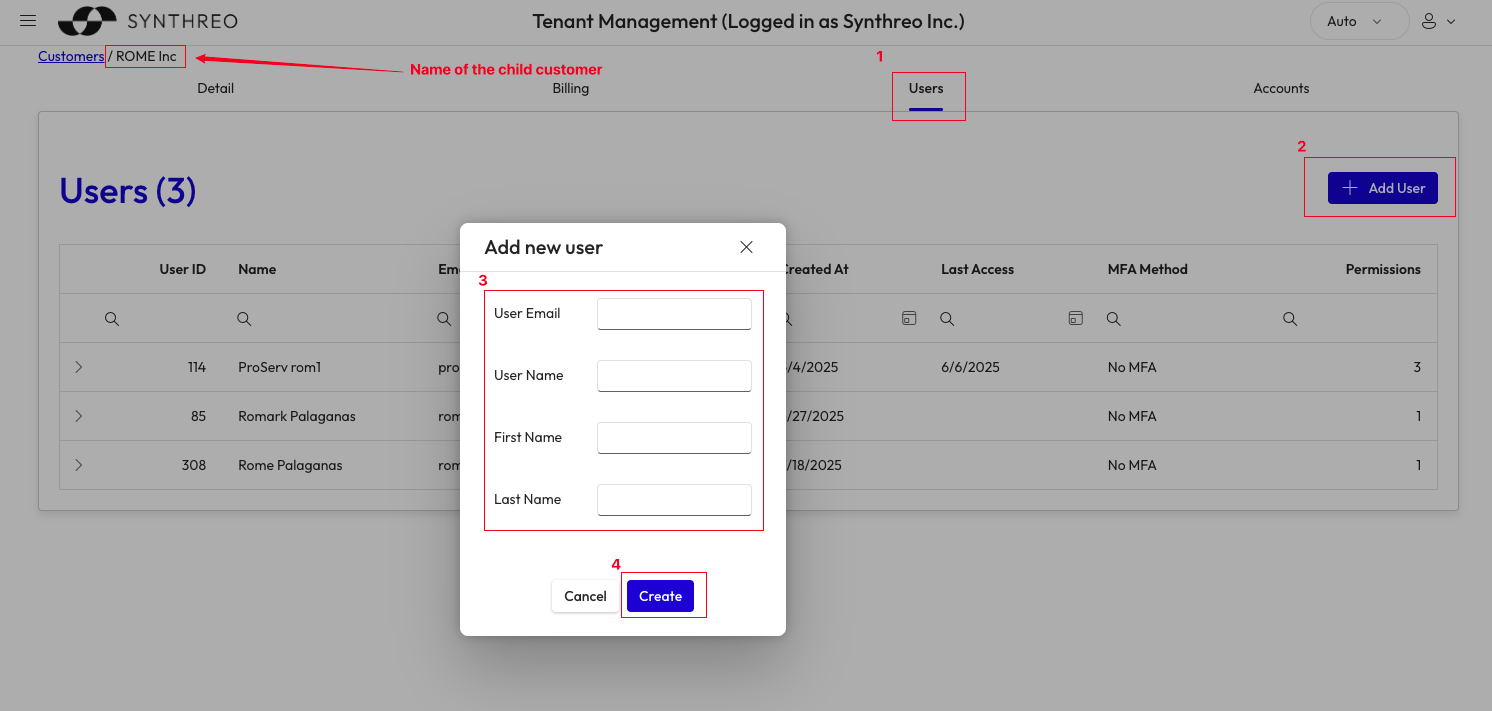
Note: Upon creation, the user automatically receives ThreoAI app permission. You can add more permissions as needed.
🔑 User Permissions
Section titled “🔑 User Permissions”| Application | Purpose |
|---|---|
| Tenant Management | Manage users and customer settings |
| Builder | Create and manage AI agents |
| ThreoAI | Use AI chat and custom GPTs |
📬 What Happens Next
Section titled “📬 What Happens Next”- The new user receives a welcome email with setup instructions.
- The setup link is valid for 7 days.
- After completing setup, the user can access assigned applications immediately.
📧 Resending a Welcome Email {#resend-email}
Section titled “📧 Resending a Welcome Email {#resend-email}”🔄 For Parent Tenant Users {#parent-customer-resend}
Section titled “🔄 For Parent Tenant Users {#parent-customer-resend}”- Go to Tenant Management: https://admin.synthreo.ai/#/login
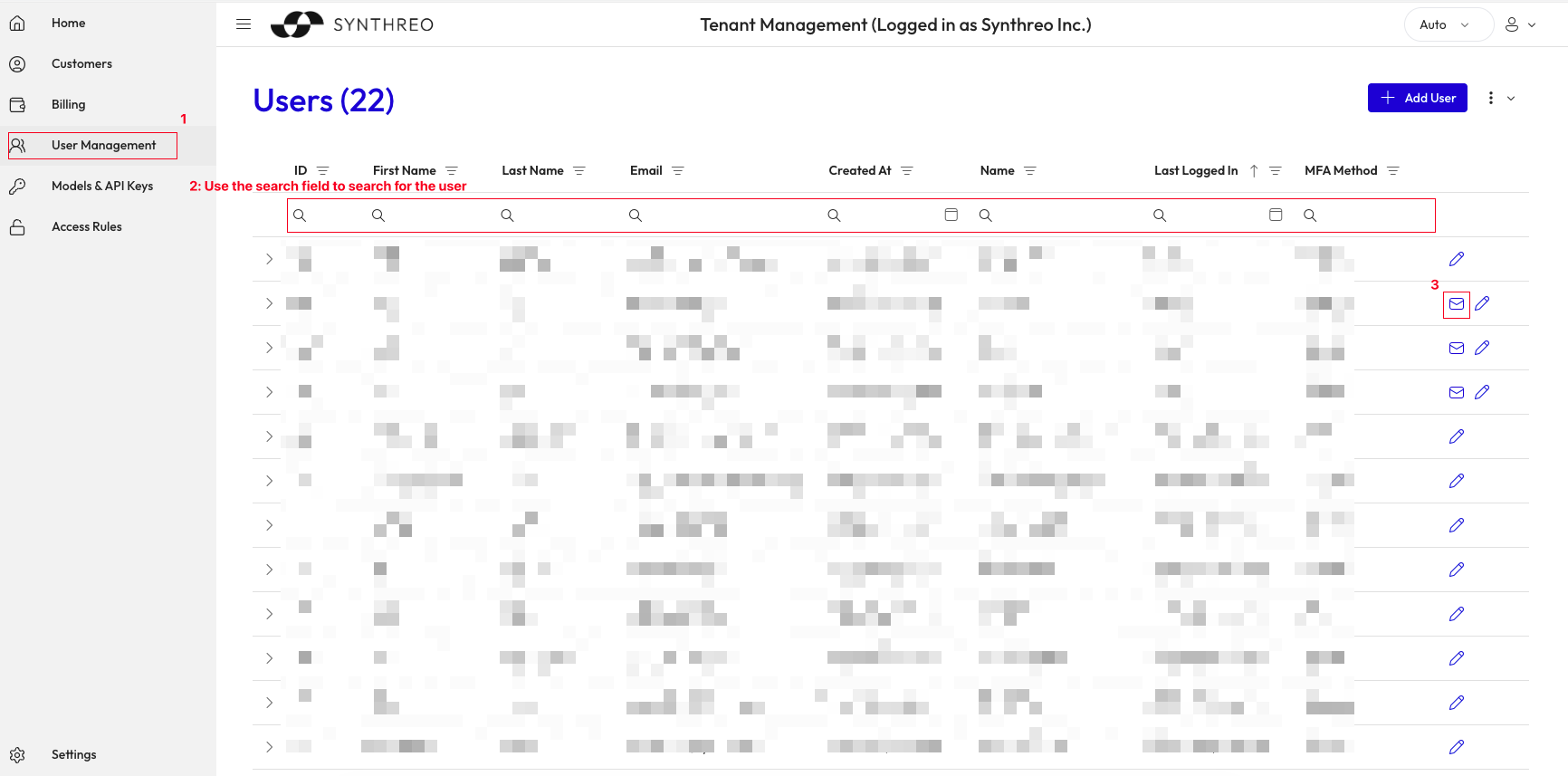
- Click User Management in the sidebar.
- Locate the user in the list.
- Click the envelope icon.
🔄 For Child Customer Users / Access Child Customer’s Tenant Management {#child-customer-resend}
Section titled “🔄 For Child Customer Users / Access Child Customer’s Tenant Management {#child-customer-resend}”- In Tenant Management, click Customers in the sidebar.
- Search for the tenant name of the child customer.
- Click the meatballs menu (three dots) to access the customer detail page.
- Go to the Accounts tab.
- Locate the Tenant Management in the list.
- Click the eye icon beside the user’s name.
You will then see a new window for tenant management for that child customer. Follow the same steps as in ‘For Parent Tenant Users’ to resend the welcome email.
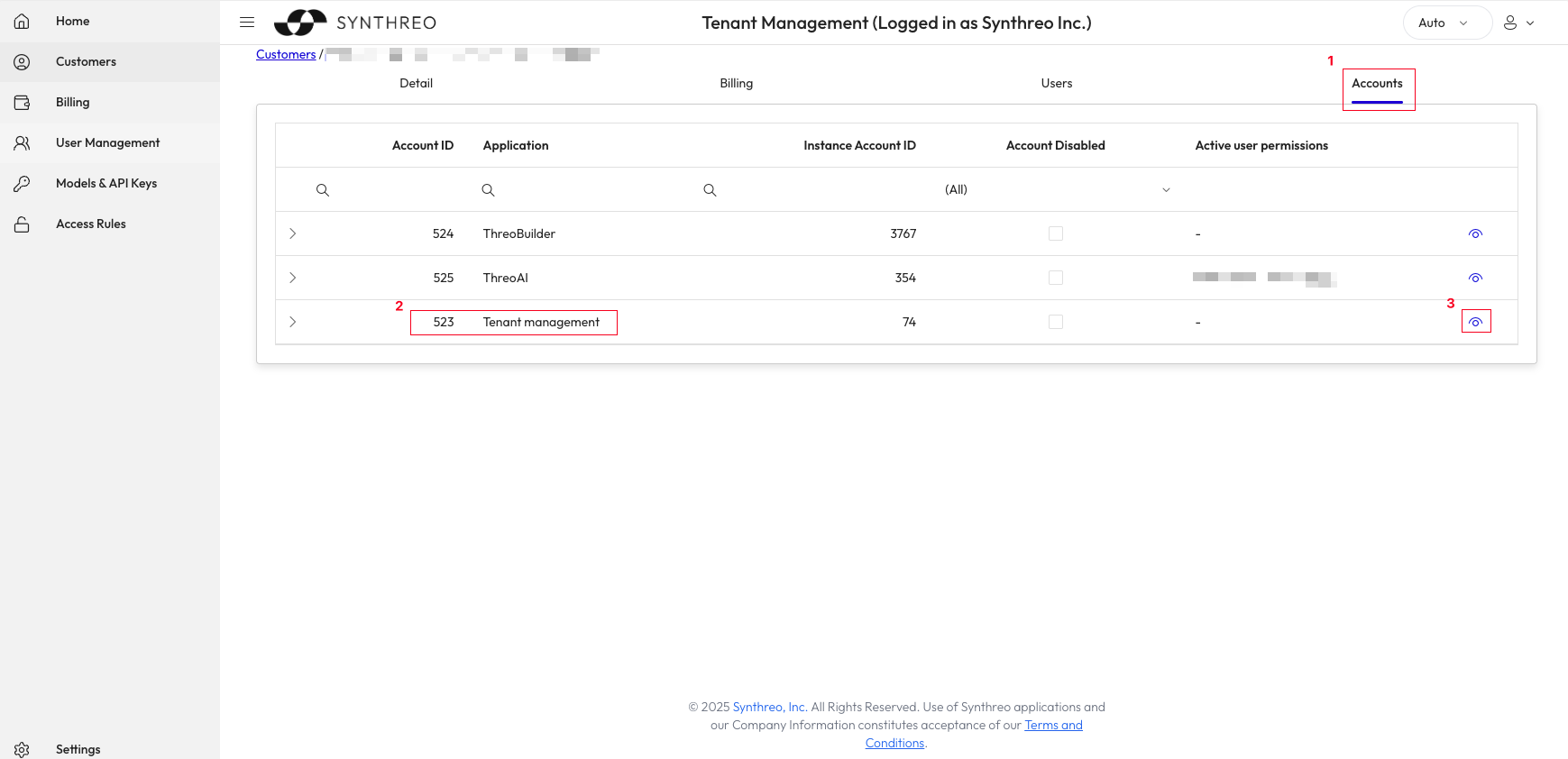
Note: If the user does not have the envelope icon, it means they have already set their password.
🛠️ Troubleshooting
Section titled “🛠️ Troubleshooting”If the setup email is not received:
- Check Spam/Junk folder.
- Verify the email address entered is correct.
- Resend the welcome email by following the steps here.
- Contact Synthreo Support if the issue persists at help@synthreo.ai.
:::tip Best Practice Use the user’s email address as both their email and username to maintain consistency. :::